
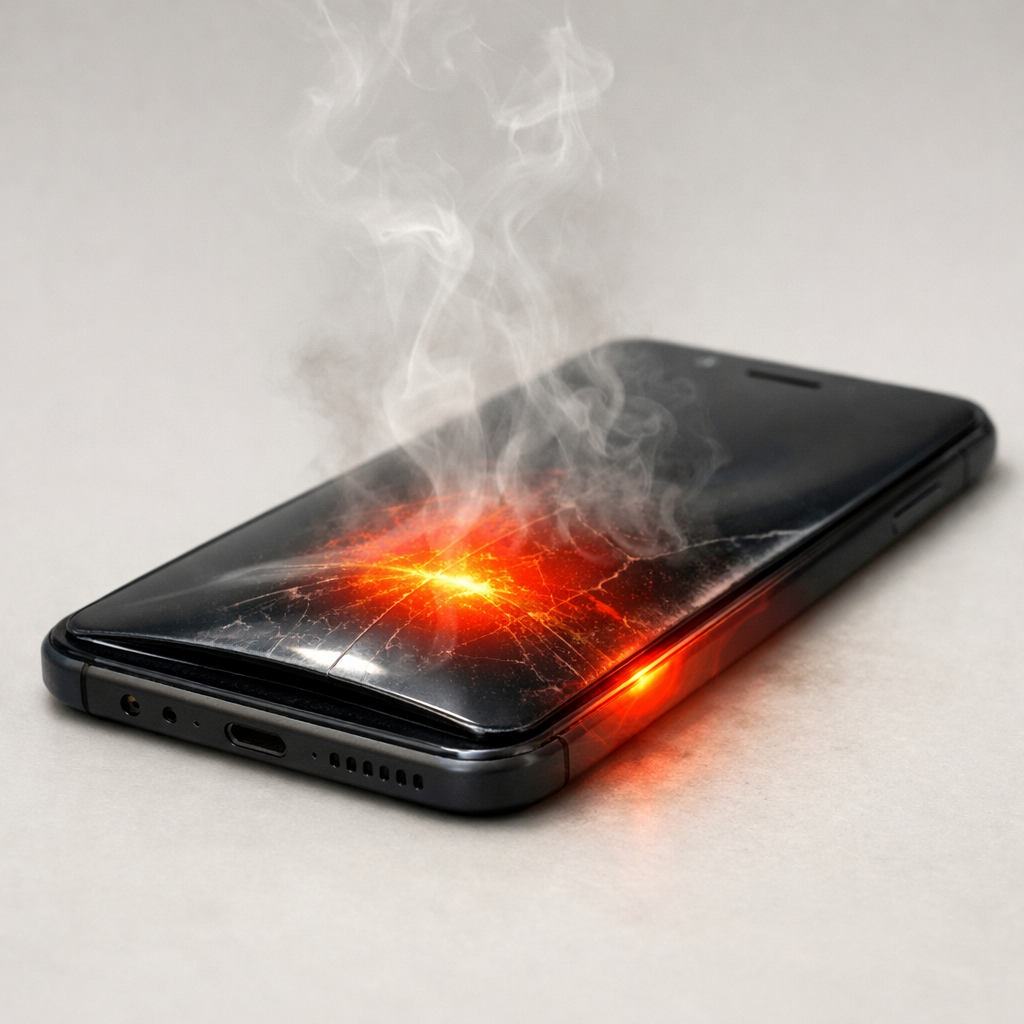
Device Battery Overheating Issue — Causes, Risks, and Safe Fixes
Quick Answer
The most common reason a device battery overheats while the percentage jumps, drops, or feels “wrong” is a voltage sensor miscalibration. The device guesses battery level from voltage, but when the sensor or calibration data is off, it can misread the true charge and push charging or performance harder than it should.
In many cases this starts after a major update, battery replacement, long storage, or months of only short top-ups. If it’s only calibration drift, you may see improvement within a few days after correcting charging habits, but persistent heat over a week needs closer checks.
If you need a fast fix
- Stop charging and let the device cool down for 20–30 minutes on a hard surface, away from sunlight and pillows.
- Restart the device and avoid heavy apps (gaming, video calls, hotspot) until temperatures feel normal.
- Use the original charger or a reputable certified one, and plug directly into a wall outlet (skip cheap hubs and mystery cables).
Quick Diagnosis Table
| Symptom | Most likely cause |
|---|---|
| Battery percentage jumps (for example 62% to 48%) and the device feels hot | Voltage sensor miscalibration causing the system to misjudge charge and charging behavior |
| Device heats up mostly while charging, especially past 80% | Charging control fighting inaccurate readings, plus normal taper charging generating extra heat |
| Shuts down at 20–40% or jumps to 1% suddenly | Miscalibrated voltage curve or degraded cells that sag under load |
| Gets hot during light use but battery drain looks “erratic” | Battery management data out of sync, background activity, or a recent OS update re-indexing |
| Only overheats with one charger/cable | Bad cable/charger causing unstable power delivery or higher resistance heating |
Why This Happens
Your device doesn’t magically “know” the battery percentage. It estimates it by measuring battery voltage and combining that with learned data about how your battery behaves at different charge levels.
When the voltage sensor is miscalibrated, the device may think the battery is lower than it really is, so it keeps charging aggressively or allows higher performance to “catch up.” Or it may think it’s fuller than it is, then suddenly drops the percentage when the voltage dips under real load.
That mismatch can create a cycle: unstable readings lead to unstable charging or power use, which creates extra heat, which then makes voltage readings even less stable.
Most Common Causes (Ranked)
- 1) Voltage sensor miscalibration (battery gauge out of sync): The percentage is based on voltage and learned curves, and those can drift. The device may overwork charging or mis-handle high load, leading to heat and sudden percentage changes.
- 2) Lots of partial charges with no full charge cycle: Constantly charging from 40% to 70% can prevent the gauge from “relearning” accurate endpoints. The result is jumpy readings and occasional overheating during charging transitions.
- 3) Charger/cable/power source issues: Poor-quality cables and chargers can deliver unstable current or cause extra resistance, which generates heat at the port and in the charging circuit. This can also confuse battery estimates.
- 4) Background activity after updates or restores: System updates, photo indexing, encryption, or app restores can spike CPU use while charging, compounding heat. When the device is hot, the battery voltage behavior changes and the gauge can be less accurate.
- 5) Battery aging or cell imbalance: As batteries wear, voltage sags more under load. The gauge may “think” charge disappeared and then reappear, and the battery can heat faster under the same workload.
- 6) Environmental heat and poor airflow: Charging on a bed, in a car, or under a case traps heat. Higher temperature changes the voltage curve, making miscalibration symptoms more obvious.
If your overheating becomes less frequent and the percentage becomes steadier over several charge cycles, that usually indicates calibration drift rather than serious hardware failure.
How to Check the Problem Safely
- Check 1: Feel where the heat is strongest: near the battery area is different from heat concentrated at the charging port or adapter. Port/adapter heat often points to cable or charger problems.
- Check 2: Try a known-good charger and cable for one full session. If the device stays cooler and the percentage behaves better, your original accessories or power source may be the trigger.
- Check 3: Watch for repeatable “jump points,” like always dropping around 35% or spiking while charging at 90%. Repeatable jumps strongly suggest gauge calibration or battery wear.
- Check 4: Check battery/usage stats in settings and look for one app using unusually high battery in the background. A runaway app can create heat that looks like a battery problem.
- Check 5: Remove thick cases during charging and test on a hard surface in a cool room. If overheating stops, trapped heat was amplifying the issue.
If the device is too hot to comfortably hold, stop charging and power it down until it cools to avoid further stress.
How to Fix It
- Fix 1 (easiest): Cool-charging setup: remove the case, charge on a hard surface, and avoid using the device while charging. Lower heat helps voltage readings stabilize and reduces charging stress.
- Fix 2: Use one reliable charger/cable and stop “charger hopping” for a week. Consistent power delivery makes it easier for the battery gauge to relearn stable behavior.
- Fix 3: Do a safe calibration cycle once or twice: charge to 100%, keep it plugged in for about 30–60 minutes, then use it normally down to around 10–15%, and charge back to 100% without interruption. This helps the gauge re-sync with real endpoints without pushing deep discharge.
- Fix 4: Update the OS and key apps, then restart. Firmware updates often include battery gauge and charging control tweaks, and a restart clears stuck background processes that create heat.
- Fix 5 (advanced/last resort): Back up your data and perform a reset or clean restore if the problem began after a major update and persists despite stable charging habits. A clean system can fix corrupted power-management data that keeps the gauge inaccurate.
Signs of Battery or Hardware Damage
- Battery area bulging, screen lifting, or a case that no longer fits properly.
- Strong chemical or “sweet/metallic” smell, or visible smoke.
- Device becomes extremely hot within minutes even during light use or while idle.
- Unexpected shutdowns multiple times per day, especially at higher percentages like 50–80%.
- Charging only works at certain angles, the port gets very hot, or you see discoloration near the port.
- Battery drains rapidly even after calibration attempts and a full charge barely lasts.
- Repeated “temperature too high” warnings or charging stops due to heat in normal room conditions.
When Repair Is No Longer Worth It
If the device is old, has a swollen battery, or overheats even with a known-good charger and minimal use, replacement is often safer than repeated troubleshooting. Heat plus unstable battery behavior can indicate aging cells or charging-circuit issues that won’t improve with calibration.
As a rule, consider repair if a battery replacement is reasonably priced compared to the device’s current value and you otherwise like its performance. Consider replacement if the cost approaches a large fraction of a newer model, or if there are multiple issues (battery plus port plus random shutdowns).
How to Prevent This Problem in the Future
- Keep charging consistent: avoid constant tiny top-ups all day, and occasionally let the battery run down to around 15–20% before charging back up.
- Use quality chargers and cables that match your device’s supported charging standards to avoid unstable power delivery.
- Reduce heat while charging: remove thick cases, avoid charging on fabric, and keep the device out of hot cars and direct sun.
- Enable optimized charging (if available) so the device spends less time sitting at 100% and generating extra heat.
- After major updates or a battery replacement, expect a few days of “learning” and keep usage moderate while the battery gauge re-stabilizes.
- Don’t game or stream high-resolution video while fast charging; heavy load plus charging is a common overheating combo.
- Store devices around 40–60% charge if you won’t use them for weeks, since long storage at 0% or 100% can worsen gauge drift and battery wear.
FAQ
Why does my battery percentage jump around and the phone gets hot?
Jumpy percentages often happen when the voltage sensor and battery gauge are out of calibration. The device misreads true charge, then corrects suddenly when voltage changes under load or during charging. Heat makes voltage behavior less predictable, so the problem can look worse when the device is warm.
Is it safe to keep using a device that overheats while charging?
Mild warmth can be normal, but repeated overheating is not something to ignore. Stop charging if it becomes too hot to hold, shows temperature warnings, or the percentage behaves wildly. Continuing to charge while overheated can accelerate battery wear and, in rare cases, lead to battery damage.
Will a calibration cycle fix overheating permanently?
A calibration cycle can stabilize readings when the main issue is gauge drift, and that can reduce heat caused by confused charging behavior. If the battery is aging, the charger is unstable, or there is hardware damage, calibration may only help briefly or not at all. If symptoms persist after one to two weeks of consistent charging with a good charger, a battery health check or repair is the next step.
For a clearer understanding of battery drain and charging limits, Mark Reynolds focuses on simple, practical fixes that work across most devices. You can also read the complete troubleshooting guide.
For a full overview of this issue and step-by-step solutions, read the complete troubleshooting guide.





