
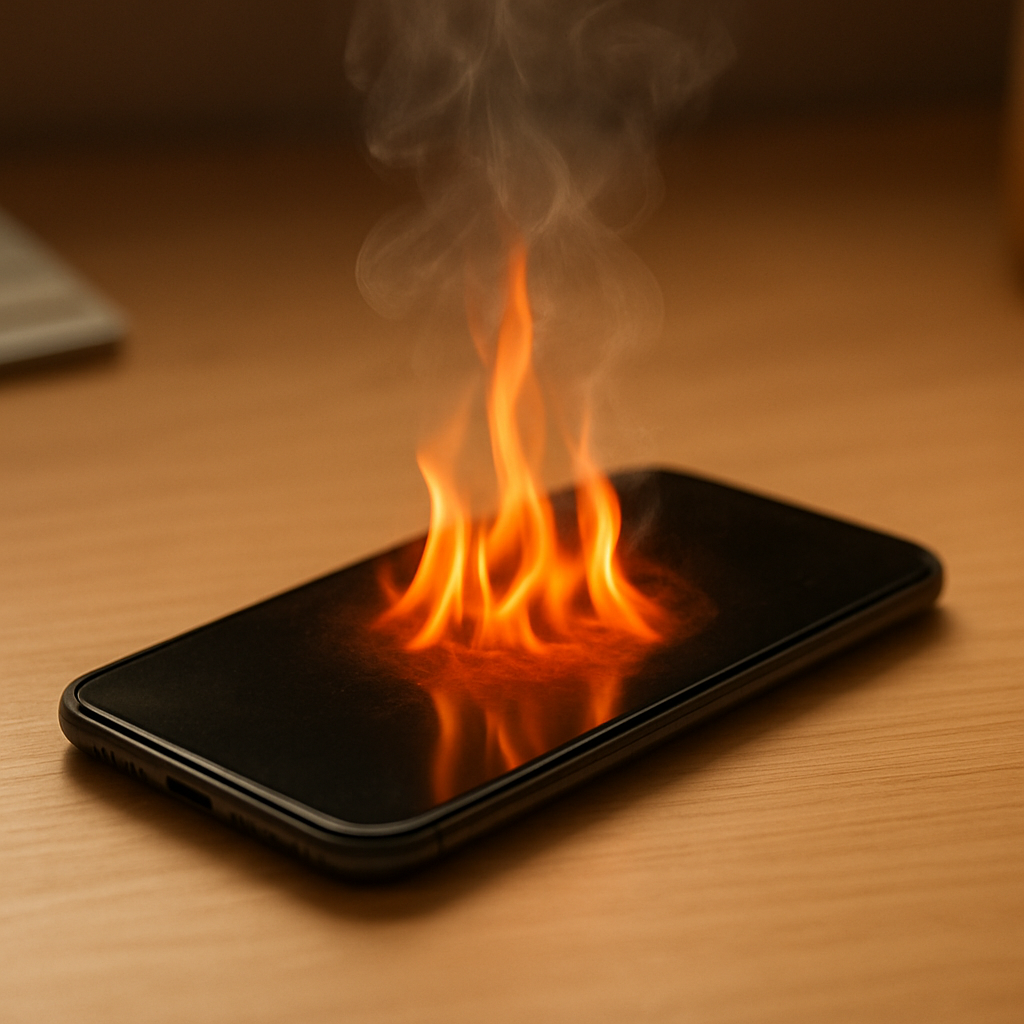
Device Overheating Battery Issue
Quick Answer
Device overheating is usually caused by one of four things: battery stress (an aging or damaged battery working harder), charging faults (bad cable/charger/port causing inefficient charging heat), high CPU or GPU load (apps, updates, gaming, hotspot), or an internal component problem (power-management chip, short, or failing part).
Warmth during charging or heavy use can be normal for 10–30 minutes, but heat that keeps rising, feels too hot to hold, or happens when the device is idle is a safety concern and should be treated as a potential battery or hardware issue.
If you need a fast fix
- Unplug the charger, remove any case, and let the device cool on a hard surface for 10–15 minutes (not on a bed or couch).
- Close heavy apps, turn on Airplane mode (or disable hotspot), and lower screen brightness to reduce CPU and radio heat.
- If it’s still hot, power it off and do not charge it again until it cools and you’ve checked the cable/charger and charging port.
Quick Diagnosis Table
| Symptom | Most likely cause |
|---|---|
| Gets very hot only while charging (especially near the port) | Charging fault: poor cable/charger quality, damaged port, or dirty connector causing resistance and heat |
| Gets hot during gaming, video calls, or while updates run | High CPU/GPU load: normal heat output, worsened by poor airflow or high brightness |
| Gets hot even when idle, or wakes up warm in your pocket | Background app loop, malware, stuck sync, or failing battery causing constant power draw |
| Sudden rapid heating plus fast battery drain | Battery stress or internal power-management issue; sometimes a short or failing component |
| Charging is slow, stops and starts, or the battery percentage jumps | Unstable charge negotiation, charger incompatibility, port damage, or battery health degradation |
Why This Happens
Heat is a byproduct of electricity moving through components. The more power your device uses (CPU, screen, cellular, Wi-Fi, GPS), the more heat it creates, and charging adds even more power flow.
Charging heat gets worse when the connection is inefficient. For example, a bent connector, pocket lint in the port, or a low-quality cable can create higher electrical resistance, which turns more energy into heat instead of charging the battery efficiently.
Battery stress and internal faults also show up as heat. An aging battery may heat up during charge and discharge because it can’t handle current as smoothly, while a failing internal component can cause abnormal current draw that shows up as “hot for no reason.”
Most Common Causes (Ranked)
- 1) High CPU load (apps, games, updates, hotspot): Heavy tasks push the processor and radios harder, which naturally generates heat, especially with high brightness or poor airflow.
- 2) Charging faults (cable/charger/port issues): Damaged or off-brand chargers, frayed cables, or a dirty/loose port can cause inefficient charging that heats the area around the connector and battery.
- 3) Battery stress from age or wear: As batteries degrade, they may run warmer, charge slower, and drop faster, because the chemistry can’t deliver power as efficiently.
- 4) High ambient temperature or blocked ventilation: Direct sun, a thick case, charging under a pillow, or using the device while it charges traps heat and raises internal temperatures quickly.
- 5) Background activity or software issues: A stuck backup, syncing loop, runaway app, or buggy update can keep the CPU active even when the screen is off.
- 6) Internal component failure (power IC, short, swelling battery): Less common but serious, this can create persistent overheating, instability, and safety risks.
If the overheating gradually improves after you reduce load, change the charger, or clean the port, that usually indicates a manageable cause rather than a dangerous hardware failure.
How to Check the Problem Safely
- Check 1: Note when it gets hot: only while charging, only during specific apps, or even when idle. Timing tells you whether it’s load-related, charging-related, or hardware-related.
- Check 2: Feel where the heat is strongest. Heat near the charging port points to cable/charger/port issues, while heat across the back can indicate battery stress or heavy CPU use.
- Check 3: Inspect the charger and cable for kinks, burn marks, looseness, or a connector that wiggles. Try a known-good, brand-name charger and cable with the correct wattage for your device.
- Check 4: Check for background drain. Look at battery usage (by app) and see if one app is unusually high, especially when you weren’t using the device.
- Check 5: Check the charging port for lint or debris. If you can see buildup, gently remove it with a wooden toothpick or soft brush, and avoid metal tools.
If the device is too hot to hold, smells odd, or the screen lifts or bulges, stop troubleshooting and treat it as a safety issue.
How to Fix It
- Fix 1 (easiest): Stop using it while charging and remove the case. This reduces combined heat from charging plus CPU load and improves airflow.
- Fix 2: Switch to a quality charger and cable that match the device’s fast-charging standard. Efficient charging lowers resistance and reduces port and battery heating.
- Fix 3: Reduce power draw: lower brightness, disable 5G if your signal is weak, turn off hotspot, and close heavy apps. Less power used means less heat produced.
- Fix 4: Update the OS and apps, then restart. Software bugs can cause runaway processes and constant background activity that keeps the device warm.
- Fix 5 (advanced/last resort): Back up your data and perform a factory reset if overheating happens even when idle on a clean setup. If heat persists afterward, hardware (battery or internal components) is the likely cause.
Signs of Battery or Hardware Damage
- The device becomes hot very quickly (within a few minutes) even with light use or while idle.
- Battery drains unusually fast, shuts off at higher percentages (for example, 20–40%), or the percentage jumps around.
- The back cover, screen, or frame is bulging, separating, or rocking on a flat surface (possible battery swelling).
- There is a sweet/chemical smell, burnt smell, or you see discoloration near the port or battery area.
- Charging repeatedly stops and starts, or the device only charges at certain angles.
- Random reboots, crashes, or “temperature” warnings appear more often over time.
- The device gets hottest near the battery area even when not connected to power.
When Repair Is No Longer Worth It
If the device overheats while idle, shows swelling, or heats up with multiple different chargers, replacement is often safer and more practical than repeated troubleshooting. Batteries and power components are safety-critical, and persistent overheating can lead to sudden shutdowns or permanent damage.
As a rule, if repair costs approach 40–60% of the price of a comparable replacement device, replacement tends to be the better value. Choose repair when the device is otherwise in excellent condition, parts are readily available, and the issue is clearly limited to the battery or charging port.
How to Prevent This Problem in the Future
- Use quality chargers and cables, ideally the manufacturer’s or certified equivalents, and avoid ultra-cheap replacements.
- Keep the charging port clean and dry, and don’t charge if the cable feels loose or the connector wobbles.
- Avoid heavy use while charging, especially gaming, video calls, or hotspot, since charging plus high CPU load stacks heat.
- Charge on a hard, open surface and keep the device out of direct sunlight or hot cars.
- Remove thick cases during long charging sessions if your device tends to run warm.
- Keep software updated and periodically check battery usage to catch runaway apps early.
- If your battery is old, avoid frequent 0–100% cycles and extreme heat, since both accelerate battery aging and future overheating.
FAQ
Is it normal for my device to get warm while charging?
Minor warmth is normal, especially with fast charging, warm rooms, or while you’re using the device during charging. It should level off and not become painful to touch. If it keeps getting hotter, slows charging, or shows temperature warnings, treat it as a charging fault or battery stress issue.
Can a bad charger or cable really cause overheating?
Yes. Poor-quality or damaged chargers and cables can create electrical resistance and unstable charging that converts extra energy into heat. If switching to a known-good charger and cable reduces heat quickly, the battery is often fine and the charging setup was the problem.
When is overheating a safety emergency?
Stop using and charging the device immediately if you see swelling, smell chemicals or burning, notice smoke, or the device becomes too hot to hold. Move it to a non-flammable surface, keep it away from bedding or paper, and seek professional service. Do not puncture a swollen battery or try to cool it rapidly with a freezer or water.
For a full overview of this issue and step-by-step solutions, read the complete troubleshooting guide.
Mark Reynolds writes about battery behavior, charging issues, and practical troubleshooting for everyday device problems. For a step-by-step overview, see the full battery troubleshooting guide.





