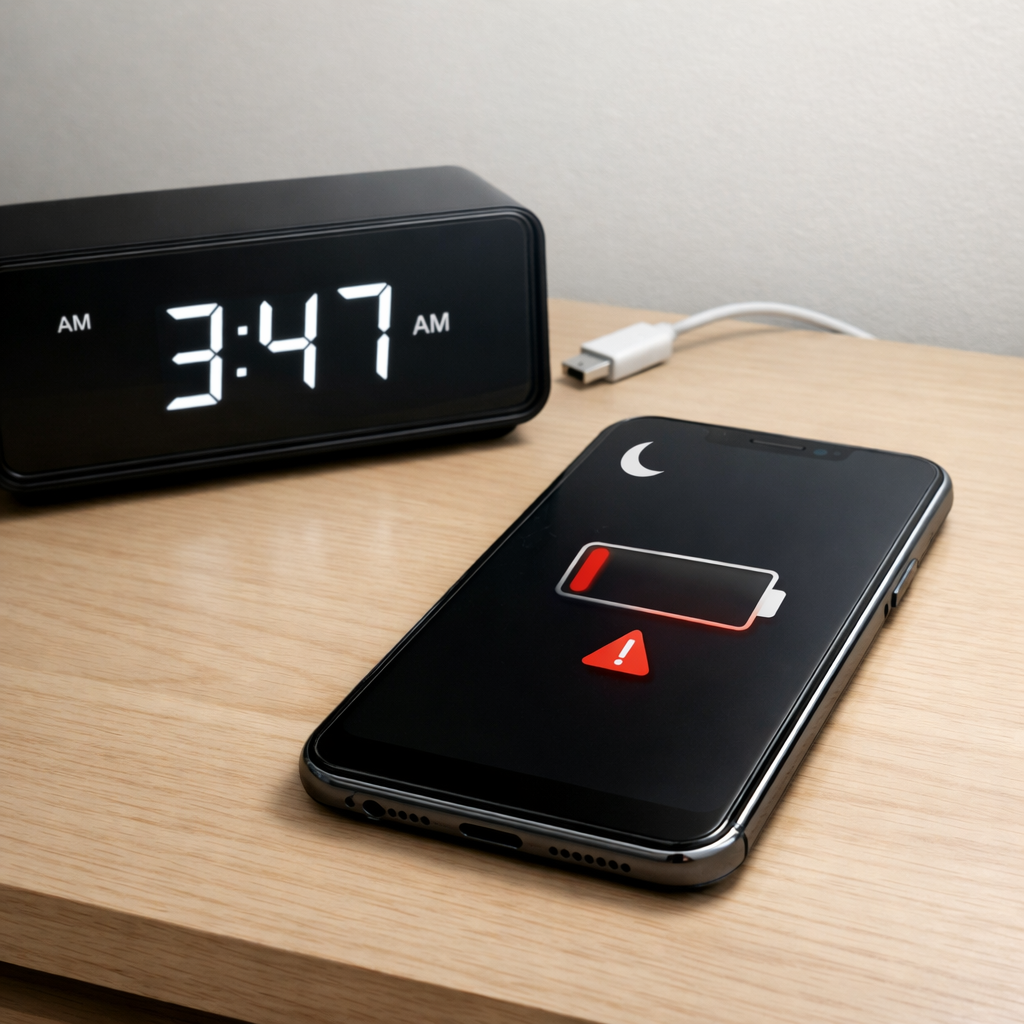
Device Battery Draining Very Fast Overnight — Background Processes or Hardware Fault?
Quick Answer
If your device loses a large chunk of battery overnight even when you are not using it, the most likely cause is a small hardware “leak” that still lets residual current flow. This can happen when a charging/power component, battery protection circuit, or a damaged port keeps partially awake even though the screen is off.
In normal condition, most phones, tablets, and laptops should drop only a few percent overnight (often around 1–5% over 8 hours, depending on settings). A drop of 10–30% (or more) with no obvious app activity often points to a hardware-related drain rather than normal background use.
If you need a fast fix
- Power the device fully off (not just sleep) for 60 seconds, then turn it on again to reset power controllers.
- Disconnect all accessories and remove any case that presses buttons; charge using an original-quality cable and charger only.
- Turn on Airplane mode for one night to separate “radio/background” drain from a likely hardware leak.
Quick Diagnosis Table
| Symptom | Most likely cause |
|---|---|
| Battery drops heavily overnight even in Airplane mode | Hardware current leak (power IC, battery protection circuit, or shorted component) |
| Battery drains fast only when plugged in or right after unplugging | Damaged charging port, contaminated connector, or unstable charging circuitry |
| Device feels warm while “idle” or closed | Residual current draw from a failing component (sometimes worsened by a swollen/aged battery) |
| Battery percentage jumps or drops in big steps | Battery aging or calibration issues, sometimes triggered by a weak battery cell or power sensor fault |
Why This Happens
Even when you are not using your device, it should enter a low-power state where only tiny parts stay active. A hardware leak means something is physically letting more electricity flow than it should, like a slightly shorted component or a power controller that never fully goes to sleep.
Real-world examples include moisture or pocket lint in a charging port that creates a weak electrical path, a worn battery that self-discharges faster than normal, or a knock/drop that damages a tiny part on the power board. Sometimes the device looks “off,” but internally a chip is still pulling power.
The result is simple: the battery loses charge because electricity is being used (or wasted as heat) while the device sits overnight, so you wake up to a much lower percentage than expected.
Most Common Causes (Ranked)
- 1) Power/charging circuit leak: A failing power management or charging component can draw current while idle, especially after years of heat and charging cycles.
- 2) Contaminated or damaged charging port: Lint, corrosion, or bent pins can cause tiny unintended connections that keep the device partially awake or repeatedly “handshaking” for power.
- 3) Battery aging with high self-discharge: An older battery can lose charge internally faster overnight, and the problem can be much worse in cold or very warm rooms.
- 4) Moisture exposure or liquid residue: Even small spills or humidity can leave conductive residue that creates a slow drain, sometimes days after the exposure.
- 5) Faulty button or accessory triggering wake events: A stuck power/volume button or a case that presses keys can keep the device from reaching deep sleep.
- 6) Firmware bug interacting with hardware sensors: A sensor or radio driver can repeatedly wake the device, but when it persists in Airplane mode, a hardware-side issue is more likely.
If your overnight drain improves gradually after cleaning the port, changing the charger, or updating software, that usually indicates the device is able to enter deeper sleep again and the issue may not be permanent.
How to Check the Problem Safely
- Check 1: Test one night in Airplane mode with Wi-Fi and Bluetooth off. If the drain stays high, it’s less likely to be normal background network activity.
- Check 2: Power off completely overnight and record the battery drop. A big drop while fully off points strongly to battery self-discharge or hardware leakage.
- Check 3: Feel for heat (carefully) after the device has been idle for 15–30 minutes. Warmth with no use is a common clue for residual current draw.
- Check 4: Inspect and gently clean the charging port. Use a flashlight and a wooden toothpick or soft plastic pick to remove lint; avoid metal tools.
- Check 5: Try a known-good cable and charger, then re-check overnight. Unstable chargers can trigger repeated charge negotiation that keeps circuitry active.
Safety note: if the battery is swollen, leaking, smells odd, or the device is hot to the touch while idle, stop charging and seek professional service.
How to Fix It
- Fix 1 (easiest): Do a full shutdown and restart, then charge to a stable level (around 80–100%) before bed. This resets power controllers and clears “stuck” sleep states.
- Fix 2: Clean the charging port and switch to a high-quality cable/charger. This helps prevent tiny unwanted connections and reduces repeated charging handshakes.
- Fix 3: Disable unnecessary wake sources for one night (Bluetooth scanning, location, always-on display, background refresh). If drain improves only with these off, you may have a mixed issue, not pure hardware.
- Fix 4: Check battery health (if your device offers it) and consider battery replacement if capacity is low or the device shuts down early. A weak battery can appear to “drain overnight” because voltage falls faster at rest.
- Fix 5 (advanced/last resort): Back up your data and perform a full system reset, then test overnight before reinstalling apps. If the drain remains high on a clean setup and in Airplane mode, schedule hardware diagnosis for the charging/power circuit.
Signs of Battery or Hardware Damage
- Device is warm or hot when idle, especially near the charging port or battery area.
- Battery percentage drops in large jumps (for example, 60% to 35% quickly) or rises oddly during charging.
- Charging is unreliable, only works at certain cable angles, or disconnects/reconnects repeatedly.
- Swollen case, lifting screen, creaking frame, or the device no longer sits flat.
- Unexpected shutdowns at 20–40% battery or the device won’t power on unless plugged in.
- Burnt smell, visible corrosion in the port, or liquid exposure followed by new drain behavior.
- Overnight drain continues even when the device is powered off.
When Repair Is No Longer Worth It
If the issue is a worn battery, replacement is often worthwhile because it’s a single part and restores normal standby time. If testing suggests a power-management leak or board-level problem, repair can be more expensive and less predictable, especially on older devices.
A practical rule is to compare repair cost to the device’s current value and your reliability needs. If repair is more than about one-third to one-half of replacement cost, or the device already has multiple issues (bad port plus weak battery), replacing is usually the better long-term choice.
How to Prevent This Problem in the Future
- Keep the charging port clean and dry; avoid charging right after exposure to moisture or heavy condensation.
- Use quality chargers and cables to reduce stress on charging circuitry and prevent unstable power negotiation.
- Avoid constant heat: don’t leave the device under pillows, in hot cars, or on thick blankets while charging.
- Prevent drops and connector strain; repeated cable yanks can loosen the port and create intermittent electrical paths.
- Charge in moderate ranges when possible (often 20–80%) to slow battery aging and reduce self-discharge issues.
- Remove tight cases if they trap heat overnight, especially while charging.
- After any liquid exposure, get the port and internals checked early; dried residue can cause slow leaks later.
FAQ
Why does my battery drain overnight even when I close all apps?
Closing apps usually doesn’t stop a true hardware leak, because the drain is caused by electricity flowing where it shouldn’t. Test in Airplane mode and, if possible, test the battery drop while the device is fully powered off. If the loss is still large, focus on battery health, port condition, and possible charging/power circuit problems.
Is it normal to lose 10–20% battery overnight?
For many devices, 10–20% overnight is higher than normal, especially with the screen off and no heavy syncing. If it only happens with Wi-Fi/cellular on, it could be background activity or poor signal. If it also happens in Airplane mode, it’s more consistent with a battery or hardware-related drain.
How can I tell if it’s the battery or the charging/power hardware?
A big drop while fully powered off suggests battery self-discharge or a hardware fault that bypasses normal sleep, and both require attention. Percentage jumps, early shutdowns, and low reported battery health point toward the battery. Heat while idle, unreliable charging, and drain that worsens after plugging/unplugging often point toward the charging port or power circuitry.
Mark Reynolds writes about real-world charging and battery behavior, with a focus on clear, practical troubleshooting. For more help, read the full step-by-step guide.
For a full overview of this issue and step-by-step solutions, read the complete troubleshooting guide.