Laptop Charger Overheating — How to Fix and Prevent Damage
Quick Answer
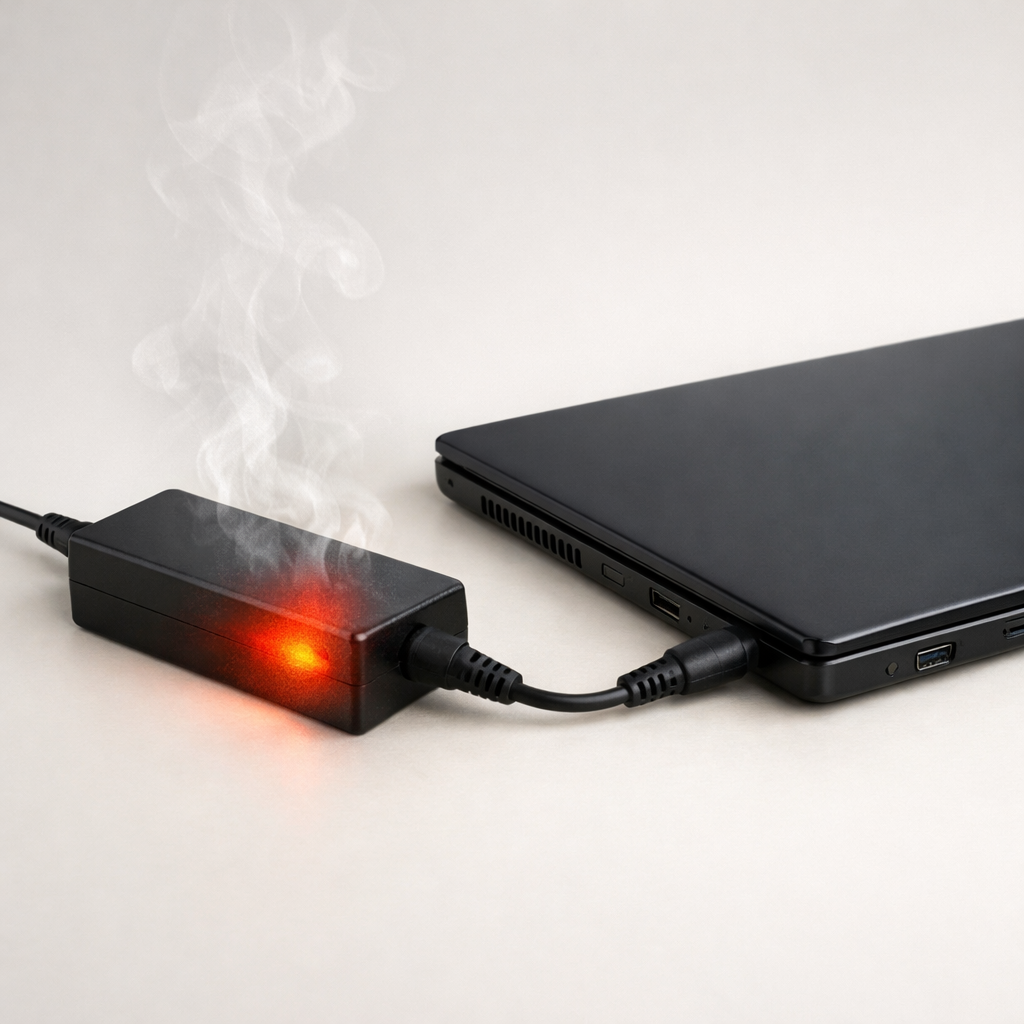
The most common reason a laptop charger overheats overnight is that the laptop isn’t truly “idle.” Background tasks (updates, backups, syncing) or a hardware module (like Wi‑Fi, Bluetooth, or an external device) can stay active, keeping power draw high for hours and making the adapter run hot.
A charger that feels warm is normal, but it shouldn’t be too hot to comfortably touch. If it gets noticeably hotter after 30–90 minutes of “sleep,” that usually means the laptop is still pulling more power than you think.
If you need a fast fix
- Unplug the charger from the wall and the laptop, let it cool for 10–15 minutes, then plug it directly into a wall outlet (not a power strip).
- Shut the laptop down completely (not sleep) before charging overnight, or charge while awake and unplug when full.
- Remove peripherals before bed (USB drives, hubs, external monitors, docks) and close the lid only after the laptop is fully asleep or powered off.
Quick Diagnosis Table
| Symptom | Most likely cause |
|---|---|
| Charger gets hot mostly overnight, even with lid closed | Sleep settings allow background tasks or “wake timers,” so the laptop keeps working and drawing power |
| Charger runs hot when connected to a dock or USB-C hub | Dock/hub powers devices and keeps the laptop awake, raising load and adapter heat |
| Fan runs or laptop feels warm in a closed bag while “sleeping” | Modern standby/connected sleep keeps network active; laptop never fully sleeps |
| Charging is slow and the adapter is very hot | Wrong wattage adapter, damaged cable/connector, or high power draw from active tasks |
| Heat is worst at the plug tip or near the cable strain relief | Loose connection, worn cable, or arcing resistance at the connector creating extra heat |
Why This Happens
Your charger converts wall power into the lower voltage your laptop needs. When the laptop requests more power, the charger works harder and warms up as part of normal energy loss.
Overnight, many laptops don’t fully “turn off” unless you shut down. They may keep syncing cloud files, downloading updates, indexing photos, running antivirus scans, or maintaining network connections. A dock, external drive, or even a wireless mouse receiver can also keep the system in a higher-power state.
More power draw for longer time equals more heat. If the laptop stays semi-awake for hours, the charger can feel much hotter than it would during a quick top-up charge.
Most Common Causes (Ranked)
- 1) Background updates and syncing running overnight: Windows/macOS updates, OneDrive/iCloud/Google Drive sync, and backup tools can run while the lid is closed, keeping power use elevated.
- 2) “Modern Standby” or connected sleep behavior: Some laptops keep networking and apps active in sleep, so the machine quietly wakes and pulls power repeatedly.
- 3) Dock, USB-C hub, or peripherals drawing power: Docks can power monitors, Ethernet, external drives, and phones, raising load and preventing deep sleep.
- 4) Power plan settings allowing wake timers: Scheduled maintenance, updates, or “wake for network access” can turn on parts of the system, creating long overnight charging heat.
- 5) Adapter mismatch (wattage too low) or non-genuine charger: An underpowered or low-quality adapter runs near its limit for hours, which often means extra heat.
- 6) Cable/connector wear increasing resistance: A bent pin, frayed cable, or loose USB-C plug can create localized heat at the connector and make the whole brick run hotter.
If the charger gradually runs cooler after you change one setting (like shutting down instead of sleep), that’s a strong sign you’ve reduced overnight power draw rather than “fixing” a defective charger.
How to Check the Problem Safely
- Check 1: Feel the heat pattern after 20–30 minutes of charging: the brick may be warm, but the plug and cable should not be scorching or soft.
- Check 2: Try a “shutdown test” for one night: fully shut down the laptop, then charge. If the charger is significantly cooler, background activity during sleep was likely the trigger.
- Check 3: Disconnect everything except power: remove docks, hubs, external drives, monitors, and USB devices. Charge again and compare temperature.
- Check 4: Check your charger rating vs your laptop’s requirement: match the wattage (for example, 65W vs 45W) and use a reputable OEM or certified replacement.
- Check 5: Inspect the cable and connector in good light: look for kinks, exposed wire, melted plastic, wobbling connectors, or discoloration near the plug.
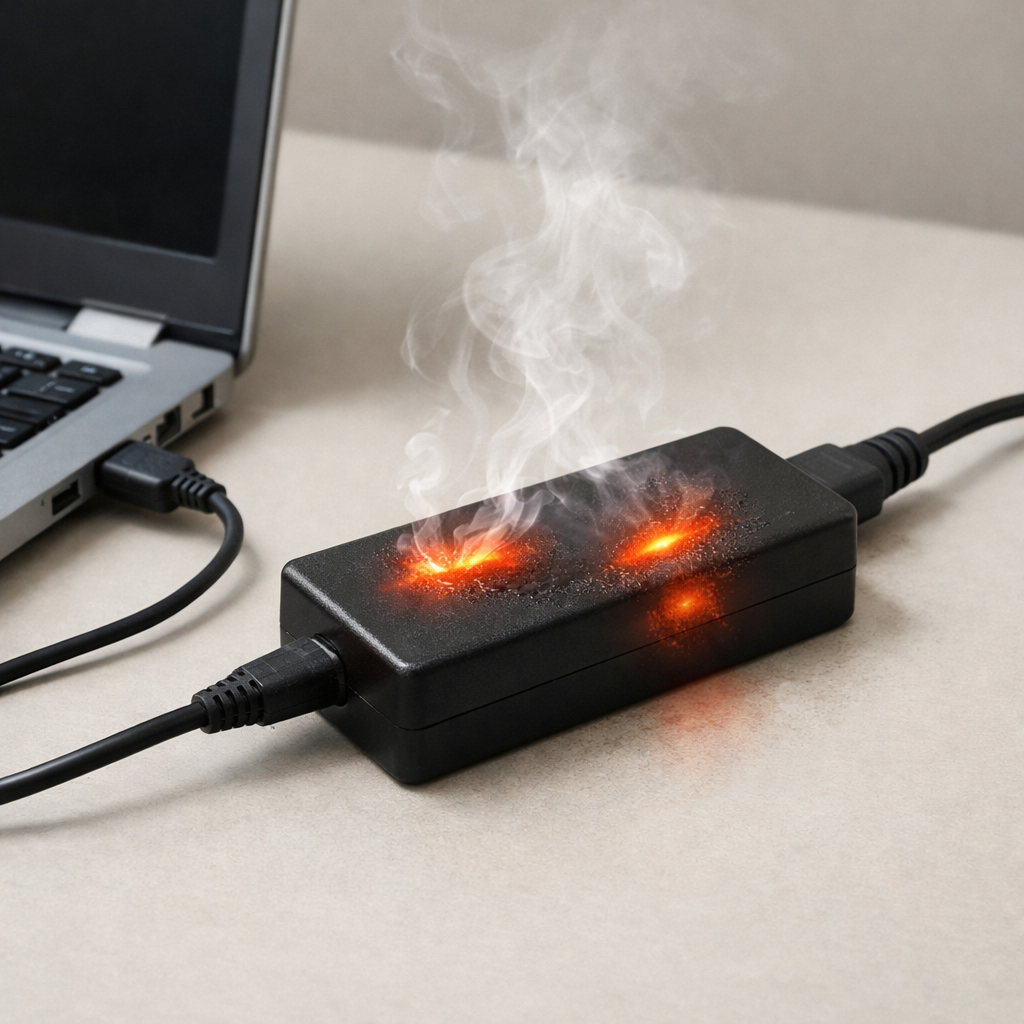
Safety note: if you smell burning, see sparking, or the adapter is too hot to touch, unplug it immediately and do not keep testing.
How to Fix It
- Fix 1 (easiest): Charge while the laptop is awake, then unplug at 80–100%. This avoids hours of hidden background power draw that keeps the adapter cooking overnight.
- Fix 2: Use full shutdown overnight instead of sleep. A true shutdown stops most tasks and prevents “connected sleep” from repeatedly waking the system.
- Fix 3: Change sleep and wake settings so the laptop stays asleep: disable wake timers and reduce “wake for network” features where available. This cuts the overnight bursts of CPU/network activity that raise charging heat.
- Fix 4: Remove the dock/hub before bed and charge directly from the wall with the charger plugged into the laptop. Reducing extra connected devices lowers power demand and prevents peripherals from keeping the system active.
- Fix 5 (advanced/last resort): Replace the adapter and cable with the correct wattage OEM/certified unit, and consider a battery health check if heat persists. A failing adapter or worn connector can waste power as heat even at normal loads.
Signs of Battery or Hardware Damage
- Battery percentage jumps around, stalls, or drops quickly after unplugging.
- Battery won’t charge past a certain level, or charging repeatedly starts and stops.
- Laptop becomes unusually hot near the battery area, even during light use.
- Charger or port smells hot, looks discolored, or the plug fits loosely.
- Random shutdowns under load, or performance throttling that didn’t happen before.
- Swelling case/trackpad area lifting, or the laptop rocking on a flat surface.
- Adapter makes buzzing/clicking sounds or the charging LED flickers when the cable moves.
When Repair Is No Longer Worth It
If the charger overheats even during a simple, awake charge with no peripherals, and especially if the connector is hot or damaged, replacement is usually the smartest move. Power adapters are wear items, and ongoing overheating can damage the charging port or battery over time.
As a rule, replace the adapter first if it’s inexpensive compared to the laptop. If the laptop also shows port looseness, battery swelling, or repeated overheating after an adapter swap, a repair quote may exceed the value of an older machine, making replacement more practical.
How to Prevent This Problem in the Future
- Prefer shutdown overnight if you routinely charge while sleeping, especially on laptops known for connected standby.
- Schedule updates and backups for daytime hours so they don’t run while the lid is closed and charging.
- Unplug docks, hubs, and external drives before overnight charging to prevent extra load and accidental wake-ups.
- Use the correct wattage, certified charger and a good-quality cable to avoid heat from inefficiency or resistance.
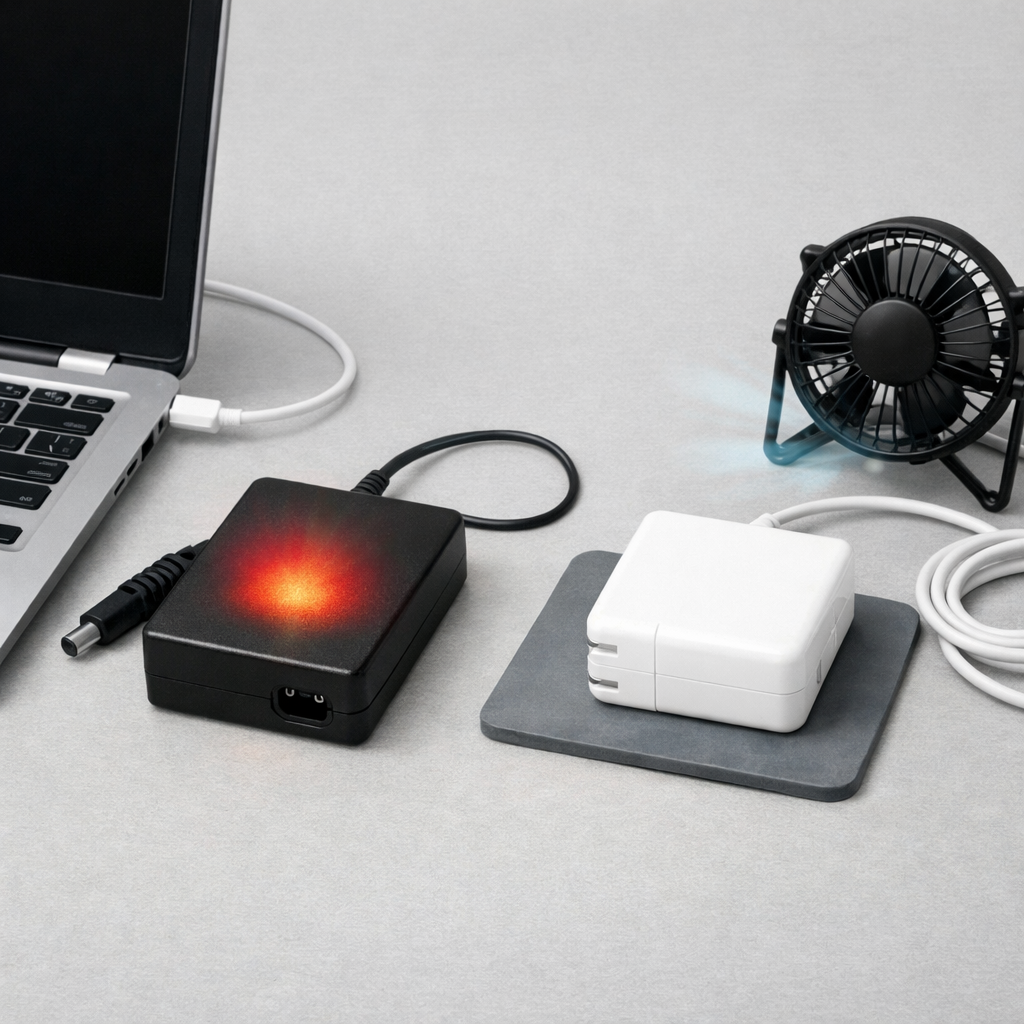
- Keep the charger in open air on a hard surface, not under blankets or on carpet where heat can build up.
- Enable battery health or “optimized charging” features (80% limit or adaptive charging) if your laptop supports them.
- Replace cables at the first sign of looseness, fraying, or discoloration to prevent hot spots at the connector.
FAQ
Is it normal for a laptop charger to get warm?
Yes, mild warmth is normal because chargers convert power and lose some energy as heat. It should not be painful to hold, and the hottest area should not be the plug tip or a damaged section of cable. If it’s hot enough that you avoid touching it, treat it as a problem.
Why does it overheat only when the laptop is sleeping?
Sleep doesn’t always mean “off.” Your laptop may keep syncing files, downloading updates, or staying connected to Wi‑Fi, which increases power draw for long periods. Switching to full shutdown overnight is a quick way to confirm whether background activity is the cause.
Should I leave my laptop plugged in overnight?
Occasional overnight charging is usually fine with a healthy adapter and good airflow, but constant overnight charging can reveal sleep-related background activity and keep the charger hot for hours. If you need overnight charging, use shutdown, remove peripherals, and consider enabling optimized charging or a charge limit to reduce stress and heat.
For a clearer understanding of battery drain and charging limits, Mark Reynolds focuses on simple, practical fixes that work across most devices. You can also read the complete troubleshooting guide.
For a full overview of this issue and step-by-step solutions, read the complete troubleshooting guide.