Laptop Charger Overheating With Noise — Electrical Stress or Component Failure?
Quick Answer
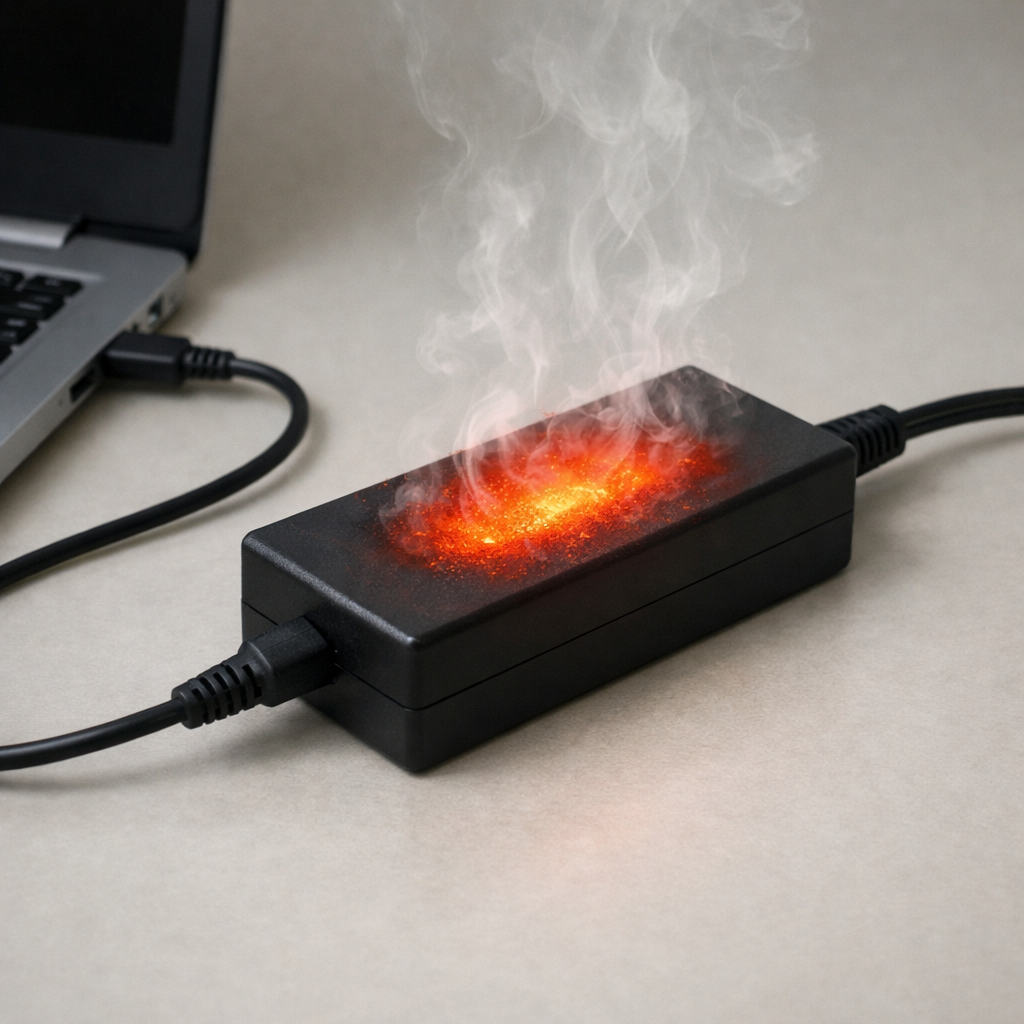
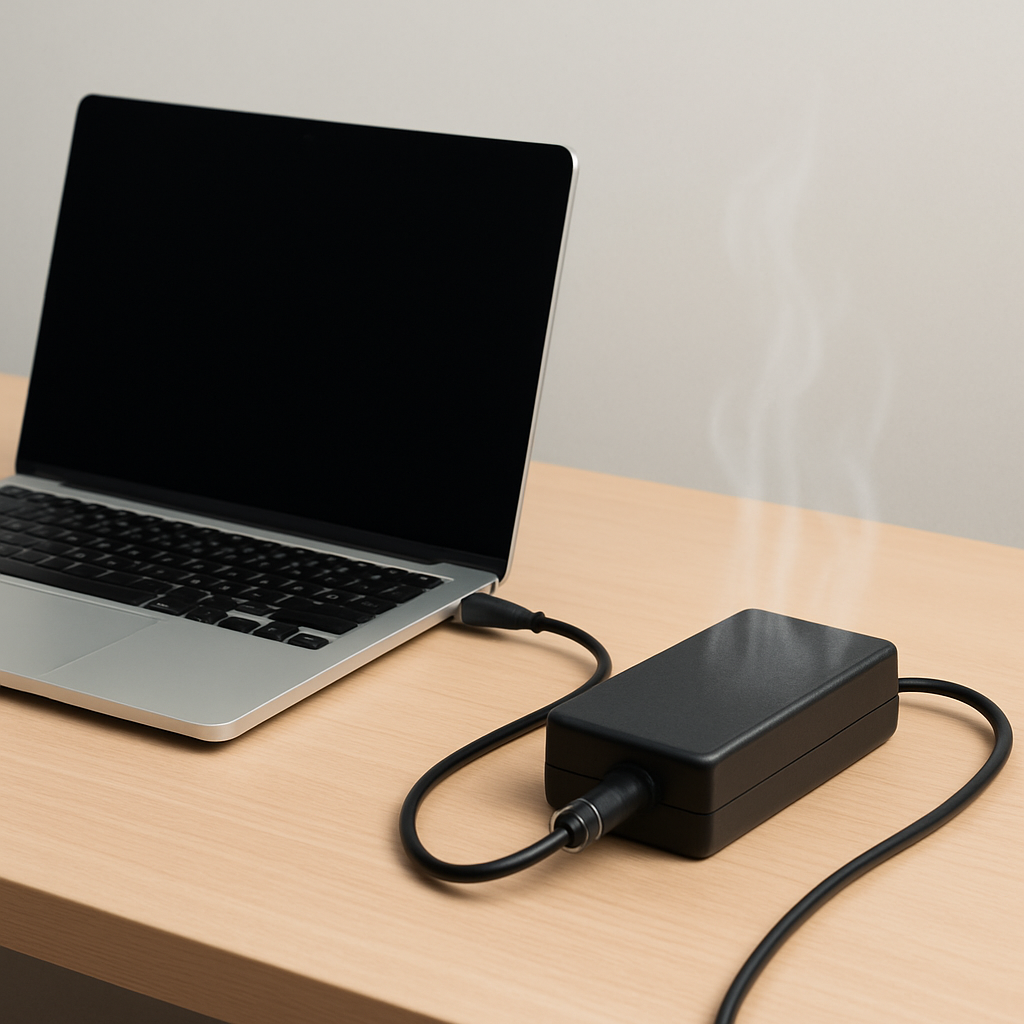
A laptop charger that overheats and makes noise is most often reacting to combined electrical and thermal stress inside the adapter. As parts like capacitors, coils, and switching components age or get pushed harder than normal, they can run hotter and start to buzz, whine, or crackle.
In many cases this starts gradually over weeks to months (a faint whine that slowly gets louder), but it can also show up suddenly after a hot day, a power surge, a damaged cable, or a change in how you use the laptop (gaming, video editing, charging while docked).
If you need a fast fix
- Unplug the charger from the wall and the laptop, let it cool for 10–20 minutes, then reconnect and test again in a well-ventilated spot.
- Stop using it on soft surfaces (bed, couch, carpet) and move the brick to a hard surface with airflow.
- If the noise is new, loud, or paired with a burning smell, stop using that charger and switch to a known-good compatible adapter.
Quick Diagnosis Table
| Symptom | Most likely cause |
|---|---|
| High-pitched whine that gets louder under load (gaming/charging) | Electrical stress causing coil vibration (coil whine) or a stressed switching circuit |
| Charger is too hot to hold, but laptop charges normally | Restricted airflow or aged internal components running inefficiently and overheating |
| Crackling or sizzling noise, especially near the cable end | Damaged cable/strain relief causing arcing or intermittent contact |
| Charging cuts in/out and charger gets very hot | Overcurrent condition from a failing adapter, poor connection, or laptop draw triggering protection |
| Buzzing only when plugged into one outlet/power strip | Dirty/loose AC power, overloaded power strip, or grounding/voltage issues stressing the adapter |
Why This Happens
Modern laptop chargers are small power supplies that convert wall power into stable DC power. They do this by switching electricity on and off very fast, then smoothing it into a steady output. That fast switching is efficient, but it also creates heat and can make some parts vibrate slightly.
Over time, heat dries out internal capacitors and weakens solder joints. If the charger is often used hot (left under blankets, packed while warm, or pushed hard near its wattage limit), the stress adds up. The adapter may still “work,” but it becomes less efficient, so it runs hotter and the electrical noise becomes more noticeable.
In simple terms: more electrical strain makes more heat, and more heat makes the electronics age faster, which can lead to buzzing/whining and eventually unstable charging.
Most Common Causes (Ranked)
- 1) Aged internal capacitors and heat-worn components: As capacitors age, they smooth power less effectively, making the charger work harder and run hotter, often with whine or buzz.
- 2) Charger working near its limit (high load): Gaming, heavy CPU/GPU use, or charging a depleted battery can push the adapter close to maximum output, increasing heat and noise.
- 3) Poor ventilation and trapped heat: Bricks stuffed behind furniture, under bedding, or inside cable clutter can’t shed heat, accelerating component stress and triggering noise.
- 4) Cable or connector damage causing intermittent contact: A bent plug, frayed insulation, or damaged strain relief creates resistance and tiny interruptions, which can heat up and sound like crackling.
- 5) AC power quality issues (outlet/power strip/surge damage): Loose outlets or overloaded strips can cause unstable input power that makes the charger work harder and run hotter.
- 6) Wrong or low-quality replacement charger: An adapter with the wrong wattage or poor internal design can overheat quickly and produce noise under normal use.
If the charger runs cooler and quieter after improving airflow or reducing load, that usually indicates stress rather than immediate failure, but persistent noise and high heat still point to a charger nearing the end of its life.
How to Check the Problem Safely
- Check 1: Feel for heat patterns: after 5–10 minutes of charging, the brick should be warm, not painfully hot. Note if the hottest area is the brick, the cable, or the laptop charging port.
- Check 2: Inspect the entire cable slowly with your fingers: look for kinks, flattened spots, exposed wire, shiny “melted” areas, or a loose plug tip.
- Check 3: Test a different wall outlet (no power strip): a loose strip or overloaded extension can add electrical stress and noise.
- Check 4: Reduce load and compare: close heavy apps, dim the screen, and see if the noise/heat drops. Noise that scales with load often points to internal stress or coil vibration.
- Check 5: If available, try a known-good compatible charger with the correct wattage: if the problem disappears, your original adapter is the likely culprit.
Safety note: if you notice burning smell, visible sparking, smoke, or sizzling sounds, unplug immediately and do not “test again” until the charger is replaced.
How to Fix It
- Fix 1 (easiest): Improve airflow: place the brick on a hard surface, keep it out of sunlight, and don’t cover it. Lower temperatures reduce component stress and can quiet coil noise.
- Fix 2: Reduce charging load when possible: avoid heavy gaming while charging, or switch to balanced/battery saver mode temporarily. Less draw means less heat inside the adapter.
- Fix 3: Replace damaged cables or the whole charger: most laptop power bricks are not safely serviceable, and cable damage can cause dangerous arcing and heat.
- Fix 4: Use the correct spec charger only: match brand, connector type (or USB-C PD), voltage, and equal or higher wattage rating. An undersized adapter runs hotter and ages faster.
- Fix 5 (advanced/last resort): Address power quality: plug into a different circuit, replace a worn outlet, or use a reputable surge protector/UPS. Cleaner input power reduces electrical stress on the charger.
Signs of Battery or Hardware Damage
- Battery percentage jumps around, drops fast under light use, or won’t charge past a certain point.
- Laptop only charges when the plug is held at an angle (possible port damage or connector wear).
- Charging stops randomly, especially when the charger is warm.
- Burning smell from the charger, charging port, or the laptop’s underside.
- Battery swelling (trackpad bulging, case separating, wobbling on a flat surface).
- Laptop shuts down under load even when plugged in (power delivery instability).
- Visible discoloration or melted plastic on the charger plug, cable, or DC-in/USB-C port.
When Repair Is No Longer Worth It
If the charger is overheating and making new or worsening noise, replacement is usually the smarter choice. Power bricks are sealed, repairs are unreliable, and continuing to use a stressed adapter can damage the charging port, battery, or motherboard.
As a rule, replace the charger immediately if there is crackling, burning smell, melting, or intermittent charging. If the laptop is older, compare the cost of an OEM-quality charger plus any port repair against the value of the device and consider whether a replacement laptop would be a better investment.
How to Prevent This Problem in the Future
- Keep the charger brick in open air and off soft fabrics to prevent heat buildup.
- Avoid tightly coiling the cable while charging; sharp bends near the plug increase resistance and heat.
- Use an adapter with the correct wattage (or higher) so it doesn’t run at its limit.
- Unplug by gripping the plug, not yanking the cable, to protect the strain relief and connector.
- Let the charger cool before packing it into a bag after heavy use.
- Use a quality surge protector or UPS in areas with unstable power to reduce electrical stress.
- Keep ports clean and dry; debris in a USB-C or barrel port can cause poor contact and heating.
FAQ
Is charger noise always dangerous?
Not always. A faint high-pitched whine can be normal, especially under heavy load, but it should not come with extreme heat, burning smell, crackling, or charging dropouts. If the noise is new, louder than before, or paired with overheating, treat it as a warning sign and plan to replace the charger.
Why does it get louder when I’m gaming or charging from low battery?
Those situations increase power draw, which increases electrical switching and heat inside the adapter. Higher load can make internal coils vibrate more (audible whine) and can push aging components harder. If reducing load makes the noise and temperature drop, it strongly points to stress rather than a random outlet issue.
Can a bad charger damage my laptop or battery?
Yes. An unstable or overheating charger can deliver noisy or inconsistent power, which can stress the charging circuitry and heat the charging port. In worst cases it can accelerate battery wear, cause shutdowns, or damage the motherboard, so replacing a suspect charger is usually cheaper than repairing the laptop.
For a full overview of this issue and step-by-step solutions, read the complete troubleshooting guide.
Mark Reynolds explains battery and charging issues in a practical way, focusing on what actually helps in real situations. For more guidance, see the step-by-step troubleshooting guide.