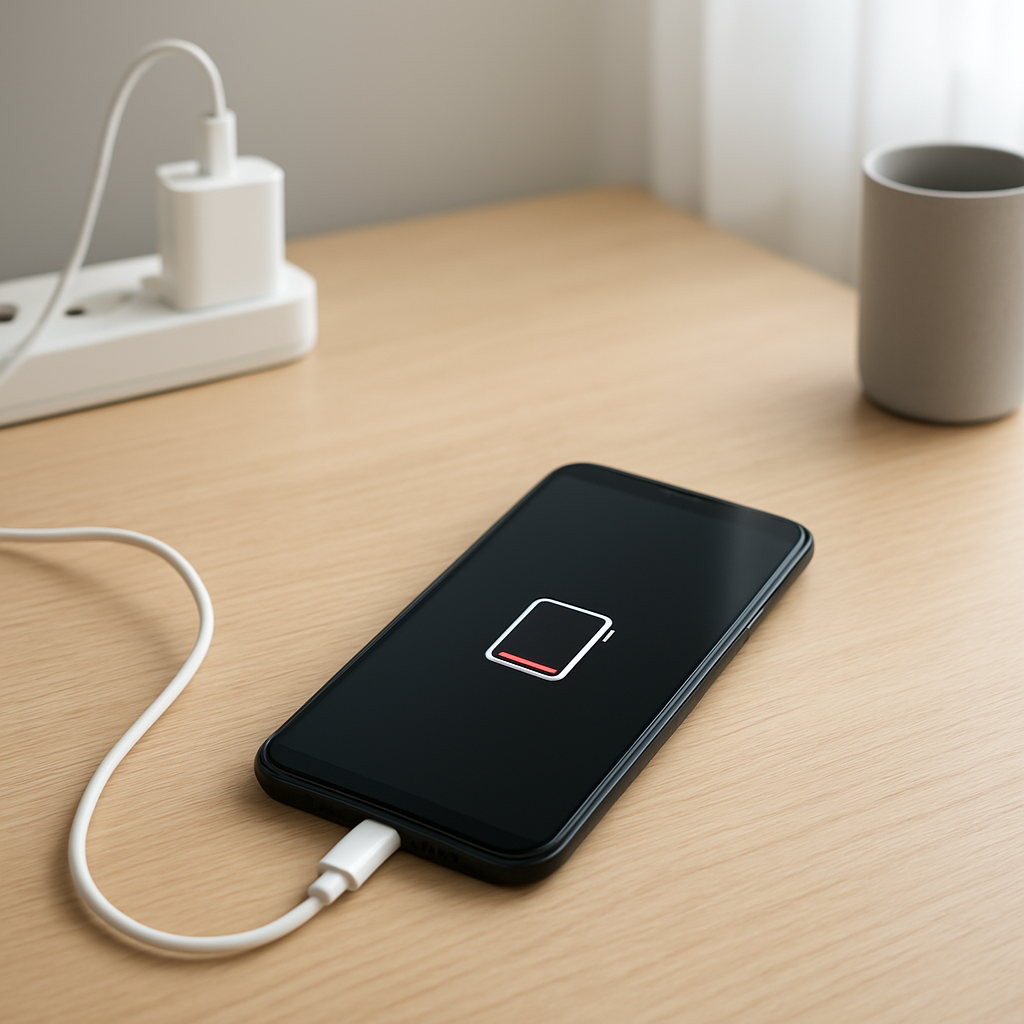
Battery Draining After Long Use — Capacity Loss or Thermal Degradation Explained
Quick Answer
After months or years of long sessions, your battery can start draining faster because heat and normal chemical aging reduce its effective capacity. In plain terms, the battery can’t hold as much energy as it used to, and it also drops percentage faster under load.
This is common after 12–24 months of heavy daily use, or sooner if the device often runs hot (gaming, video calls, navigation, or fast charging). It usually shows up as faster drops from 100% to 70%, unexpected shutdowns at 20–40%, or noticeably shorter screen-on time.
If you need a fast fix
- Lower heat quickly: remove thick cases, stop charging while using heavy apps, and let the device cool for 10–15 minutes.
- Turn on Battery Saver/Low Power Mode and reduce screen brightness to cut current draw and prevent sudden percentage drops.
- Use a slower, cooler charge: switch to a standard charger (not fast charge) and avoid charging on a bed, couch, or in direct sun.
Quick Diagnosis Table
| Symptom | Most likely cause |
|---|---|
| Battery drops quickly during gaming or video calls | Heat + high power draw exposes reduced capacity and increases voltage sag |
| Battery percentage “jumps” or suddenly falls from 30% to 10% | Aged cells and a less accurate fuel gauge under stress or after many cycles |
| Device gets hot while charging and drains faster for hours afterward | Thermal stress temporarily reduces efficiency and accelerates long-term aging |
| Unexpected shutdowns at 10–40% remaining | Battery can’t maintain voltage under load due to aging or degradation |
| Fast drain even with light use after a recent update | Background re-indexing plus an already aged battery makes the issue obvious |
Why This Happens
Batteries wear out naturally. Each charge cycle slightly changes the battery’s chemistry, and over time it stores less energy than when it was new.
Heat speeds that aging up. Long use sessions, hot environments, and fast charging can raise internal temperature, which stresses the battery and gradually lowers capacity.
When capacity is lower, the same tasks use up a bigger slice of your battery. The device may also need to work harder to deliver power, so the percentage drops faster and can become less stable during heavy use.
Most Common Causes (Ranked)
- 1) Heat during heavy use: Gaming, video recording, hotspot use, and long calls can warm the device and stress the battery, reducing how much energy it can effectively deliver.
- 2) Normal chemical aging (cycle wear): Over hundreds of charge cycles, the battery’s usable capacity shrinks, so your “all-day” battery becomes a “half-day” battery.
- 3) Fast charging and charging while in use: High charging power creates more heat, and combining charging with heavy use can keep the battery hot for long periods.
- 4) Background activity exposing a weak battery: Sync, location tracking, photo indexing, or app misbehavior might be manageable on a new battery but becomes noticeable once capacity drops.
- 5) Poor signal or constant searching: Weak Wi-Fi/cellular signal makes the radio work harder, raising power draw and heat, which can worsen the drain pattern.
- 6) Cold-to-hot swings and high-temperature storage: Leaving a device in a hot car or charging in direct sun accelerates long-term degradation and can make percentages behave oddly.
If the drain improves gradually after cooling the device or reducing heavy use, that usually indicates heat and load were amplifying an aging battery rather than a sudden failure.
How to Check the Problem Safely
- Check 1: Feel for heat patterns: after 10 minutes of normal use, the device should be warm at most, not hot to the touch.
- Check 2: Compare drain on light vs heavy use: test 15 minutes of web browsing versus 15 minutes of gaming to see if drops spike under load.
- Check 3: Review battery usage stats: look for one app using an unusually high percentage in the last 24 hours.
- Check 4: Check battery health (if available): on many phones you can see a “maximum capacity” or “battery condition” estimate in settings.
- Check 5: Try a cooler charging test: charge from 20% to 80% with a standard charger in a cool room and note whether the device stays cooler and the drain stabilizes.
If you notice swelling, cracking, or a chemical smell, stop using the device and do not continue testing.
How to Fix It
- Fix 1 (easiest): Reduce heat sources by lowering brightness, limiting gaming while charging, and removing thick cases; cooler batteries deliver power more efficiently and age slower.
- Fix 2: Adjust charging habits: aim for 20–80% most days and use optimized charging features; this reduces stress at high voltage and can slow capacity loss.
- Fix 3: Switch to slower charging when possible: a lower-watt charger creates less heat, which helps stabilize battery behavior during long sessions.
- Fix 4: Clean up background drain: update apps, limit background refresh, reduce location permissions, and uninstall battery-hungry apps; this lowers load so an aged battery holds up better.
- Fix 5 (advanced/last resort): Calibrate the battery gauge carefully: run down to around 10–15%, then charge uninterrupted to 100% once; this can improve percentage accuracy but will not restore lost capacity.
Signs of Battery or Hardware Damage
- Battery swelling, screen lifting, or the back cover separating.
- Device gets extremely hot during light use or during charging.
- Random shutdowns even at high percentages (for example, 60–80%).
- Charging stops and starts repeatedly with the same cable and charger.
- Battery percentage drops in large jumps (for example, 45% to 25% in seconds) consistently.
- Noticeably reduced performance paired with frequent overheating warnings or thermal throttling.
- Burnt smell, discoloration near the port, or crackling sounds during charging.
When Repair Is No Longer Worth It
If the battery health is low, the device shuts down unexpectedly, or it overheats easily, replacing the battery is usually the most effective repair. If your model has an expensive battery service price, limited parts availability, or additional damage (port, board, or screen lift), replacement of the whole device can make more sense.
As a general value check, consider replacement if the repair cost is more than about 30–40% of the price of a comparable new or refurbished device, or if you rely on the device for work and downtime would cost you more than the repair itself.
How to Prevent This Problem in the Future
- Avoid prolonged heat: don’t leave the device in a hot car, direct sun, or on blankets while charging.
- Prefer partial charges: keeping the battery mostly between 20% and 80% reduces high-voltage stress during daily use.
- Use fast charging only when you need it: slower charging typically runs cooler and is gentler over time.
- Don’t game or run navigation while charging for long periods; if you must, use a lower-watt charger and keep airflow around the device.
- Keep software and apps updated to reduce runaway background activity that increases heat and power draw.
- Manage signal and radios: use Wi-Fi when cellular is weak, and disable hotspot or high-accuracy GPS when you’re not using it.
- Store devices around 40–60% if they won’t be used for weeks; storing fully charged in heat can speed up capacity loss.
FAQ
Is faster drain after a year always a “bad battery”?
Not always, but it’s common. A year of heavy daily use can noticeably reduce capacity, and heat can make the change feel sudden. Checking battery health and comparing light-use drain versus heavy-use drain will usually reveal whether aging is the main factor.
Can a software update cause battery drain that looks like degradation?
Yes. After updates, devices may re-index photos, rebuild caches, or resync data, which increases background usage for a day or two. If the battery is already worn, that extra activity can make the drain look much worse than it would on a new battery.
Will calibrating the battery restore capacity?
No, calibration only helps the percentage estimate match the battery’s actual state more closely. If the battery has aged, the lost capacity is physical and won’t come back. Calibration can still reduce sudden percentage jumps and make the readings more trustworthy.
For a full overview of this issue and step-by-step solutions, read the complete troubleshooting guide.
For a clearer understanding of battery drain and charging limits, Mark Reynolds focuses on simple, practical fixes that work across most devices. You can also read the complete troubleshooting guide.