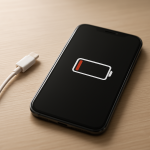
Phone Charging Stops at 90 Percent — Battery Protection Feature or Charging Fault?
Quick Answer
Most of the time, a phone that stops charging at 90% is working normally. Many phones use a battery health management feature that intentionally limits charging to around 80–90% to reduce wear and extend battery lifespan.
This often happens during overnight charging or when your routine is predictable, and the phone “learns” when you usually unplug. It may hold at 80–90% for minutes or hours, then finish to 100% shortly before your typical wake-up time.
If you need a fast fix
Restart the phone, then plug into a known-good wall charger and cable for 15–30 minutes to see if it moves past 90%.
Disable optimized/battery protection charging temporarily in settings and test one full charge cycle once.
Try a different outlet and gently clean the charging port (dry, soft brush or compressed air) to rule out poor contact.
Quick Diagnosis Table
Symptom
Most likely cause
Stops at ~80–90% mostly overnight, then reaches 100% near morning
Optimized charging/battery protection is delaying the final top-up
Stops at 90% every time, even in the middle of the day
Battery protection cap enabled (limit set to 80%, 85%, or 90%) or a software rule is stuck
Hits 90% and then repeatedly switches between charging and not charging
Unstable cable/charger connection, port debris, or overheating throttling
Won’t go past 90% and charges unusually slowly
Low-power charger/cable, dirty port, or background heat/load reducing charge rate
Sometimes goes past 90% after cooling down
Temperature-based protection limiting charging to protect the battery
Why This Happens
Modern lithium-ion batteries age faster when they sit at very high charge levels for long periods. To slow that aging, phones use software and charging hardware that can pause or slow charging near the top.
For example, if you plug in at 11 p.m. and unplug at 7 a.m., your phone may charge quickly to around 80–90%, then “wait” and complete the last 10–20% closer to the time you usually start your day.
In simple terms: the phone is choosing battery longevity over reaching 100% immediately, and that choice looks like charging “stopping” around 90%.
Most Common Causes (Ranked)
1) Optimized/Adaptive charging (battery health management): The phone delays the final portion of charging to avoid staying at 100% for hours, especially overnight.
2) Battery protection charge limit is enabled: Some devices let you cap maximum charge at 80%, 85%, 90%, or “full,” and 90% may be the selected limit.
3) Heat management throttling near the top: Charging generates heat, and phones may pause around 85–95% when the battery or motherboard gets warm.
4) Cable/charger/port instability: A loose connector, worn cable, or lint in the port can make the phone intermittently disconnect, which often shows up near higher battery levels.
5) Software glitch after an update or settings change: Battery algorithms can occasionally get stuck and “think” the limit should remain in place.
6) Battery aging or calibration drift: An older battery can report 90% even when it is effectively near full, or the phone may limit charging to reduce stress on a weakened cell.
If the phone sometimes goes beyond 90% after a restart, a cool-down, or a settings change, that gradual improvement usually points to a protection feature or minor connection/temperature issue rather than a major hardware fault.
How to Check the Problem Safely
Check 1: Look for battery protection settings like Optimized Charging, Adaptive Charging, Protect Battery, or a Charge limit option, and note whether a 80–90% cap is enabled.
Check 2: Test in the middle of the day with the screen off and minimal background use, using a known-good wall charger and cable.
Check 3: Feel the phone near the back and around the camera area; if it is warm or hot, let it cool for 15–20 minutes and try again.
Check 4: Inspect the charging port with a light; if you see lint or debris, remove it gently with a dry, non-metal tool or compressed air.
Check 5: Watch the battery status text while plugged in (charging, fast charging, paused due to temperature) to spot heat limits or connection drops.
Safety note: do not use sharp metal objects in the charging port, and stop charging immediately if you notice swelling, burning smells, or excessive heat.
How to Fix It
Fix 1 (easiest): Toggle the battery protection feature off once and test a charge to 100%; this confirms whether the 90% stop is intentional behavior.
Fix 2: Leave optimized charging on, but change your routine test: plug in when awake and check after 30–60 minutes; if it passes 90% then, the feature is likely timing the final top-up.
Fix 3: Reduce heat while charging (remove thick cases, avoid charging on beds/sofas, close heavy apps); cooler batteries accept higher charge levels more reliably.
Fix 4: Replace suspect accessories and clean the port (try a different cable, charger, and outlet); stable power delivery prevents “charge-stop” behavior caused by micro-disconnects.
Fix 5 (advanced/last resort): Update the OS, then perform a full restart and reset power-related settings if available; this can fix a stuck charging algorithm after updates or corrupted settings.
Signs of Battery or Hardware Damage
Battery percentage jumps up or down by several percent with light use.
The phone gets unusually hot while charging, even with a normal charger and a cool room.
Charging stops at random percentages (not just near 90%) and frequently disconnects/reconnects.
The phone shuts down unexpectedly at 10–30% battery.
Noticeable battery swelling, screen lift, or the back cover separating.
Burning smell, crackling sounds, or discoloration near the charging port.
Very slow charging across multiple known-good chargers and cables.
When Repair Is No Longer Worth It
If your phone reliably holds at 90% due to a battery protection feature, no repair is needed. But if you see swelling, overheating, random shutdowns, or charging instability across multiple chargers, the issue may be the battery, port, or charging circuit.
As a rule, battery replacement is usually worth it if the phone is otherwise in good condition and still supported with updates. If the device is older, has multiple issues (weak battery plus flaky charging port plus poor performance), putting that money toward a newer phone often delivers better value and safety.
How to Prevent This Problem in the Future
Keep optimized charging or a charge limit enabled if you often charge overnight; spending less time at 100% can slow battery aging.
Avoid heat: don’t charge under pillows, in direct sun, or in a hot car, and remove thick cases during long charging sessions if the phone warms up.
Use a reputable charger and cable matched to your phone’s fast-charging standard for stable power delivery.
Keep the charging port clean and dry, and avoid pocket lint buildup by storing the phone port-up when possible.
Do not frequently force the battery to 0% and then to 100%; partial cycles (for example, 20–80%) tend to be gentler.
Install system updates, since charging control and battery health features are often improved over time.
If you use wireless charging, ensure good alignment and consider a slower pad if the phone gets warm.
FAQ
Is it bad if my phone never charges to 100%?
Not usually. Many phones intentionally stop around 80–90% at certain times to reduce battery wear. If you can still reach 100% when needed (or by disabling the limit), it is typically a normal battery health feature.
Why does it stop at 90% only at night but not during the day?
That pattern strongly suggests optimized/adaptive charging. The phone predicts when you will unplug and delays the final top-up so it finishes closer to that time. During the day, when you plug in briefly, it is more likely to charge straight through.
When should I worry that it’s a real charging fault?
Worry if the phone gets excessively hot, the charge icon flickers on and off, it never exceeds 90% even with battery protection disabled, or it behaves the same across multiple proven chargers and cables. Swelling, burning smells, or sudden shutdowns are immediate stop-using signs and should be checked by a professional.