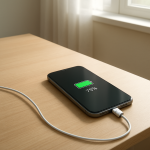
Phone Charging but Battery Percentage Not Moving: Why It Happens and How to Fix It
Quick Answer
If your phone says it’s charging but the battery percentage stays the same, the most common reason is that the phone is receiving too little power for what it’s doing. A weak charger, cable, port issue, or a low-power USB source can limit input, and background activity (screen on, games, hotspot, updates) can use that power as fast as it arrives.
It can also happen when the phone slows or pauses charging to protect the battery from heat, or when the battery gauge is temporarily misreporting after heavy use, a restart, or an update. A “stuck” percentage for 5–20 minutes can be normal during heavy use or near 80–100%, but it shouldn’t stay stuck for hours under light use.
If you need a fast fix
Plug into a wall outlet using your original (or certified) charger and cable, then leave the phone idle with the screen off for 15 minutes.
Cool the phone down: remove the case, stop gaming/video, move it out of sunlight, and try charging again.
Restart the phone, then charge again for 10–15 minutes to refresh the battery meter and background processes.
Quick Diagnosis Table
Symptom
Most likely cause
Charges extremely slowly or stays at the same % when plugged into a laptop/PC
Power input limit (low-power USB port or non-fast charger)
Percentage doesn’t move while you use the phone, but rises when screen is off
Background/active use exceeds the charging input
Charging pauses, shows “Charging on hold,” or the phone feels hot
Temperature control reducing or stopping charging
Percentage jumps after restart (e.g., 42% to 50%) or seems “stuck” for long periods
Charging is a balance between how much power comes in and how much power your phone uses at the same time. If the charger can only supply a small amount, and the phone is using that amount to run apps, the number may not rise even though it’s technically charging.
Real-world examples are common: charging from a computer USB port, using a cheap cable that can’t carry enough power, running navigation with the screen on full brightness, or the phone downloading updates while charging. Any of these can make the battery percentage look stuck.
Heat adds another layer: to protect the battery, phones automatically slow charging or pause it when temperatures are high. When input is limited, usage is high, or charging is heat-limited, the symptom is the same: the percentage doesn’t change (or changes very slowly).
Most Common Causes (Ranked)
1) Power source can’t supply enough power: A low-watt wall adapter, a weak car charger, or a USB port on a computer may not keep up, especially on larger phones.
2) Cable/adapter/port is limiting charging: Worn cables, dirty ports, or off-brand adapters can reduce charging speed even if the charging icon appears.
3) The phone is using power faster than it’s receiving it: Gaming, video calls, hotspot, GPS navigation, high brightness, and background sync can cancel out charging.
4) Temperature protection is slowing or pausing charge: Heat from fast charging, a thick case, sun exposure, or charging while using demanding apps can trigger throttling.
5) Battery percentage meter is temporarily inaccurate: After an update, a crash, or long heavy use, the meter may “stick” and then jump later.
6) Battery aging or hardware fault: A worn battery, moisture in the port, or a failing charging circuit can make charging erratic or extremely slow.
If the percentage begins climbing again when the phone is cool and idle on a good wall charger, that gradual improvement usually means the battery and port are okay and the issue was power limits, heat, or usage.
How to Check the Problem Safely
Check 1: Try a known-good wall charger and cable (preferably the original or a certified replacement) and plug directly into a wall outlet, not a computer.
Check 2: Look at the charging status message (if available): “Fast charging,” “Charging rapidly,” “Slow charging,” or “Charging on hold” can point to power limits or heat control.
Check 3: Feel for heat: if the phone is warm or hot, stop using it, remove the case, and let it cool for 10 minutes before testing again.
Check 4: Check battery usage: open Battery settings and see whether one app (video, game, social app) is draining heavily while you charge.
Check 5: Inspect the charging port with a light: look for lint or debris; if you see buildup, do not force anything into the port.
Safety note: avoid metal tools in the port, avoid charging if you see moisture warnings, and stop immediately if you smell burning or the phone becomes very hot.
How to Fix It
Fix 1 (easiest): Use a proper wall charger and quality cable, then charge with the screen off for 20–30 minutes. This increases input and reduces usage so the percentage can climb.
Fix 2: Reduce power drain while charging: turn on Airplane Mode (or at least disable hotspot), lower brightness, and close heavy apps. This prevents background use from “eating” the incoming charge.
Fix 3: Address heat: remove the case, move to a cooler room, stop using the phone while charging, and avoid charging in a car dashboard or direct sun. Cooler batteries accept charge faster and more consistently.
Fix 4: Clean and reseat connections: unplug and firmly reconnect, try a different cable, and gently remove lint only if it’s loose at the edge of the port using a wooden toothpick or soft plastic pick. Better contact can restore normal charging speed.
Fix 5 (advanced/last resort): Reset the battery meter behavior: restart the phone, install pending system updates, and if the meter remains inaccurate, let the phone drop below 15% and then charge uninterrupted to 100% once. This can help the software relearn the battery level, but don’t do deep cycles often.
Signs of Battery or Hardware Damage
The phone gets unusually hot during simple charging (not just warm), especially near the port or back panel.
Battery percentage drops in large jumps (for example, 40% to 20%) or shuts off unexpectedly above 10%.
The phone only charges at certain angles or disconnects with slight movement (possible port damage).
Swollen battery symptoms: bulging screen, lifted back cover, or a phone that rocks on a flat surface.
Burning smell, crackling sounds, or visible discoloration around the charging port.
Persistent “liquid detected/moisture” warnings even after the phone has dried for a full day.
Charging is consistently slow across multiple known-good chargers and cables.
When Repair Is No Longer Worth It
If the phone is several years old and shows multiple warning signs (overheating, swelling, unstable percentages, loose port), repair may cost close to the phone’s remaining value. A battery replacement can be worth it, but repeated charging issues can indicate deeper board or port damage.
As a rule, if a reputable shop quotes more than about 30–50% of the cost of a comparable replacement phone, consider replacing instead. Choose repair when the phone is otherwise in great shape, supported with updates, and the fix is clearly limited to the battery or port.
How to Prevent This Problem in the Future
Use a reputable charger and cable that match your phone’s fast-charging standard, and avoid ultra-cheap accessories.
Charge from a wall outlet when possible; computer USB ports are often too weak for modern phones.
Keep the phone cool while charging: avoid thick cases, direct sun, and charging while gaming or recording video.
Don’t rely on the phone while it’s charging if you need the percentage to rise quickly; screen-off charging is dramatically faster.
Keep the port clean by preventing pocket lint buildup; avoid storing the phone in dusty pockets or bags without protection.
Update your phone regularly; charging management and battery reporting improvements often come via system updates.
If you use wireless charging, align the phone properly and remove thick cases to reduce heat and improve efficiency.
FAQ
Why does my phone charge but stay at the same percentage for a long time?
Most often, the charger isn’t providing enough power for what the phone is doing, so the battery level doesn’t rise. It can also be heat protection slowing charging, especially if the phone feels warm or you’re using it while plugged in. If the phone is idle on a good wall charger and the percentage still doesn’t move after 30–60 minutes, suspect a cable/port issue or battery wear.
Is it normal for charging to slow down near 80% or 100%?
Yes. Many phones intentionally slow charging near the top to reduce heat and protect battery health, and some pause briefly as they manage temperature. Near 100%, it may take longer for the percentage to tick up, especially if you’re using the phone at the same time.
How do I know if it’s the battery meter (not the charger)?
A meter issue often shows as a “stuck” percentage that suddenly jumps after a restart or after a longer period on the charger. If you try multiple known-good chargers and cables and charging behavior is inconsistent while the phone otherwise works fine, misreporting is possible. Keeping the phone updated and doing one uninterrupted charge from low battery to 100% can help the meter resync.