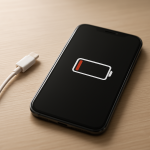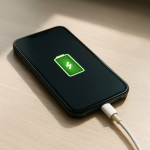
Phone Battery Stuck at 80%? Why Your Phone Won’t Charge Past 80%
Quick Answer
Most of the time, a phone that won’t charge past 80% is working as designed. Many phones use battery protection features (often called Optimized Charging, Charging Limit, or Protect Battery) that intentionally pause charging at around 80% to reduce wear and extend battery lifespan.
This “stuck” behavior is usually temporary and depends on your routine, temperature, and charger speed. It may resume charging to 100% later (for example, close to when you usually unplug), or it may stay capped at 80% until you change the setting.
If you need a fast fix
- Restart your phone, then plug it in again and watch whether it moves past 80% within 10–15 minutes.
- Check Battery settings for Optimized Charging, Charging Limit, or Protect Battery, and temporarily turn it off or choose 100%.
- Cool the phone down (remove the case, stop gaming/video, move out of sunlight) and try charging again.
Quick Diagnosis Table
| Symptom | Most likely cause |
|---|---|
| Stops at 80% and stays there every day | Charging limit / battery protection feature is enabled and set to 80% |
| Stops at 80% overnight but reaches 100% later | Optimized or adaptive charging waits to finish near your usual unplug time |
| Stuck at 80% only when the phone is warm | Temperature protection slows or pauses charging to prevent battery stress |
| Won’t go past 80% on one charger but does on another | Cable/charger/power source issue causing slow or unstable charging |
| Stops at 80% after an OS update or battery health message | New default battery health setting enabled, or system recalibrating behavior |
Why This Happens
Phone batteries age faster when they spend lots of time near 100% charge, especially if they are warm. To reduce that wear, manufacturers add charging controls that pause charging around 80% during long plug-in periods (like overnight charging).
In real life, this can look like a “problem” because the battery percentage doesn’t move even though the phone is plugged in. For example, you may plug in at 10 p.m., see 80% at midnight, and it still says 80% at 6 a.m., then suddenly it climbs to 100% closer to your usual wake-up time.
Cause leads to symptom like this: battery protection decides “80% is enough for now,” so the phone holds the charge level until conditions are right to finish charging (or until you override the setting).
Most Common Causes (Ranked)
- 1) Battery protection / charging limit set to 80%: Many Android phones (and some charging apps) offer a hard cap at 80% to extend battery lifespan. When enabled, the phone may never charge beyond that number until you change it.
- 2) Optimized or adaptive charging: iPhone and many Android models learn your habits and pause around 80%, then finish later to reduce time spent at 100%. This is common when charging overnight or during long desk charging sessions.
- 3) Temperature management: If your phone is hot (sunlight, fast charging, gaming, thick case), it may slow or stop charging around 80% to prevent heat damage. It often resumes after cooling down.
- 4) Slow or unstable power source: Weak chargers, worn cables, dirty ports, or low-power USB ports can cause charging to stall near higher percentages. The phone may hover at 80% because the incoming power can’t keep up with background use.
- 5) Software changes after an update: Updates can enable new battery health features or reset battery settings. The phone may also behave differently for a few charge cycles while it re-optimizes.
- 6) Battery aging or calibration drift: Older batteries can show “plateaus” where the percentage seems stuck. Sometimes the battery gauge needs a few normal cycles to report more smoothly.
If the limit moves from 80% to 81–83% over time, or it reaches 100% later, that usually indicates the phone is intentionally managing charging rather than failing.
How to Check the Problem Safely
- Check 1: Look for charging control settings in Battery (search settings for optimized, adaptive, protect, limit, or charging). Confirm whether an 80% cap is enabled.
- Check 2: Try a different known-good charger and cable (preferably the original or a reputable brand). Also try a different wall outlet instead of a computer USB port or power strip.
- Check 3: Feel for heat: if the phone is warm to the touch, unplug it for 10 minutes, remove the case, and let it cool, then plug back in.
- Check 4: Watch charging behavior with the screen off and airplane mode on for 10 minutes. If it starts moving again, background activity or signal hunting may be slowing charging.
- Check 5: Inspect the charging port with a bright light for lint buildup. If you see debris, avoid metal tools and consider professional cleaning.
Safety note: do not pierce, bend, or press on the battery area, and don’t use sharp objects in the charging port.
How to Fix It
- Fix 1 (easiest): Turn off the 80% limit or switch the cap to 100% in Battery settings. This immediately removes the intentional stop and is the most common solution.
- Fix 2: If you want battery protection but need a full charge today, temporarily disable optimized charging or choose a “Charge to 100% once” option (some phones offer this). It keeps the health feature for future charging while solving the immediate need.
- Fix 3: Reduce heat while charging: remove the case, avoid using the phone, keep it out of direct sun, and don’t place it on a warm surface. Cooler charging allows the phone to safely continue past 80%.
- Fix 4: Improve the power setup: use a higher-quality wall charger that supports your phone’s fast-charging standard, replace suspicious cables, and clean the port professionally if needed. Stable power prevents percentage “stalling” near higher charge levels.
- Fix 5 (advanced/last resort): Reset charging-related software factors by updating the OS, then restart. If the battery meter seems inaccurate, do 1–2 normal cycles (use it down to around 15–20%, then charge uninterrupted to 100%) to help the gauge stabilize.
Signs of Battery or Hardware Damage
- Battery drains extremely fast even after reaching 80% or 100%.
- Phone gets unusually hot while charging or during light use.
- Charging is erratic (rapidly jumping percentages or repeatedly connecting/disconnecting).
- Device only charges at certain cable angles or the port feels loose.
- Swollen back cover, screen lifting, or a “puffed” look around the battery area.
- Random shutdowns at 20–40% battery.
- Charge speed becomes very slow across multiple chargers that work fine for other devices.
When Repair Is No Longer Worth It
If your phone is several years old and shows clear battery wear (short runtime, heat, shutdowns) plus charging problems, a battery replacement is usually the most sensible repair. If the port is damaged and the battery is also weak, costs can stack up quickly.
As a rule of thumb, if repair costs approach a large portion of the phone’s current trade-in or used value, putting that money toward a newer model is often the better long-term choice. Also consider whether the phone still receives security updates, since that affects value beyond battery life.
How to Prevent This Problem in the Future
- Leave optimized charging enabled for overnight charging so the phone spends less time at 100%.
- If your phone offers it, use an 80% cap on days you’re mostly near a charger (desk days) and switch to 100% only when you need extra runtime.
- Avoid heat while charging: don’t game, don’t use thick insulating cases, and keep the phone off beds/blankets.
- Use a reputable charger and cable that match your phone’s supported fast-charging standard.
- Don’t keep the phone plugged in for days at a time; unplug once you’re done if possible.
- Try to keep daily battery use in a moderate range (for many people, roughly 20–80%) for better long-term battery health.
- Install OS updates, since charging management and battery protection features are often improved over time.
FAQ
Is it bad to charge my phone to 100%?
It’s not “bad” in the sense that it will damage the phone immediately, and you can charge to 100% whenever you need the battery life. The reason phones pause at 80% is that spending lots of time full (especially while warm) can speed up battery aging over months and years. Optimized charging tries to give you 100% when you need it while reducing that wear.
Why does my phone charge to 80% and then jump to 100% later?
That pattern often means optimized charging is holding at 80% and finishing later based on your routine. The “jump” can happen when the phone resumes charging while you aren’t watching, or when the battery gauge updates after a period of being idle. If it still reliably reaches 100% when you need it, this is usually normal behavior.
Will turning off battery protection make my battery worse?
It can, depending on your habits. If you frequently charge overnight, keep the phone plugged in for long periods, or charge while the phone is hot, disabling protection may increase battery wear over time. If you only disable it occasionally to get a full charge for travel, the long-term impact is usually small.
For a full overview of this issue and step-by-step solutions, read the complete troubleshooting guide.