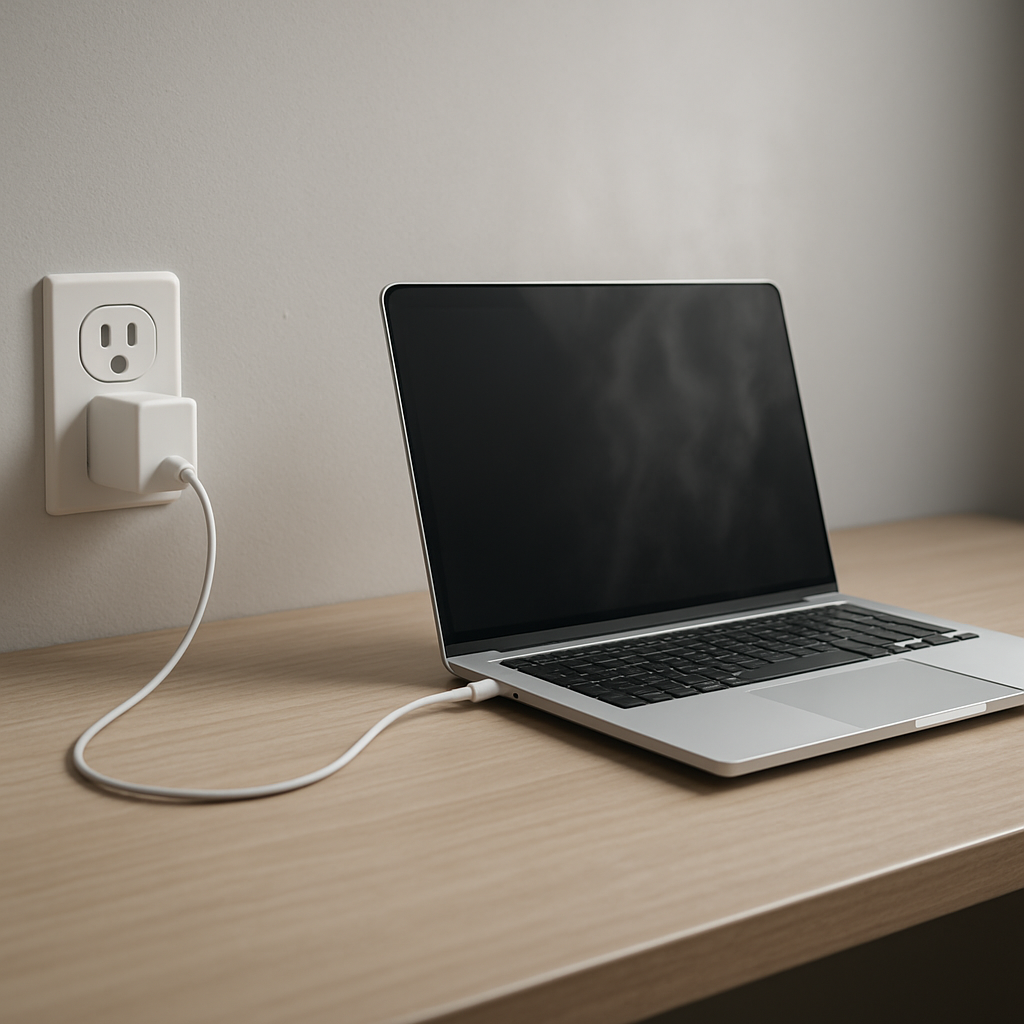
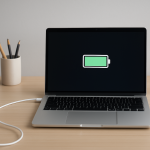
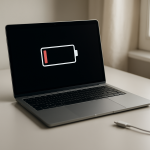
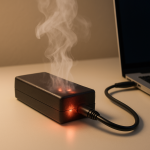
If your laptop charger gets hot while the laptop is off, the most common reason is normal standby power draw (the laptop still sips power for charging, USB power, or wake features) combined with heat buildup where the adapter is sitting. However, a charger that becomes very hot, smells, buzzes, or heats up even when not connected to the laptop can point to internal charger failure or unstable wall power, which can be dangerous.
A little warmth within 10–30 minutes is typical, especially with small high-wattage adapters. If it’s uncomfortable to hold after an hour, or it keeps heating when the laptop is fully charged and shut down, treat it as a warning and troubleshoot.
If you need a fast fix
Unplug the charger from the wall and the laptop for 10 minutes, then plug it back in with the adapter sitting in open air on a hard surface.
Test a different wall outlet (preferably in another room) and avoid power strips temporarily to rule out a failing strip or loose connection.
Stop using it immediately if you notice burning smell, crackling, buzzing, visible swelling, or melting on the plug/cable, and switch to an OEM or certified replacement.
Quick Diagnosis Table
Symptom
Most likely cause
Warm to the touch even with laptop off; no smell; works normally
Normal standby power draw plus limited ventilation (thermal buildup)
Very hot to touch within 15–30 minutes; laptop may charge slowly
Failing charger components or wrong wattage/low-quality replacement adapter
Hot even when not connected to the laptop (only plugged into wall)
Internal charger fault or unstable outlet/power strip causing waste heat
Heat comes and goes; worse on one outlet or when other appliances run
Voltage instability, loose outlet, or overloaded power strip/extension cord
Adapter/cable area at the laptop plug is hottest; charging cuts in/out
Damaged cable, bent connector, or worn DC jack/USB-C port causing resistance
Why This Happens
A laptop “off” is not always truly off. Many laptops still pull a small amount of power to top off the battery, power a charging indicator LED, keep USB charging active, or support wake features that listen for a button press or docking event.
The charger converts wall power to low-voltage DC power, and that conversion creates heat. If the adapter is under a blanket, pressed against carpet, tucked behind a couch, or coiled tightly with its cable, the heat can’t escape and the charger feels much hotter than normal.
When something is wrong—like a failing capacitor inside the adapter, a loose outlet, or a damaged cable—the system wastes more power as heat. That extra heat is the symptom you feel, and it can be a sign that parts are being stressed.
Most Common Causes (Ranked)
1) Standby power use (normal behavior): The laptop may still trickle-charge the battery and run small background power features even when shut down, keeping the adapter warm.
2) Thermal buildup from poor placement: Adapters get much hotter when left on fabric, inside a bag, behind furniture, or with the cable tightly coiled against the brick.
3) Failing charger (internal component wear): Aging parts can increase heat output, especially under light load where the charger should run cool; this often shows up as excessive heat plus new noises or intermittent charging.
4) Voltage instability or poor connections at the outlet: A loose outlet, worn power strip, or inconsistent household power can make the adapter work harder and run hotter.
5) Damaged cable/connector or worn laptop port: A partially broken wire or loose plug increases electrical resistance, concentrating heat near the connector and causing charging dropouts.
6) Wrong wattage or low-quality replacement charger: An underpowered or poorly built adapter may overheat even when the laptop is off, and can become dangerously hot during any charging.
If the charger runs noticeably cooler after improving ventilation or switching outlets, that gradual improvement usually suggests heat buildup or outlet issues rather than a major laptop failure.
How to Check the Problem Safely
Check 1: With the laptop off, feel the adapter after 20 minutes of charging on a hard surface with airflow; warm is normal, but too hot to comfortably hold is not.
Check 2: Plug the charger into the wall without connecting it to the laptop for 20–30 minutes; if it still gets hot, suspect the charger or the outlet/power strip.
Check 3: Try a different wall outlet (no extension cord); if heat drops a lot, the original outlet or strip may be loose, overloaded, or failing.
Check 4: Inspect the entire cable and both ends for kinks, shiny “stretched” spots, exposed wire, discoloration, melted plastic, or a plug that feels loose in the laptop.
Check 5: If you have a compatible known-good charger (same brand/model wattage), test it briefly; a cooler, stable result points to your original charger as the culprit.
Safety note: do not open the charger brick, and do not keep testing a unit that smells burnt, crackles, or makes the outlet hot—unplug it and replace it.
How to Fix It
Fix 1 (easiest): Improve airflow: place the adapter on a desk or tile and uncoil the cable; this reduces heat trapping and often solves “hot charger” complaints.
Fix 2: Disable unnecessary standby features (if available): turn off “USB charging while off,” “always-on USB,” or similar BIOS/utility settings; this lowers standby draw and keeps the charger cooler.
Fix 3: Replace the power strip/extension cord and use a firm wall outlet; poor contacts create resistance and heat, and can stress the charger.
Fix 4: Replace the charger with an OEM or certified adapter with the correct wattage and USB-C PD rating (if applicable); failing or underpowered adapters commonly overheat even at light load.
Fix 5 (advanced/last resort): Have a technician check the laptop charging port and internal power circuitry if multiple known-good chargers run hot or charging is unstable; a failing DC jack/USB-C board can create heat at the connector and strain adapters.
Signs of Battery or Hardware Damage
Burning smell, melted plastic, or scorch marks on the adapter, plug, or outlet.
Buzzing, crackling, or high-pitched whining that is new or getting louder.
Charging repeatedly starts and stops, or the laptop only charges at certain cable angles.
Adapter becomes too hot to hold or heats the wall plug/outlet faceplate.
Laptop battery percentage jumps, drains unusually fast, or the laptop shuts off unexpectedly.
Battery swelling (trackpad bulging, bottom cover bowing, or the laptop rocking on a flat surface).
USB-C port or charging jack feels loose, wobbly, or shows discoloration.
When Repair Is No Longer Worth It
If the charger is overheating due to internal failure, replacement is usually the best choice because power adapters are sealed, safety-critical parts. If the laptop’s charging port or power board is failing, repair can be worth it on newer laptops but may not be cost-effective on older models.
As a rule of thumb, if the repair estimate is approaching 30–50% of the laptop’s current replacement value, consider replacing the laptop instead. Also factor in safety: repeated overheating, burning odor, or melted connectors should push you toward replacement sooner.
How to Prevent This Problem in the Future
Keep the charger brick in open air on a hard surface; avoid blankets, couches, carpets, and enclosed spaces.
Uncoil cables and avoid tight bends near the brick and the laptop connector to prevent internal wire breaks.
Use an OEM/certified charger with the correct wattage (especially for gaming/workstation laptops and USB-C PD models).
Avoid cheap power strips; choose a quality surge protector and replace it if it gets warm, clicks, or has a loose socket.
When possible, unplug the charger once the laptop is fully charged and you’re done for the day, especially if your model keeps powering USB while off.
Keep ports clean and dry; debris in USB-C or DC jacks can cause poor contact and localized heating.
Do periodic checks for cable damage and plug looseness before it becomes an overheating problem.
FAQ
Is it normal for a laptop charger to be warm when the laptop is off?
Yes, mild warmth can be normal because the laptop may still draw standby power to top off the battery or run charging-related features. It should not become painfully hot, emit odor, or cause unstable charging. If it does, suspect ventilation problems, outlet issues, or a failing adapter.
My charger gets hot even when it’s only plugged into the wall. What does that mean?
That is not typical and often points to an internal charger fault or a problem with the outlet or power strip. Try a different wall outlet with no extension; if it still heats up, stop using the charger and replace it. Continuing to use a hot, unloaded adapter can be a fire risk.
Can an overheating charger damage my laptop battery?
It can. Excess heat and unstable power can stress the battery and charging circuitry over time, and a failing charger can deliver inconsistent voltage that worsens wear. If you notice battery swelling, rapid drain, or charging dropouts along with heat, replace the charger and have the laptop checked if symptoms persist.