Laptop Charger Overheating Causes And Fixes
Quick Answer
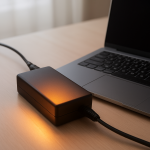
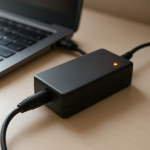
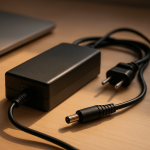
A laptop charger that feels warm is often normal, especially while charging a low battery or during heavy laptop use. Overheating becomes a problem when the charger gets too hot to comfortably touch, smells odd, intermittently stops charging, or runs hot even at idle, which usually points to overload, blocked airflow, failing internal parts, or the wrong charger wattage/voltage.
Most chargers run warm within 10–30 minutes of plugging in and then level off. If it keeps getting hotter over an hour, or heat spikes quickly in a few minutes, treat it as abnormal and troubleshoot.
If you need a fast fix
- Unplug the charger from the wall and laptop for 10 minutes, then plug it directly into a wall outlet (not a power strip) and try again.
- Move the power brick to a hard, open surface (desk or tile), untangle the cable, and keep it out from under blankets, bags, or couch cushions.
- Stop heavy tasks while charging (gaming, video export) and see if the charger temperature drops within 15–20 minutes.
Quick Diagnosis Table
| Symptom | Most likely cause |
|---|---|
| Warm to the touch but stable, charging works normally | Normal operating heat, especially during fast charging or high laptop load |
| Too hot to hold, especially near the brick or connector | Overload (high watt draw), poor ventilation, or a failing power brick |
| Gets hot only when using a docking station, external monitors, or gaming | Charger wattage is too low or system is drawing near/over the charger rating |
| Hot charger plus charging cuts in and out or battery drains while plugged in | Incompatible charger output, damaged cable/connector, or internal charger failure |
| Hot with buzzing, burning smell, discoloration, or soft/melted plastic | Failing internal components or unsafe electrical fault (replace immediately) |
Why This Happens
Your charger converts high-voltage AC power from the wall into lower-voltage DC power your laptop can use. That conversion is not perfectly efficient, so some energy turns into heat, and the power brick is designed to get warm.
Heat rises when the laptop asks for more power (charging a nearly empty battery, running demanding apps, powering USB devices, or driving external displays). If the charger is undersized or forced to “work at the limit,” it often runs hotter than normal.
When airflow is blocked, cables are tightly coiled, or internal parts are aging, heat can’t escape or is generated faster than it should be. That leads to symptoms like a charger that becomes uncomfortably hot, stops charging, or shows visible damage.
Most Common Causes (Ranked)
- 1) Normal operating heat under load: Fast charging and heavy use can make the brick noticeably warm, especially with compact USB-C chargers. The temperature should stabilize and not be painful to touch.
- 2) Poor ventilation or heat trapping: Chargers placed on carpet, beds, sofas, or inside a bag can’t shed heat. Coiled cables can also trap warmth around the brick and connector.
- 3) Overload from high power demand: Gaming, running multiple monitors, or charging other devices from the laptop can push the charger close to its limit. The brick runs hotter and may throttle or intermittently disconnect.
- 4) Incompatible charger output (wrong wattage/voltage/USB-C profile): A charger that “fits” may still be wrong for the laptop. Using a lower-watt charger often causes heat, slow charging, or battery drain while plugged in.
- 5) Damaged cable, plug, or loose connector: Frayed wires, bent pins, or a loose DC jack create resistance that turns into heat. The hot spot is often near the laptop tip or the USB-C end.
- 6) Failing internal components in the power brick: Aging capacitors or internal wear can make a charger run unusually hot, buzz, smell, or cut out. This is a replacement scenario, not a repair project for most users.
If the charger gradually runs cooler after improving airflow or reducing load, that usually indicates the charger itself is fine and the heat was caused by conditions, not a defect.
How to Check the Problem Safely
- Check 1: Feel for the hot spot after 15 minutes of use: is the heat mostly on the brick, the cable, or the connector tip? A very hot connector often points to cable/port issues.
- Check 2: Confirm the charger rating matches your laptop: compare the charger label (watts and output voltage/amps) to your laptop’s required wattage. For USB-C, also check it supports the needed Power Delivery wattage.
- Check 3: Test with a lower load: close demanding apps, unplug external devices, and set the laptop to a balanced power mode. If temperature drops quickly, overload or undersized wattage is likely.
- Check 4: Inspect the cable and ends in bright light: look for splits, kinks, exposed wire, melted spots, discoloration, or a loose-moving plug. Gently wiggle the connector while charging; any flicker suggests a poor connection.
- Check 5: Try a known-good outlet and remove adapters: plug directly into a wall outlet and avoid travel adapters, cheap extension leads, or overloaded power strips that can run warm or cause voltage issues.
Safety note: if you notice burning smell, crackling, visible melting, or smoke, unplug at the wall immediately and do not reuse the charger.
How to Fix It
- Fix 1 (easiest): Improve ventilation: place the brick on a hard surface with space around it and uncoil the cable to release heat. This helps the charger shed heat as designed.
- Fix 2: Reduce power demand while charging: pause gaming or heavy processing, disconnect unneeded USB devices, and dim the screen. Lower load means the charger converts less power and runs cooler.
- Fix 3: Use the correct wattage charger: replace a low-watt or generic charger with the manufacturer-recommended model or a reputable USB-C PD charger rated at or above your laptop’s requirement. Proper headroom reduces stress and heat.
- Fix 4: Replace a damaged cable or charger: if the cable is frayed, the connector is loose, or the hot spot is at the plug, stop using it and replace the adapter (and cable if detachable). This prevents arcing and reduces fire risk.
- Fix 5 (advanced/last resort): Have the laptop’s charging port checked: if multiple known-good chargers run hot and charging is unstable, the DC jack/USB-C port or internal power circuitry may be worn. A repair shop can test the port, board, and battery safely.
Signs of Battery or Hardware Damage
- Charger or connector smells like burnt plastic, chemicals, or “electrical” odor.
- Charging repeatedly starts and stops, or the laptop only charges at certain cable angles.
- Battery percentage drops while plugged in during normal tasks (not just gaming), suggesting power delivery issues.
- Laptop shuts down under load while connected to power, or you see frequent “plugged in, not charging” messages.
- Battery swelling, trackpad lifting, case bulging, or unusual creaks near the battery area.
- Visible melting, browning, or deformation on the brick, cable, or connector tip.
- Crackling/buzzing from the charger, or the charger makes outlets/power strips hot.
When Repair Is No Longer Worth It
If the charger shows melting, burning smell, buzzing, or repeated cutouts, replacement is the safest choice. Power bricks are sealed and not meant to be repaired by everyday users, and continuing to use a suspect adapter can damage the laptop or create a fire risk.
As a rule, replace the charger if the cost is modest compared to your laptop value or if you can’t verify the output is correct. If multiple chargers overheat on the same laptop, put money toward diagnosing the laptop port, battery, or internal power circuitry instead of burning through adapters.
How to Prevent This Problem in the Future
- Use a charger with the correct wattage and output, ideally the OEM model or a reputable certified USB-C PD charger.
- Keep the power brick on a hard, open surface and avoid charging on beds, couches, or inside bags.
- Don’t tightly coil the cable during use; let it lay loosely to reduce heat buildup and cable strain.
- Unplug by holding the plug head, not yanking the cable, to prevent internal wire breaks and hot connectors.
- Keep ports clean and dry; pocket lint in USB-C or DC jacks can cause poor contact and heat.
- Limit heavy loads while fast charging when possible, or charge first and game/work after.
- Replace chargers and cables at the first sign of fraying, looseness, discoloration, or intermittent charging.
FAQ
Is it normal for a laptop charger to get hot?
Warm is normal, especially during fast charging or heavy use, because power conversion creates heat. It should not be painful to touch or continue rising for a long time. If it becomes too hot to hold, smells, or charging becomes unstable, treat it as abnormal.
Can an underpowered or wrong charger cause overheating?
Yes. A lower-watt or incompatible charger often runs near its maximum output, which makes it hotter and can cause slow charging or battery drain while plugged in. Use a charger rated at or above your laptop’s requirement and compatible with its charging standard (especially for USB-C Power Delivery).
Should I keep using a charger that overheats but still works?
No if it gets excessively hot, has a burning smell, buzzes, or shows cable/plug damage. Those signs can indicate failing internal components or a poor connection that can worsen quickly. Replace the charger with a known-safe model and have the laptop port checked if the issue continues.
For a full overview of this issue and step-by-step solutions, read the complete troubleshooting guide.