Laptop Charger Overheating — What Causes It and When To Worry
Quick Answer
A laptop charger usually overheats when it’s being asked to deliver more power than it can comfortably shed as heat. That can happen when the laptop is under heavy load, the charger is undersized or aging, or airflow around the “brick” is trapped, so the charger’s internal components can’t cool fast enough.
It’s common for a charger to feel warm during charging, especially in the first 30–90 minutes after plugging in or during gaming and video calls. It becomes a concern when it gets too hot to hold, smells odd, makes noises, or the charging repeatedly cuts in and out.
If you need a fast fix
- Unplug the charger from the wall and laptop, let it cool for 10–15 minutes, and then plug it back in with the brick sitting in open air.
- Reduce the laptop’s power draw for now by closing heavy apps, switching to “Balanced” or “Battery saver,” and pausing gaming or rendering while charging.
- Check for obvious cable damage or a loose plug; if anything looks melted, frayed, or wobbly, stop using it and replace the charger.
Quick Diagnosis Table
| Symptom | Most likely cause |
|---|---|
| Charger brick is very hot during gaming or video calls | High thermal load: the laptop is drawing near the charger’s maximum output for long periods |
| Brick is hot even when laptop is asleep or nearly full | Ventilation blocked or charger is inefficient/aging and wasting more power as heat |
| Charging stops and starts, or the laptop says “plugged in, not charging” | Overheat protection triggering, weak connection at the plug, or charger wattage too low |
| Heat is concentrated at the cable end or connector | High resistance from a bent/frayed cable or dirty/loose port causing localized heating |
| Hot plastic smell or buzzing/whining from the brick | Failing internal components or electrical arcing; discontinue use |
Why This Happens
Every charger turns some electricity into heat while converting wall power into the lower voltage your laptop needs. When the laptop demands more watts, the charger’s internal parts work harder, and heat rises quickly.
Normally, that heat escapes through the charger’s casing and air around it. If the brick is on carpet, under a blanket, wedged behind a couch, or buried in a bag, the heat can’t dissipate, so the temperature keeps climbing.
As the charger gets hotter, it may throttle, shut off briefly, or feel dangerously hot to touch. That cause-to-symptom path is simple: higher power output plus poor cooling equals overheating.
Most Common Causes (Ranked)
- 1) High laptop power draw while charging: Gaming, video editing, external monitors, and fast CPU/GPU boosts can push the charger close to its limit for hours, so heat builds faster than it can escape.
- 2) Charger brick placed where heat can’t vent: Soft surfaces, tight cable coils, and clutter trap warmth around the casing, lowering the charger’s effective cooling capacity.
- 3) Wrong wattage charger (undersized): Using a lower-watt charger than your laptop expects forces the charger to run at or above its comfort zone, which raises internal temperatures and can trigger protection shutoffs.
- 4) Aging or low-quality charger components: Over time, capacitors and internal contacts can become less efficient, turning more input power into waste heat even at normal loads.
- 5) Damaged cable or connector creating resistance: A bent plug, frayed insulation, or a partially broken wire can act like a tiny heater, concentrating heat at the end of the cable.
- 6) Dirty or loose laptop charging port: Debris or wear can prevent a solid connection, increasing resistance and heating at the plug and port area.
If things steadily improve after you reduce load and give the brick airflow, that usually indicates normal heat from high power use rather than a dangerous fault.
How to Check the Problem Safely
- Check 1: Feel for where the heat is strongest (brick, cable, or connector) and note it. Concentrated heat at the connector often points to a cable/port issue rather than normal charger warmth.
- Check 2: Verify charger wattage and compatibility by reading the label on the charger and comparing it to your laptop’s required wattage. Using the correct voltage and equal-or-higher wattage (from a reputable source) matters.
- Check 3: Inspect the cable end-to-end for kinks, flattened sections, fraying, discoloration, or a plug that feels loose. Pay special attention to the strain relief near the brick and connector.
- Check 4: Test in a cool, open area with the brick on a hard surface, cable uncoiled, and the laptop doing light tasks. If the charger stays much cooler, airflow and workload were the main drivers.
- Check 5: If possible, try a known-good charger of the correct type and wattage (borrowed or spare) and compare temperatures under the same use. A large difference points to a failing charger.
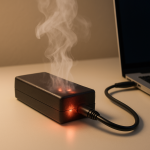
If you notice melting, sparks, smoke, or a burning smell, unplug immediately and do not test further.
How to Fix It
- Fix 1 (easiest): Give the charger space to breathe by placing it on a hard surface with nothing covering it and uncoiling the cable. This improves heat dissipation and often drops temperatures quickly.
- Fix 2: Reduce charging load by switching to a balanced power mode, lowering screen brightness, and closing heavy apps while charging. Less wattage demand means less heat generated inside the charger.
- Fix 3: Use the correct wattage charger (or a higher wattage model approved for your laptop). An appropriately sized charger runs with more headroom, so it typically operates cooler and more stable.
- Fix 4: Replace damaged cables, adapters, or the entire charger if the heat is localized at the connector/cable or if the brick smells, buzzes, or cuts out. Faulty parts can overheat even at low power draw.
- Fix 5 (advanced/last resort): If overheating happens only with a specific laptop and multiple known-good chargers, have the laptop’s charging port and power circuitry inspected. A failing DC-in jack or USB-C power path can cause resistance and heat that looks like a charger problem.
Signs of Battery or Hardware Damage
- Battery swelling, a bulging bottom case, or a trackpad that’s hard to click
- The laptop shuts down under load even when plugged in
- Charging percentage jumps, stalls, or drops unusually fast after unplugging
- Visible arcing marks, browning, or melted plastic at the charging port or connector
- Repeated “charger not recognized” messages or frequent disconnect/reconnect sounds
- Fan runs constantly and the laptop gets unusually hot during light tasks
- A persistent burning smell from the laptop or charger area
When Repair Is No Longer Worth It
If the charger is overheating due to age, internal failure signs, or physical damage, replacement is usually the right call. Chargers are sealed safety devices, and attempting to repair a brick is risky and rarely cost-effective.
For the laptop itself, consider repair when the issue is limited to a replaceable port or DC-in board and the machine is otherwise in good shape. If the motherboard power circuitry is failing on an older laptop, compare the repair estimate to the laptop’s current value and the cost of a reliable replacement charger plus any needed battery work.
How to Prevent This Problem in the Future
- Keep the charger brick in open air on a hard surface, not on carpet, bedding, or inside a bag while in use.
- Avoid tightly coiling the cable during charging; tight coils trap heat and can stress the wires near the plug.
- Use a charger that matches your laptop’s required wattage and is from the laptop maker or a reputable certified brand.
- When doing heavy tasks, consider charging earlier or lowering performance settings so the charger isn’t pinned at maximum output for hours.
- Keep the laptop’s charging port clean and avoid side-loading the connector; gentle insertion reduces wear and resistance over time.
- Replace chargers that run noticeably hotter than they used to, even if they still “work,” since declining efficiency often shows up as extra heat.
- Manage ambient heat by avoiding direct sunlight and hot cars; a warm room reduces the charger’s ability to shed heat.
FAQ
Is it normal for a laptop charger to get hot?
Yes, some warmth is normal because chargers convert power and lose a portion as heat. It’s especially common during the first hour of charging or when the laptop is doing demanding work while plugged in. It’s not normal if it becomes too hot to comfortably touch, smells like hot plastic, or causes charging to cut out.
Can an overheating charger damage my laptop or battery?
It can. If the charger is overheating because it’s failing or the connection is poor, voltage can become unstable and the connector area can heat up, stressing the port. Many chargers have protection circuits that shut down before major damage, but repeated overheating events are a good reason to replace the charger and check the port.
Should I buy a higher wattage charger to stop overheating?
Often, yes, as long as it’s compatible and uses the correct voltage and connector type. A higher wattage charger gives more headroom, so it doesn’t have to run at its limit, which reduces heat. Avoid cheap, uncertified “high watt” chargers, since poor efficiency can still run hot and may be unsafe.
For a full overview of this issue and step-by-step solutions, read the complete troubleshooting guide.