Laptop Battery Drops From 20% to 0 Suddenly — Calibration Problem or Battery Failure?
Quick Answer
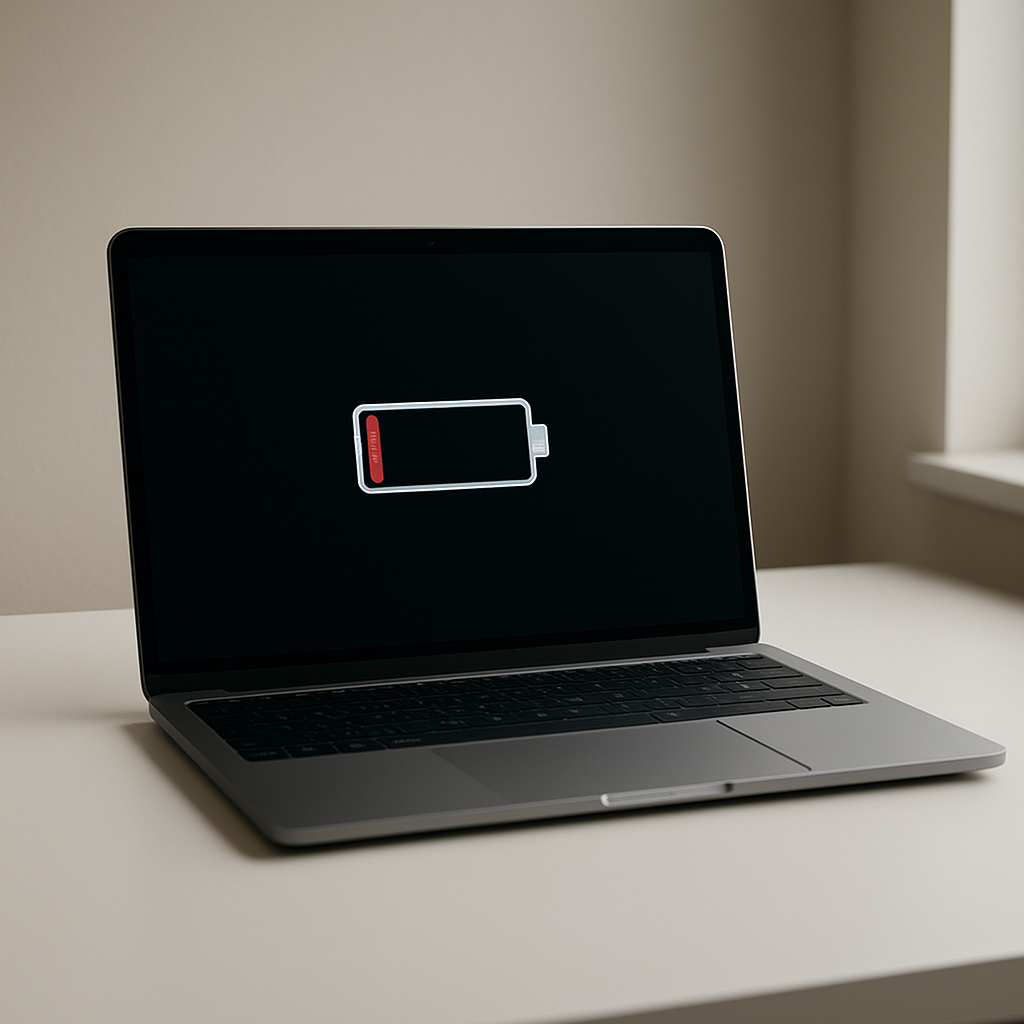
When a laptop jumps from around 20% to 0% in seconds, it is usually either a battery calibration error (the percentage estimate is wrong) or a sudden voltage collapse from worn lithium cells (the battery can no longer hold voltage under load).
Calibration issues often show up after long periods of being plugged in or after a big update, and can improve within 1–2 charge cycles. Voltage-collapse failures tend to get worse over days or weeks, with more unexpected shutoffs at the same percentage range.
If you need a fast fix
Plug in the charger and leave it connected for 15–30 minutes before trying to boot again, then save your work and reduce load (close heavy apps).
Lower power draw immediately: set screen brightness to 30–50%, turn off keyboard backlight, and disconnect USB devices.
If it keeps shutting off near 20%, treat 25–30% as your “new empty” and plug in earlier while you diagnose the cause.
Quick Diagnosis Table
Symptom
Most likely cause
Battery drops from 20% to 0% only under heavy load (gaming, video calls)
Degraded cells causing voltage sag and sudden cutoff
Battery percentage jumps around (e.g., 35% to 15% to 28%)
Battery gauge/calibration data out of sync
Laptop shuts off at the same percentage range every time (often 10–30%)
Reduced battery capacity and weak cells triggering low-voltage protection
After a full recharge, it behaves normally for a while, then drops suddenly later
Mixed: borderline battery health or calibration temporarily masking wear
Drop started after BIOS/firmware/OS update
Power management/firmware reporting issue or recalibration needed
Why This Happens
Your laptop does not directly “see” a battery percentage. It estimates it using a fuel gauge that tracks voltage, current, and learned capacity, then turns that into a % number you see on screen.
With a healthy battery, voltage stays stable as it discharges. With an aging lithium battery, voltage can dip sharply when the laptop suddenly needs more power, like when the CPU boosts, the fan ramps up, or the screen brightness increases.
When the voltage dips below a safe limit, the laptop protects itself by shutting down, and the remaining “20%” was never truly usable capacity at that load.
Most Common Causes (Ranked)
1) Worn lithium cells causing sudden voltage collapse: As batteries age, internal resistance rises, so the battery cannot maintain voltage when demand spikes. The laptop hits its low-voltage cutoff and drops to 0% or powers off instantly even though it looked like 20% remained.
2) Battery calibration (fuel gauge) out of sync: If the laptop has not seen full charge and discharge ranges in a long time, the gauge can misjudge what “20%” really means. This is common on laptops that live on the charger at 100% most days.
3) High power draw at low charge: Performance mode, high brightness, discrete GPU use, or heavy background tasks can push a weak battery over the edge. The same battery may last longer on “Battery saver” because the load is lower.
4) Firmware/BIOS or driver reporting quirks: Some updates change how the battery is measured or how sleep/modern standby behaves. A reporting bug can make the percentage look okay until it recalculates and suddenly corrects downward.
5) Charger or charging port issues (inconsistent charging): If the laptop is not truly charging to 100%, it may start a session already undercharged, then appear to drop faster. This is less common for a clean 20% to 0% cliff, but it can contribute.
6) Battery pack connection or sensor fault: A loose internal connector or a failing temperature/voltage sensor can cause abrupt readings and protective shutdowns. This is more likely if the problem appears suddenly and repeats regardless of load.
If the shutdown point slowly moves lower (for example, from 25% to 15%) after a couple of careful cycles, that often suggests calibration was part of the issue rather than rapid battery failure.
How to Check the Problem Safely
Check 1: Note the pattern for two runs: does it only happen during heavy use, or even while idle? A load-only drop points strongly to weak cells and voltage sag.
Check 2: Compare “time remaining” and percentage behavior: if time remaining swings wildly or the % jumps up and down, calibration or gauge data is likely off.
Check 3: Review battery health data: on Windows, run a battery report and look at “Full charge capacity” versus “Design capacity.” On macOS, check Battery Health and cycle count in System Information.
Check 4: Test on a lower load: enable Battery saver/Low power mode, reduce brightness, and repeat the discharge from 40% down. If it no longer drops at 20%, that suggests voltage sag under load.
Check 5: Observe charging behavior: does it reach 100% reliably and stay there on AC, or does it stop at odd values and fluctuate? Unstable charging can confuse calibration and shorten runtime.
Safety note: if you notice swelling, strong chemical smell, or heat that seems abnormal, stop using the battery immediately and do not attempt repeated discharge tests.
How to Fix It
Fix 1 (easiest): Reduce load at low battery (Battery saver, lower brightness, close heavy apps). This lowers current draw and can prevent voltage dips that trigger sudden shutdown.
Fix 2: Perform a gentle calibration cycle: charge to 100%, keep it plugged in for about 1–2 hours, then unplug and use it down to around 5–10% (avoid forcing it to 0%), then recharge to 100% in one session. This helps the fuel gauge relearn usable capacity.
Fix 3: Update BIOS/firmware and battery-related drivers from the laptop maker, not only through the OS. Firmware updates often improve battery reporting and low-voltage handling.
Fix 4: Adjust battery charge limits if your laptop supports it (for example, 80% max for daily use). This does not “fix” a bad battery, but it slows further wear and can make readings more consistent over time.
Fix 5 (advanced/last resort): Replace the battery (or have it replaced) if capacity is much lower than design or it still shuts off around 10–30% after calibration. A battery with high internal resistance cannot be repaired by software, and replacement is the real solution.
Signs of Battery or Hardware Damage
Battery physically swollen, trackpad or bottom cover lifting, or chassis no longer sits flat.
Laptop shuts off instantly even at higher percentages (for example, 50–70%) with no warning.
Battery drains extremely fast at idle, such as losing 20–30% in under 15 minutes doing nothing.
Battery won’t charge past a low number (like 40–60%) or says “plugged in, not charging” unexpectedly.
Noticeable burning smell, hissing, discoloration near the battery area, or repeated “battery service recommended” warnings.
Battery temperature readings seem wrong (always hot or always cold) and the laptop throttles or shuts down.
Charging works only when the cable is held at a certain angle (possible port or board issue that can mimic battery problems).
When Repair Is No Longer Worth It
If the laptop consistently dies at 10–30% after you try a calibration cycle and basic updates, the battery is likely worn enough that the remaining “percentage” is not usable. For sealed batteries, replacement is usually the only practical repair.
As a rule, replace the battery if the full-charge capacity is far below design, if shutdowns are disrupting work, or if the laptop must stay plugged in to be reliable. If the laptop is older and a battery plus labor approaches a large share of the laptop’s value, consider putting that money toward a newer model with a fresh battery and warranty.
How to Prevent This Problem in the Future
Avoid living at 100% all the time if your laptop supports a charge limit; using an 80% cap reduces long-term wear.
Do a full, gentle cycle occasionally (about once every 1–3 months) to help the gauge stay accurate, but do not deep-discharge weekly.
Keep the laptop cool: heat accelerates lithium aging, so avoid blocking vents and don’t leave it in a hot car.
Use the correct charger or a reputable USB-C PD charger with the right wattage; underpowered charging can cause erratic behavior.
At low battery, avoid heavy loads that spike power draw, such as gaming or exporting video, especially on an older battery.
Update BIOS/firmware periodically from the manufacturer to improve battery management and reporting.
If storing the laptop for weeks, leave it around 40–60% charge and power it off fully to reduce stress on the cells.
FAQ
Is a sudden drop from 20% to 0% always a bad battery?
No, it can be a calibration problem where the laptop’s estimate is wrong. However, if it happens repeatedly at the same percentage range, especially under moderate load, it often points to battery wear and voltage sag. If calibration helps only briefly, the battery is likely near end-of-life.
Should I “fully drain to 0%” to recalibrate?
It is better to do a gentle calibration and avoid forcing hard shutdowns. Going to 5–10% and then recharging is usually enough for the fuel gauge to relearn without stressing the battery. If the laptop shuts itself off despite your efforts, that is a sign the usable capacity is already limited.
How do I know if it’s software reporting versus real capacity loss?
If the percentage jumps up and down or improves noticeably after one or two controlled charge cycles, reporting/calibration is likely involved. If battery health data shows a much lower full-charge capacity than design, or if the laptop dies during higher power draw at the same percent, real battery degradation is more likely. Testing in Battery saver versus Performance mode is a quick way to see if load triggers the drop.