Battery Draining Even When Device Is Off — Hardware Leak or System Fault?
Quick Answer
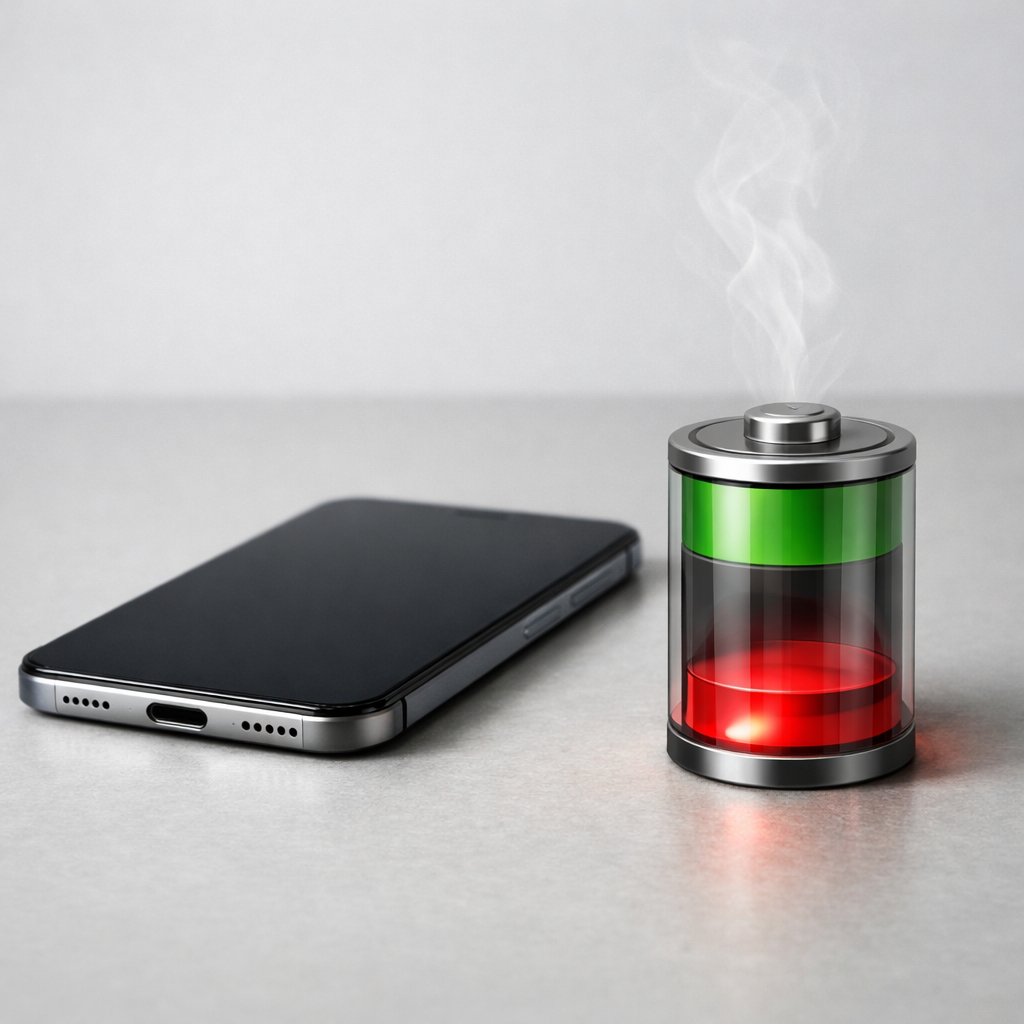
If your battery drops even while the device is “off,” the most common explanation is that it isn’t truly fully powered down, and the power system keeps sipping energy in the background. This often shows up alongside extra heat during fast charging, because fast-charge pushes high current through the power-conversion parts, which then run hotter and may waste more power.
A small drop (around 1–3% overnight) can be normal on many phones and laptops, especially if “off” is really a low-power standby mode. A bigger drop (like 5–15% overnight) or any noticeable warmth while “off” usually points to a setting, accessory, or hardware fault that needs attention within days, not months.
If you need a fast fix
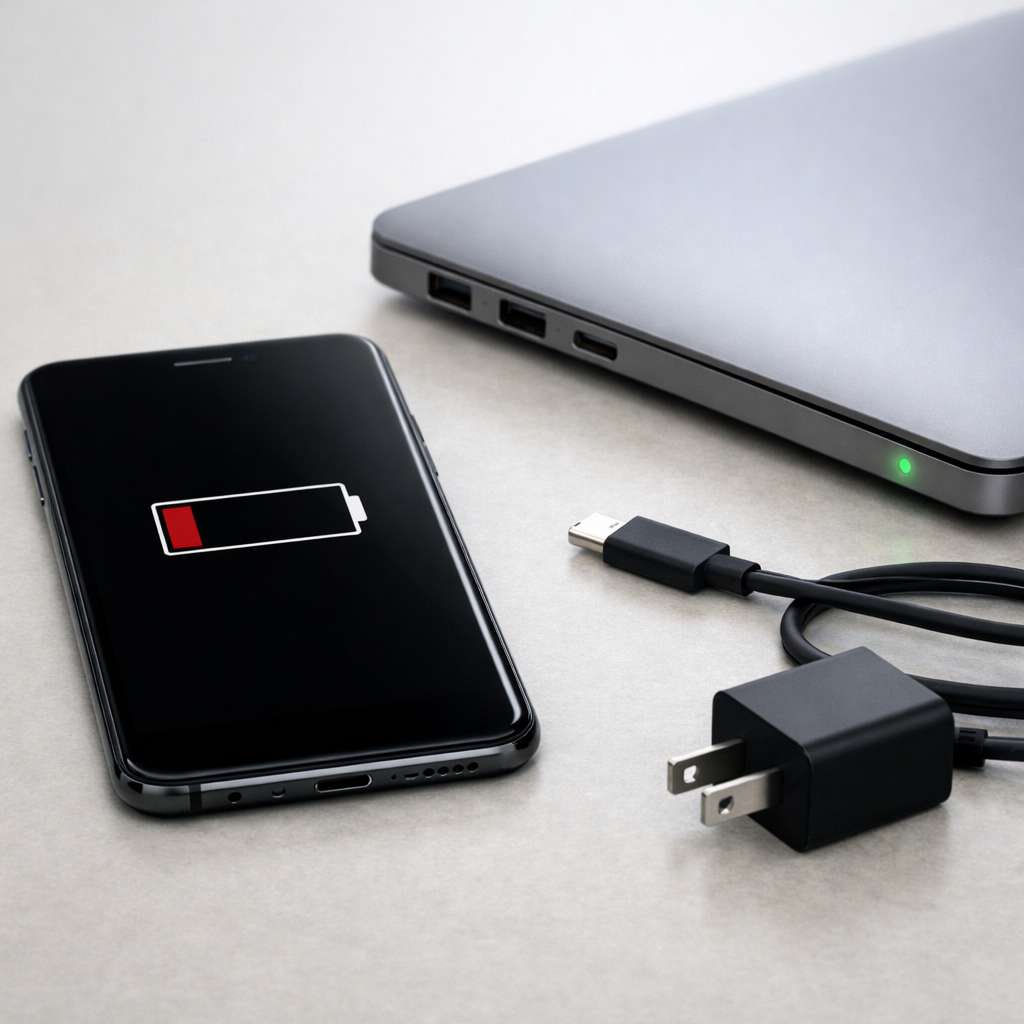
Use a different charger and cable (ideally the original or certified ones) and test one full charge cycle to see if heat and drain improve.
Turn off fast charging (if your device has the option) and charge from 20% to 80% once to reduce conversion heat and rule out charger-triggered issues.
Do a true shutdown and leave the device unplugged for 2–3 hours, then check percentage change; remove cases and disconnect all accessories during the test.
Quick Diagnosis Table
Symptom
Most likely cause
Battery drops 5–15% overnight while “off”
Device isn’t fully shutting down (standby features, wake events) or a background controller is staying active
Device gets warm during fast charging, then drains faster afterward
High current conversion load plus heat raises power loss and can make the battery meter less stable
Battery drains even with airplane mode and no accessories
Battery aging, power-management fault, or a hardware leak on the mainboard
Drain only happens when something is plugged in (dongle, SD, USB devices)
Accessory/power port issue keeping the device partially awake or leaking power through the port
Battery % “jumps” after reboot (e.g., 40% to 25%)
Battery calibration mismatch or worn cells that sag under load and confuse the gauge
Why This Happens
Even when a device looks off, some models keep a small part of the power system active for features like “find my device,” alarm clocks, wake-on-button, or instant-on. That tiny “always-on” section should use very little energy, but if something goes wrong, it can draw much more than intended.
Fast charging adds another clue: it forces a lot of current through charging and voltage-conversion circuits. Those parts naturally create heat, and the hotter they get, the less efficient they can be, which means extra energy is wasted as warmth instead of stored as battery.
When the power system runs hot or stays partially active, the symptom you notice is simple: the battery percentage falls even though you believe nothing is running.
Most Common Causes (Ranked)
1) Fast-charge heat and conversion losses: High current creates heat in the charger, cable, port, and internal conversion circuits. If efficiency drops, more energy turns into heat and less ends up in the battery, making charging look “normal” but the battery drains sooner.
2) Not actually powered off (modern standby/instant-on): Some devices use a low-power state that looks like off but still listens for events. A misbehaving service or wake trigger can keep it active enough to drain overnight.
3) Charger/cable/port causing partial wake or leakage: A damaged cable, dirty port, or out-of-spec charger can make the device repeatedly negotiate charging, creating heat spikes and a steady trickle drain when “off.”
4) Battery aging (higher self-discharge, voltage sag): Older batteries lose capacity and can self-discharge faster, especially when warm. The battery meter can also become less accurate, so the percentage drop looks worse than it is.
5) Background controllers stuck on: A modem, Wi-Fi/Bluetooth module, storage controller, or sensor hub can fail to sleep properly. This is more likely if the device feels warm when off or loses power quickly with no apps involved.
6) Board-level fault (hardware leak): Liquid damage, corrosion, or a failing power-management chip can create a constant draw. This often worsens over time and may show up as heat near the port or camera area.
If your drain slows down after switching chargers, disabling fast charge, or improving cooling, that gradual improvement usually means the issue is heat/efficiency or settings rather than permanent hardware damage.
How to Check the Problem Safely
Check 1: Measure the drain rate: charge to around 80%, do a full shutdown (not sleep), unplug everything, wait 3 hours, then check the percentage. Repeat once more to confirm it’s consistent.
Check 2: Compare fast charge vs slow charge: charge once with fast charging enabled, and once with it disabled (or using a lower-watt charger). Note heat, time to charge, and how much battery you lose after sitting “off” overnight.
Check 3: Inspect and clean the charging port: turn the device off, use a flashlight, and remove lint carefully with a wooden toothpick or soft brush. A poor connection can cause repeated charging handshakes and extra heat.
Check 4: Eliminate accessories: remove cases with magnets/batteries, disconnect dongles, SD cards, USB devices, and any “smart” cases. Then repeat the shutdown drain test.
Check 5: Look for battery health clues: on phones, check battery health (if available) and charging temperature warnings; on laptops, check the battery report and cycle count.
If you notice swelling, burning smell, or extreme heat, stop charging and don’t continue testing.
How to Fix It
Fix 1 (easiest): Swap to a known-good charger and cable and avoid ultra-fast charging for a week. This reduces conversion load and heat, and it quickly shows whether the drain is charger-triggered.
Fix 2: Disable fast charging or cap charging (like 80–85%) if your device supports it. Lower current means less heat and less wasted energy, and it can also slow battery aging.
Fix 3: Turn off “always on” features that keep the device semi-awake, such as wake-on-LAN, USB power while off, “find my device” network updates (where optional), or instant-on/modern standby settings. This reduces the chance that “off” is really an active state.
Fix 4: Update firmware/OS and reset power settings. Power-management bugs happen, and updates often improve charging control and sleep behavior; a settings reset can clear a stuck configuration.
Fix 5 (advanced/last resort): Replace the battery or arrange a diagnostic for the charging port and power-management circuit. If the device still drains quickly when fully shut down and unplugged, a battery or board-level leak is likely.
Signs of Battery or Hardware Damage
Battery percentage drops rapidly even after a verified full shutdown and with nothing plugged in.
The device feels warm while “off,” especially near the charging port or along one edge.
Charging is inconsistent: it starts/stops repeatedly, or fast charging fails often.
Battery percentage jumps after reboot, or the device shuts off at 20–40%.
Swollen battery symptoms: bulging back cover, lifted screen, wobbling on a flat surface.
Burning smell, crackling noises, or discoloration around the port.
Noticeably worse drain after a drop, bend, or liquid exposure.
When Repair Is No Longer Worth It
If the device drains heavily while fully shut down, runs warm when off, or shows swelling, repair moves from “nice to have” to “safety and reliability.” A battery replacement is usually worth it when the device is otherwise healthy and supported with updates.
If diagnostics suggest a board-level power leak (especially after liquid damage), repairs can cost close to the value of an older phone or laptop. As a rule, if repair is more than about 40–60% of replacement cost, or if the device also has screen/port issues, replacement is often the better long-term choice.
How to Prevent This Problem in the Future
Prefer quality chargers and cables that match your device’s fast-charge standard; poor gear increases heat and wastes power.
Use fast charging only when you need it, and slow charge when convenient to reduce high-current heat.
Charge on a hard, cool surface and remove thick cases during fast charging to help heat escape.
Avoid charging in hot environments (direct sun, car dashboards), since heat speeds up battery aging and increases self-discharge.
Keep the charging port clean and dry; lint and corrosion can cause repeated reconnect cycles and extra drain.
Enable battery protection features like charge limits (80–85%) if your device offers them.
Do a full restart occasionally and keep OS/firmware updated to maintain healthy sleep and charging behavior.
FAQ
Is it normal for a battery to drain when the device is off?
A small amount can be normal if the device is using a “soft off” or modern standby mode rather than a complete power cut. On many devices, 1–3% overnight isn’t unusual. More than that, or any warmth while off, suggests settings, accessories, or hardware are keeping it partially active.
Why does my device get hot during fast charging?
Fast charging pushes more current, and converting that power into what the battery can store creates heat in both the charger and the device. Some warmth is expected, but it should not be uncomfortably hot or continue long after charging finishes. Excess heat can also increase losses, making the battery seem to drain faster later.
How can I tell if it’s a bad battery or a hardware leak?
Try a true shutdown test with everything unplugged: if it still drops quickly and feels warm, a hardware leak is more likely. If drain improves noticeably when you disable fast charge, change chargers, or keep the device cooler, the cause is often efficiency/heat or power settings. A battery health report and a technician’s current-draw test can confirm it.
If the issue keeps coming back, it’s usually worth looking at broader battery behavior rather than a single fix. That’s the approach Mark Reynolds follows in the complete battery guide.