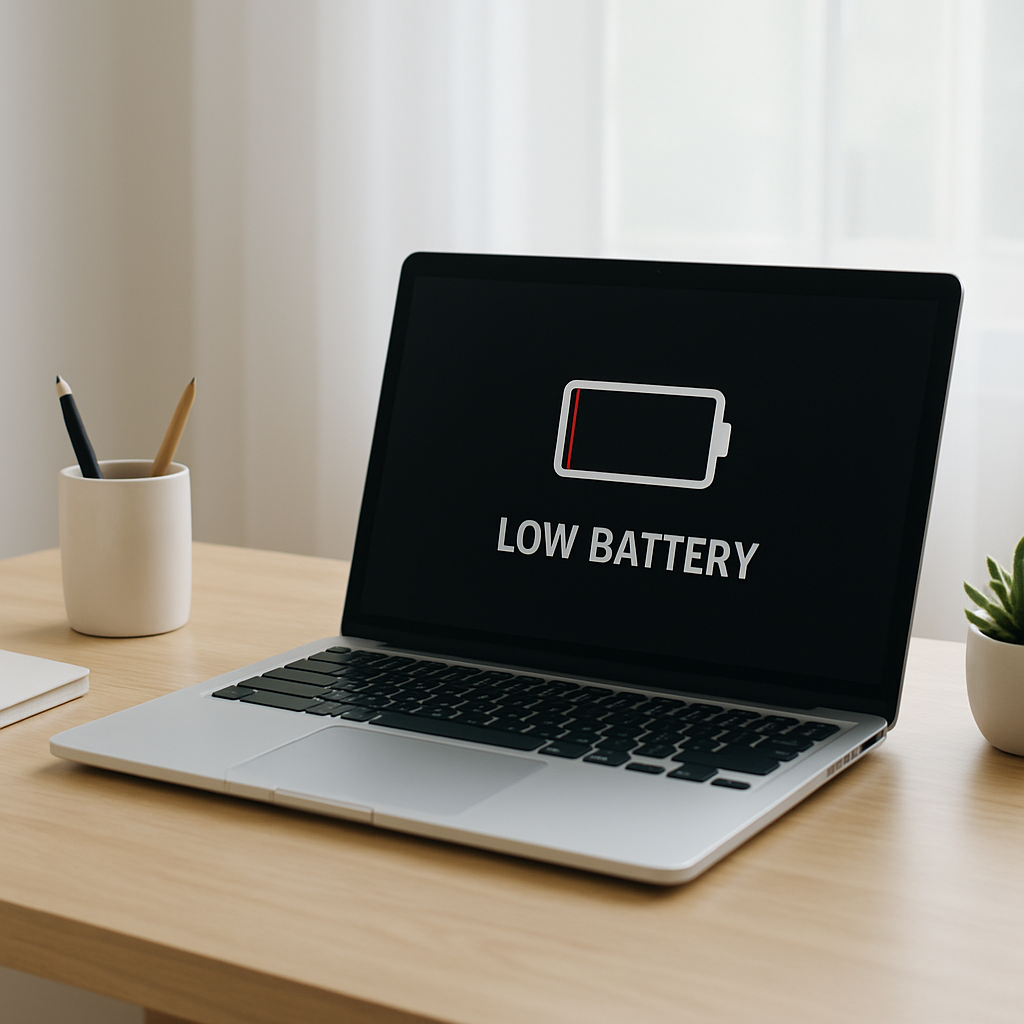
Laptop Battery Draining While Idle — Background Power Drain Causes and Fixes
Quick Answer
If your laptop battery drops a lot while you’re not using it, the most common reason is that “idle” isn’t truly idle. Background system services, cloud sync, email, indexing, updates, and wireless modules (Wi-Fi, Bluetooth, cellular) can keep the CPU and network active even when the screen is off.
A small drop is normal, but big overnight losses usually mean something is running in the background or the laptop isn’t reaching a low-power sleep state. Many laptops should only lose a few percent over several hours of proper sleep, while 10–30% overnight often points to background activity or a sleep/standby setting issue.
If you need a fast fix
Turn on Airplane mode (or turn off Wi-Fi and Bluetooth) before closing the lid to stop background syncing and network scanning.
Use Hibernate instead of Sleep for overnight or travel so the laptop writes the session to disk and draws near-zero power.
Close sync-heavy apps (cloud drive, email, chat) and do a quick restart before leaving it idle to clear stuck background tasks.
Quick Diagnosis Table
Symptom
Most likely cause
Battery drops 15–30% overnight in “Sleep”
Connected standby/network activity, or background sync keeping the system awake
Fans run or laptop feels warm while “sleeping”
Update process, indexing, or driver preventing deep sleep
Battery drain starts after a Windows/macOS update
Post-update indexing, app re-sync, or a new driver/power setting change
Battery drain is worse on certain Wi-Fi networks
Network scanning, captive portal checks, or cloud apps repeatedly reconnecting
Battery drains even when shut down (very slowly)
USB charging while off, wake-on-LAN, or failing battery (less commonly)
Why This Happens
When you close the lid or stop using your laptop, the system should drop into a low-power state. But many laptops still allow background services to run, especially if “stay connected” features are enabled. That means your laptop may keep waking up briefly to sync files, download mail, check for updates, or maintain network connections.
A common real-world example is a cloud drive app that sees changes and tries to upload them, or an email client that keeps checking for new messages. Even without you touching the keyboard, those tasks can trigger CPU usage and Wi-Fi activity, which pulls more power than true sleep.
The result is simple: background activity prevents deep sleep, so the laptop keeps “sipping” power all night instead of settling into a minimal drain state.
Most Common Causes (Ranked)
1) Cloud sync and backup tasks: OneDrive, iCloud Drive, Google Drive, Dropbox, and backup tools can continue syncing while idle, especially on new installs or after big file changes.
2) Email, chat, and notification services: Mail apps, Teams/Slack/Discord, and browser push notifications can keep network activity and background timers running.
3) Updates and indexing in the background: Windows Update, Microsoft Store updates, macOS Spotlight indexing, and antivirus scans can spike CPU and disk activity during idle time.
4) Connectivity modules staying active: Wi-Fi and Bluetooth can keep searching, reconnecting, or maintaining “always on” connections, especially with connected standby or wake features enabled.
5) Misbehaving drivers or power settings: A network, audio, or graphics driver can block deeper power states and cause frequent wake events.
6) USB devices and accessories: Mice, docks, external drives, and adapters can trigger wake-ups or keep power flowing through ports even when you think the laptop is asleep.
If the drain improves after you stop syncing or change one setting, that gradual improvement usually means the battery is fine and the issue is software or connectivity related.
How to Check the Problem Safely
Check 1: Note the battery percentage, close the lid for 60–120 minutes, then check the percentage again. Repeat once with Airplane mode enabled to see if connectivity is the trigger.
Check 2: After waking the laptop, open your battery/energy view and look for recent heavy use. On Windows, check Battery usage by app; on macOS, check Activity Monitor for Energy impact and “Preventing Sleep.”
Check 3: Look for “warm while sleeping” clues. If the laptop is warm in a bag or on a desk after being idle, it likely wasn’t in a low-power state.
Check 4: Temporarily quit sync-heavy apps (cloud drive, backup, chat, mail) and test idle drain again. If the drain drops, re-enable apps one at a time to identify the main offender.
Check 5: Remove external devices and hubs, then test. If idle drain improves, a USB accessory or dock was keeping the system awake or drawing power.
Safety note: if the laptop feels hot while “sleeping,” shut it down and let it cool before storing it in a bag to avoid overheating and battery stress.
How to Fix It
Fix 1 (easiest): Use Hibernate (or full shutdown) for long idle periods. It prevents background services from running and usually eliminates overnight drain.
Fix 2: Disable or limit background syncing on battery. Set cloud drive apps to pause syncing on battery power, and reduce mail fetch frequency so the network isn’t constantly active.
Fix 3: Adjust sleep and network settings. Turn off “stay connected while sleeping” options, disable Bluetooth when not needed, and prevent network adapters from waking the laptop if you don’t use wake features.
Fix 4: Finish maintenance tasks on purpose. Plug in and let updates, indexing, and antivirus scans complete, then restart. Many “mystery drain” cases disappear once the backlog clears.
Fix 5 (advanced/last resort): Update drivers and firmware (BIOS/UEFI) from the laptop manufacturer, then reset power plans to defaults. Driver bugs and firmware power-state issues are a common reason a laptop won’t enter deep sleep properly.
Signs of Battery or Hardware Damage
Battery percentage drops in large jumps (for example, 40% to 20% quickly) even after calibration-like use.
The laptop shuts down suddenly at 10–30% battery.
Battery won’t charge past a certain point, or charging stops and starts repeatedly.
The bottom case or trackpad area bulges, or the laptop doesn’t sit flat (possible battery swelling).
Battery runtime is extremely short even during light use (web browsing, documents).
The laptop is unusually hot during light workloads or while idle, even after fixing background activity.
System reports “service recommended,” “replace soon,” or very low battery health/capacity.
When Repair Is No Longer Worth It
If your laptop is older and the battery health is significantly reduced, chasing idle-drain tweaks may give only minor gains. Replacing the battery makes sense when the laptop is otherwise reliable and the replacement is straightforward and reasonably priced.
As a rule of thumb, consider replacement if the battery plus labor approaches a large fraction of the laptop’s current value, or if there are other costly issues (overheating, failing storage, broken charging port). If a new battery restores both active runtime and idle performance, it’s usually the best value for a machine you plan to keep.
How to Prevent This Problem in the Future
Use Hibernate for overnight and travel, especially if you keep many apps open.
Pause cloud sync on battery or set it to sync only on Wi-Fi and power, depending on your needs.
Limit background apps and browser push notifications to the ones you truly need.
Keep Wi-Fi and Bluetooth off when not in use, or enable Airplane mode before closing the lid.
Let updates and indexing finish while plugged in, then restart to clear pending tasks.
Disconnect unnecessary USB accessories and avoid leaving a dock connected if you see higher sleep drain.
Update BIOS/firmware and key drivers a few times per year from the manufacturer to maintain stable sleep behavior.
FAQ
Is it normal for a laptop battery to drain while sleeping?
A small amount is normal because the laptop may keep memory powered and listen for wake events. However, losing a large percentage overnight usually means background services or network connectivity are keeping it from entering a deep, low-power state. Switching to Hibernate is a good comparison test.
Why does my battery drain faster on Wi-Fi even when I’m not using the laptop?
Some laptops and apps keep network connections active during idle to sync email, files, and notifications. Wi-Fi can also repeatedly reconnect or scan, especially on unstable networks. Turning off “connected” sleep options or using Airplane mode before sleep often reduces the drain.
Should I shut down every time to avoid idle drain?
You don’t have to, but for long idle periods, shutdown or Hibernate will minimize battery loss the most. Sleep is fine for short breaks if your laptop enters proper low-power sleep and stays cool. If you often find it warm or heavily drained, treat that as a sign to change settings or use Hibernate.
For a clearer understanding of battery drain and charging limits, Mark Reynolds focuses on simple, practical fixes that work across most devices. You can also read the complete troubleshooting guide.