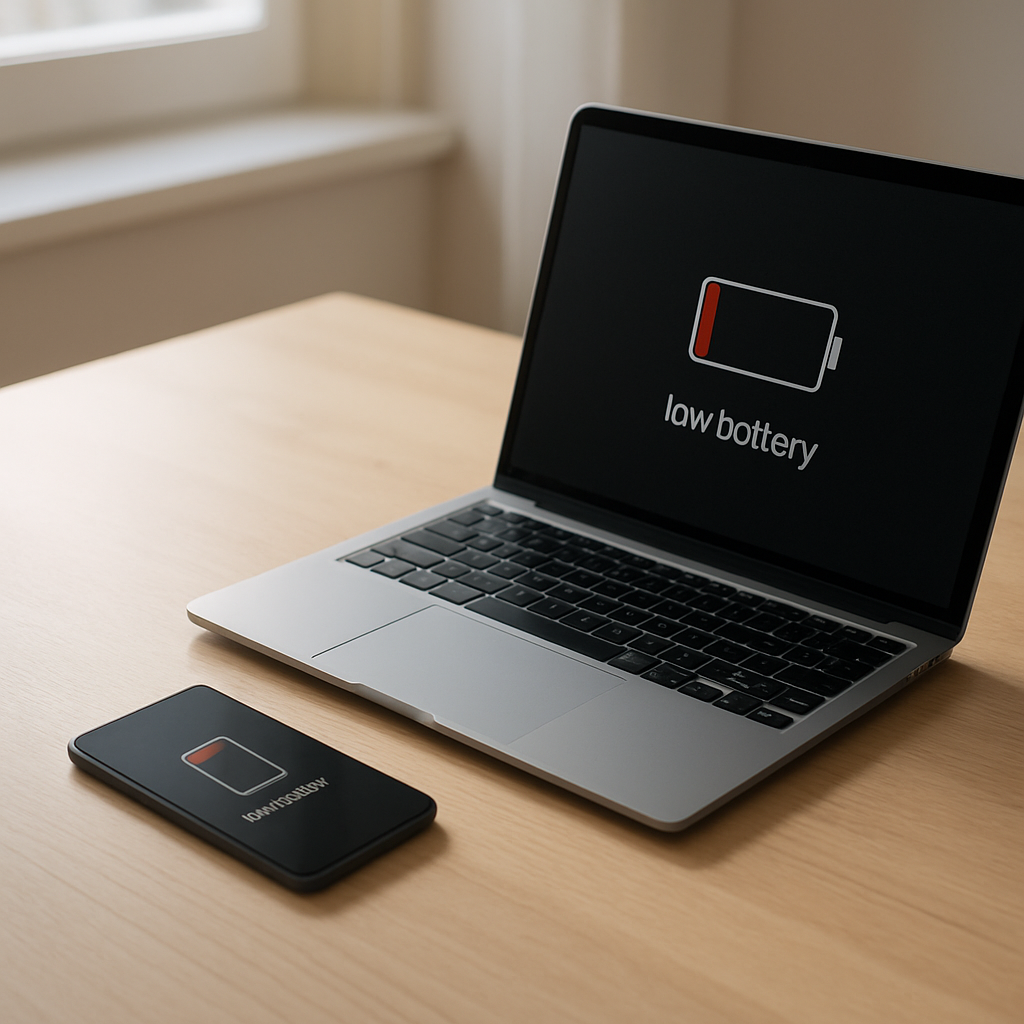
Device Battery Draining After Update — Software Optimization or Hidden Bug?
Quick Answer
Right after an update, the most common reason for sudden battery drain is background software optimization. Your device may be re-indexing photos, rebuilding search databases, re-checking cloud files, and optimizing apps so everything works smoothly with the new version.
This extra work can raise power use for a few hours up to 2–3 days, especially if the update was large or you haven’t updated in a while. If battery life slowly improves each day, that usually means the post-update tasks are finishing normally.
If you need a fast fix
Restart once and leave the device plugged in for 30–60 minutes so it can complete background tasks on external power.
Lower screen brightness and turn on Battery Saver/Low Power Mode to reduce immediate drain while indexing finishes.
Update apps from the app store, because older app versions can loop in the background after an OS update.
Quick Diagnosis Table
Symptom
Most likely cause
Battery drops quickly for 24–72 hours after updating
Post-update indexing and optimization running in the background
Device feels warm while idle, especially after reboot
Background tasks (photos, search, app optimization) using CPU
Battery stats show “System,” “OS,” or “Services” unusually high
System reconfiguration, database rebuild, or sync after update
Drain is worst on Wi‑Fi/cellular even when not using the device
Cloud re-sync, app updates, and re-downloads after the update
Battery drain continues unchanged for more than 4–5 days
Stuck process, misbehaving app, or a bug introduced by the update
Why This Happens
Updates don’t just add features; they often change how your device organizes files and runs apps. After installation, the system may scan your storage, re-check permissions, re-optimize apps, and rebuild search indexes so results load quickly and apps don’t crash.
In real life, this looks like your phone re-processing the photo library so faces and places search works, your laptop re-indexing documents for faster search, or your tablet re-syncing messages and cloud files so everything is consistent again.
That background work uses more processor time and keeps the device awake more often, which turns into heat and faster battery drain until the tasks finish or get interrupted and restart.
Most Common Causes (Ranked)
1) Post-update indexing and database rebuild: The system may re-index photos, messages, email, and files so search and recommendations work correctly. This is the most common cause and usually improves within a couple of days.
2) Cloud re-sync and re-upload activity: After an update, cloud services may re-check backups, re-download app data, or re-upload items that didn’t match. Continuous sync can drain battery quickly, especially on cellular.
3) Apps not fully compatible with the new OS: Some apps can get stuck refreshing, requesting location, or crashing and restarting in the background. This often shows up as one app using unusually high battery in the battery screen.
4) Settings changed during the update: Updates can re-enable radios and features like 5G, high-accuracy location, background refresh, or more frequent mail fetch. Small changes add up, particularly on older batteries.
5) Bugged system process after the update: Occasionally a service loops due to corrupted cache or an incomplete migration. It can look like “system” drain that doesn’t improve day to day.
6) Battery health was already declining: The update doesn’t “ruin” the battery, but heavier background activity can reveal a battery that was near the edge, making the drop feel sudden.
If you see battery life getting a little better each day, that gradual improvement is a strong sign the device is finishing normal optimization rather than suffering permanent damage.
How to Check the Problem Safely
Check 1: Open Battery usage (or similar) and look for a clear culprit. If one app is far above the rest, it’s more likely an app issue than a battery problem.
Check 2: Compare Screen On versus Screen Off drain. High drain while the screen is off points to background tasks, sync, or a stuck process.
Check 3: Check for pending app updates in the app store and install them. App updates often include quick compatibility fixes for new OS versions.
Check 4: Review sync and cloud indicators. If photos, files, mail, or backups show ongoing activity, leave the device on Wi‑Fi and power so it can finish without draining the battery.
Check 5: Look at signal strength where you spend time. Weak signal makes the radio work harder, and post-update syncing in a poor coverage area can create dramatic drain.
Safety note: avoid “battery calibration” apps or random cleaner tools, and don’t open the device or press on a swollen battery.
How to Fix It
Fix 1 (easiest):Restart and then charge on a reliable charger for at least an hour on Wi‑Fi. This can let indexing and app optimization complete faster and stop repeating.
Fix 2: Turn on Low Power Mode/Battery Saver and reduce screen brightness for 24 hours. It limits background activity so the device doesn’t get stuck in a heat-and-drain cycle.
Fix 3:Update or reinstall the top-draining app(s). Updating fixes compatibility issues; reinstalling can clear broken caches that cause endless background loops.
Fix 4: Adjust the biggest battery settings: set mail to fetch less often, limit Background App Refresh (or background activity), and change location to While Using for apps that don’t need constant tracking.
Fix 5 (advanced/last resort): If drain remains severe after 4–5 days, back up your device and perform a factory reset, then restore. This can clear corrupted post-update migration data, but only do it after backing up and confirming you have your account passwords.
Signs of Battery or Hardware Damage
Battery percentage jumps (for example, 45% to 20%) or the device shuts off with battery remaining.
The device gets hot very quickly during light use or while charging, even after the first few days post-update.
Charging is unreliable, extremely slow, or only works at a certain cable angle.
The battery drains fast even in Airplane Mode with the screen off.
The back cover or screen is lifting, or the device rocks on a flat table (possible swelling).
Persistent throttling or sudden performance drops that weren’t present before and don’t improve after app updates.
Visible corrosion, liquid exposure history, or repeated random restarts unrelated to specific apps.
When Repair Is No Longer Worth It
If your device is older and the battery health is already low, an update can expose how little capacity is left. In many phones and laptops, a battery replacement restores normal runtime, but it may not be worth it if other parts are failing or the device no longer receives security updates.
As a rule, repair makes sense when the device still meets your needs and the battery replacement cost is a small fraction of a comparable replacement. If you need guaranteed all-day runtime, newer radios, or your model has a history of overheating or repeated failures, replacement may offer better value.
How to Prevent This Problem in the Future
Update when you can leave the device on Wi‑Fi and power for a few hours afterward, so indexing and sync finish quickly.
Install OS updates and app updates regularly instead of waiting for many versions, which increases the amount of post-update migration work.
Before updating, make sure you have at least 20–30% free storage; low storage can make indexing slower and more power-hungry.
After updating, check Battery usage the next day to spot one misbehaving app early.
Keep cloud sync under control: avoid initiating large photo uploads or full library re-sync on cellular right after an update.
Use optimized charging features when available and avoid frequent heat exposure, which reduces battery capacity over time.
Replace aging batteries when health is low, since background optimization will hit weak batteries harder.
FAQ
Is it normal for battery life to be worse right after an update?
Yes, it’s common for 24–72 hours. The device may be indexing, optimizing apps, and syncing cloud data in the background. If the drain improves gradually, it’s usually normal post-update behavior.
How long should I wait before assuming it’s a bug?
If battery life is still severely worse after about 4–5 days with normal use, it’s reasonable to suspect a stuck process or an app compatibility problem. Check battery usage for a standout app and install any pending app updates. If nothing changes, consider a backup and reset or watch for a follow-up OS patch.
My battery screen shows “System” using most power. What does that mean?
Right after an update, “System” being high often means the OS is doing background work like re-indexing and syncing. If it stays high for many days, try a restart, update apps, and reduce background refresh and location permissions for non-essential apps. If the device also overheats or drains quickly in Airplane Mode, check for hardware or battery health issues.
Mark Reynolds explains battery and charging issues in a practical way, focusing on what actually helps in real situations. For more guidance, see the step-by-step troubleshooting guide.