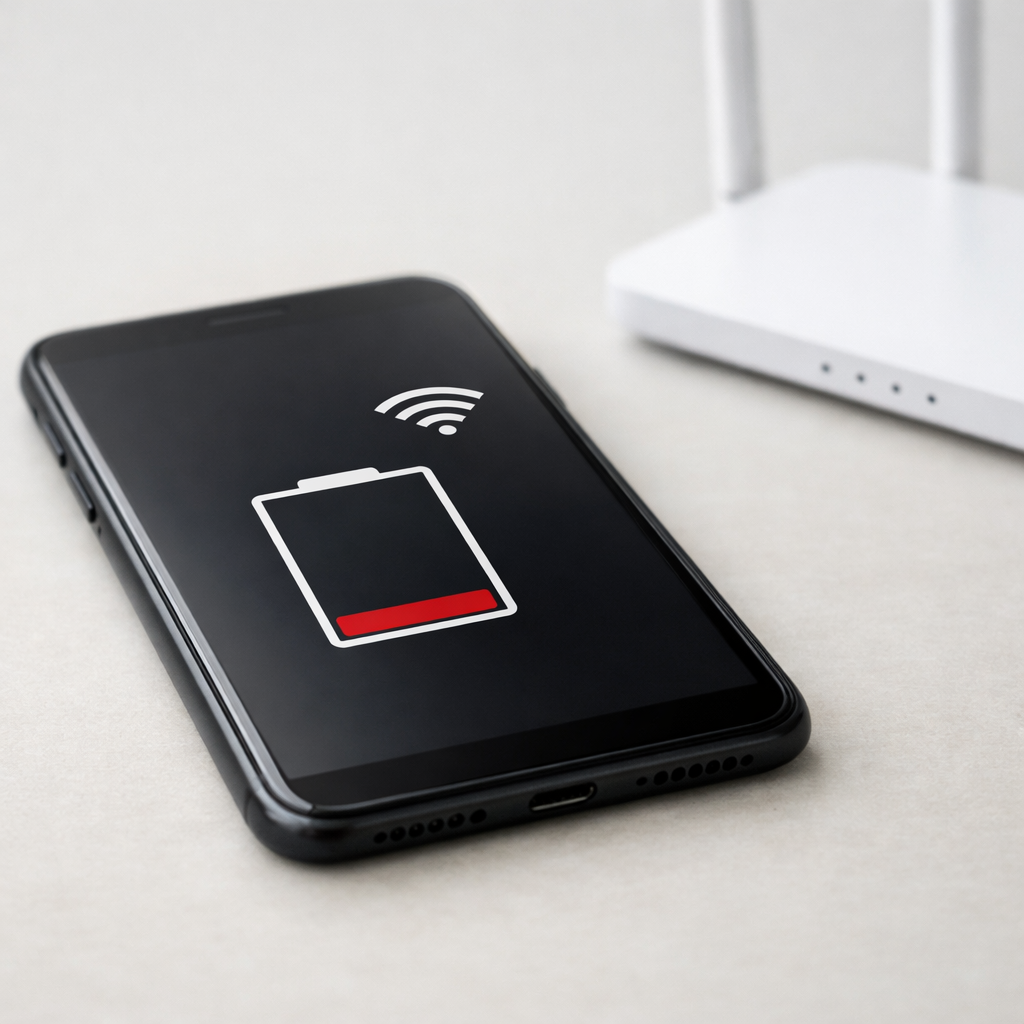
If your device battery drains while idle, with the screen off, or while you are not actively using it, the cause is usually background activity, network behavior, sleep mode problems, or battery wear. The device may look inactive, but it can still be checking apps, syncing data, staying connected to Wi-Fi or cellular networks, or waking up repeatedly in the background.
Idle battery drain can happen on phones, tablets, laptops, and other rechargeable devices. Sometimes it is caused by a single app. Other times, it comes from several small things happening at once: weak signal, background syncing, notifications, Bluetooth accessories, recent updates, or a device that never fully enters a low-power state.
This guide explains what idle battery drain usually means, how much drain is normal, what to test first, and how to reduce battery loss without changing every setting at once.
Not sure where to start? Use the Battery Help Center if you are unsure whether your issue is battery drain, charging, battery health, overheating, or sudden power behavior.
Quick Answer
If your battery drops noticeably while the device is idle, the device is usually not reaching a true low-power state, or it is being woken up repeatedly by apps, syncing, notifications, wireless radios, updates, or background system tasks.
The fastest way to troubleshoot idle drain is to check what uses battery while the screen is off, reduce unnecessary background activity, test whether the drain changes in Airplane Mode, and make sure the device can actually sleep or stay in standby. If the drain stays high after those steps, battery health or a deeper power-management issue may be involved.
What Idle Battery Drain Really Means
“Idle” does not always mean “doing nothing.” Even with the screen off, a device may still wake up in short bursts to check messages, sync email, update apps, back up photos, maintain a network connection, or run system tasks.
Idle battery drain becomes a problem when those background actions happen too often, take too long, or prevent the device from settling into a lower-power state.
Apps may keep waking the device: messaging, social, email, cloud, and smart home apps can refresh in the background.
Wireless radios may stay active: weak Wi-Fi, poor cellular signal, Bluetooth accessories, or network switching can use power.
The device may not sleep properly: laptops in particular can lose battery if sleep or standby does not behave correctly.
The battery may be aging: an older battery can lose charge faster, even during light or idle use.
How Much Idle Battery Drain Is Normal?
A small amount of battery drain while idle is normal. Your device still needs power for network connection, notifications, background tasks, and system services.
As a rough guide, a phone or tablet losing a few percent over several hours is usually not surprising. A laptop losing a small amount overnight may also be normal. But large drops, repeated overnight drain, or a device that feels warm while idle are more worth investigating.
Mild drain: a few percent over several hours can be normal.
Moderate drain: noticeable loss overnight may need settings or app checks.
Heavy drain: double-digit drops, heat while idle, or repeated rapid loss usually points to background activity, signal problems, sleep issues, or battery wear.
If the device feels warm while it is supposed to be idle, that usually means something is still running or waking the device in the background.
Run a Simple Idle Drain Test
Before changing many settings, run one controlled test. This gives you a clearer baseline and helps avoid guessing.
Charge the device to a known level, such as 80% or 100%.
Close heavy apps such as games, video apps, cloud sync tools, VPNs, or navigation.
Leave the device untouched for 45 to 60 minutes with the screen off.
Check how much battery dropped and whether the device feels warm.
If the battery drops quickly and the device feels warm, an app or system process may be active in the background. If the drain is worse in a weak signal area, network activity may be involved. If the issue mainly happens overnight, notifications, syncing, or sleep behavior may be the cause.
Quick Diagnostic Table
Symptom
Most Likely Cause
Best First Check
Device gets warm while idle
Background apps, syncing, updates, or a stuck system task
Check battery usage and restart the device
Idle drain is worse on mobile data
Weak signal, cellular searching, or network switching
Test with Wi-Fi or Airplane Mode
Battery drops overnight
Notifications, background refresh, syncing, or sleep behavior
Review background apps and overnight activity
Laptop drains with lid closed
Sleep mode, wake events, or standby behavior
Test hibernate or check power settings
Drain improves in Airplane Mode
Network, cellular, Wi-Fi, Bluetooth, or radio-related drain
Check signal, syncing, and wireless settings
Step-by-Step Fixes for Idle Battery Drain
The best approach is to change one thing at a time. If you change too many settings at once, it becomes harder to know what actually helped.
Check Battery Usage While the Screen Is Off
Most devices can show which apps or services are using battery. Look for apps that use a surprising amount of power in the background or while the screen is off.
Android: check battery usage and background activity in Settings.
iPhone or iPad: check Battery settings and look for Background Activity.
Windows laptop: check Power & battery usage in Settings.
Mac: check battery or energy usage to see which apps are active.
If one app dominates background battery use, restrict its background activity, update it, force close it, or uninstall it temporarily to test.
Reduce Background Activity
Background activity is one of the most common causes of idle drain. Some apps need to refresh often, but many do not.
Disable background refresh for non-essential apps.
Reduce automatic syncing for email, cloud storage, or photo backups if you do not need instant updates.
Turn off always-on features you do not use.
Limit apps that constantly use location in the background.
You do not need to disable everything. Focus first on apps that appear high in battery usage or apps you rarely use.
Check Network and Signal Conditions
Weak signal can drain battery even when the device is idle. A phone may use more power trying to stay connected to cellular towers, switch between networks, or maintain data connection in a poor coverage area.
Test whether the drain improves on Wi-Fi.
Try one short test with Airplane Mode to see if radios are involved.
Disable unused Bluetooth accessories during the test.
If 5G is unstable in your area, compare behavior with a more stable network setting if your device allows it.
If idle drain is much lower in Airplane Mode, the problem is likely related to signal, cellular activity, Wi-Fi scanning, Bluetooth, or background syncing.
Reduce Wake-Ups from Notifications
Notifications can wake the device repeatedly. One notification may not matter much, but dozens of small wake-ups can add up over several hours.
Disable non-essential notifications.
Use quiet hours, focus mode, or scheduled summaries if available.
Turn off vibration for low-priority apps.
Limit apps that send frequent alerts overnight.
Restart the Device
A restart can stop a stuck process, refresh power states, and clear temporary software behavior. It is simple, but it is often useful when idle drain begins suddenly for no obvious reason.
If the drain improves after a restart but returns later, an app, update, or background service may be triggering the issue again.
Update Apps and System Software
Idle drain can appear after a major update because the system may re-index files, update app data, or rebuild caches. Some temporary drain can be normal after updates, but it should settle down.
Keep important apps and system software updated, especially if one app appears to be using too much background power. If the issue started after an update and continues for several days, check battery usage again to identify the process or app involved.
Laptop-Specific: Battery Drains When the Lid Is Closed
If a laptop loses a lot of battery while the lid is closed, it may not be entering a deep enough sleep state. It may continue network activity, wake for background tasks, or fail to stay asleep because of drivers, wake timers, or connected devices.
Test hibernate overnight instead of sleep.
Check whether external devices are waking the laptop.
Review power and sleep settings.
Update chipset, Wi-Fi, and system drivers if available.
Check whether the laptop wakes for updates or network activity.
If hibernate stops the battery drain, the issue is probably related to sleep or standby behavior rather than the battery itself.
When to Suspect Battery Aging
Battery aging becomes more likely when idle drain is only one part of a broader battery problem. A worn battery usually affects daily runtime, charging behavior, and percentage stability, not just idle drain.
Overall runtime is poor even during light use.
The battery percentage drops suddenly under load.
The device shuts down before reaching 0%.
The battery health reading is poor or significantly degraded.
The device is older and battery life has declined gradually over time.
If the problem is mainly idle drain, start with background apps, signal, syncing, and sleep behavior first. If the battery performs poorly in every situation, battery health becomes more likely.
Safety Notes
Most idle battery drain issues are not dangerous. They are usually caused by software, settings, background activity, signal behavior, or battery wear. Still, some warning signs should be taken seriously.
If the device is hot while idle, avoid charging it until you understand what is causing the heat.
If you notice swelling, leaking, unusual smell, or physical deformation, stop using the device and seek qualified help.
If the device gets very hot repeatedly, check the charger, cable, battery condition, and recent activity.
If heat, swelling, burning smells, liquid damage, or physical damage appear, stop using questionable chargers, cables, batteries, or devices and consider getting the device checked by a qualified repair professional.
FAQ
Is it normal for a device to lose battery overnight?
Yes, some battery drain overnight is normal because devices maintain network connections, check notifications, and run background tasks. A small drop is usually not a problem, but repeated large drops are worth investigating.
How much idle battery drain is acceptable?
A few percent over several hours can be normal. Rapid drops, heat while idle, or large overnight losses usually point to excessive background activity, weak signal, sleep problems, or battery wear.
Does turning the device off completely stop battery drain?
Powering off reduces battery drain dramatically, but batteries can still self-discharge slowly over long periods. If the battery drops quickly even while fully powered off, battery health may be involved.
Can weak signal drain battery while the screen is off?
Yes. A phone can use extra power trying to maintain cellular connection, search for signal, switch networks, or sync data in a weak coverage area, even while the screen is off.
Why does my laptop battery drain when the lid is closed?
A laptop may drain with the lid closed if it does not stay in a proper sleep or standby state. Wake timers, network activity, connected devices, updates, or driver behavior can keep it active in the background.
Conclusion
Idle battery drain is usually caused by background activity, network behavior, sleep problems, or a device that keeps waking up when it should be resting. Start with a controlled idle test, check battery usage, reduce background activity, test signal conditions, and restart the device before assuming the battery is failing.
If the drain continues after those checks, compare the issue with battery health, charging behavior, and overheating symptoms. For a broader path through related issues, start with the Battery Help Center or read the Battery Drain Troubleshooting guide.
Mark Reynolds writes practical battery and charging guides for Power & Battery Guide, with a focus on clear troubleshooting steps, realistic explanations, and safe first checks before replacing batteries, chargers, or devices.