Device Not Charging When Plugged In — Power Input Failure or Battery Fault?
Quick Answer
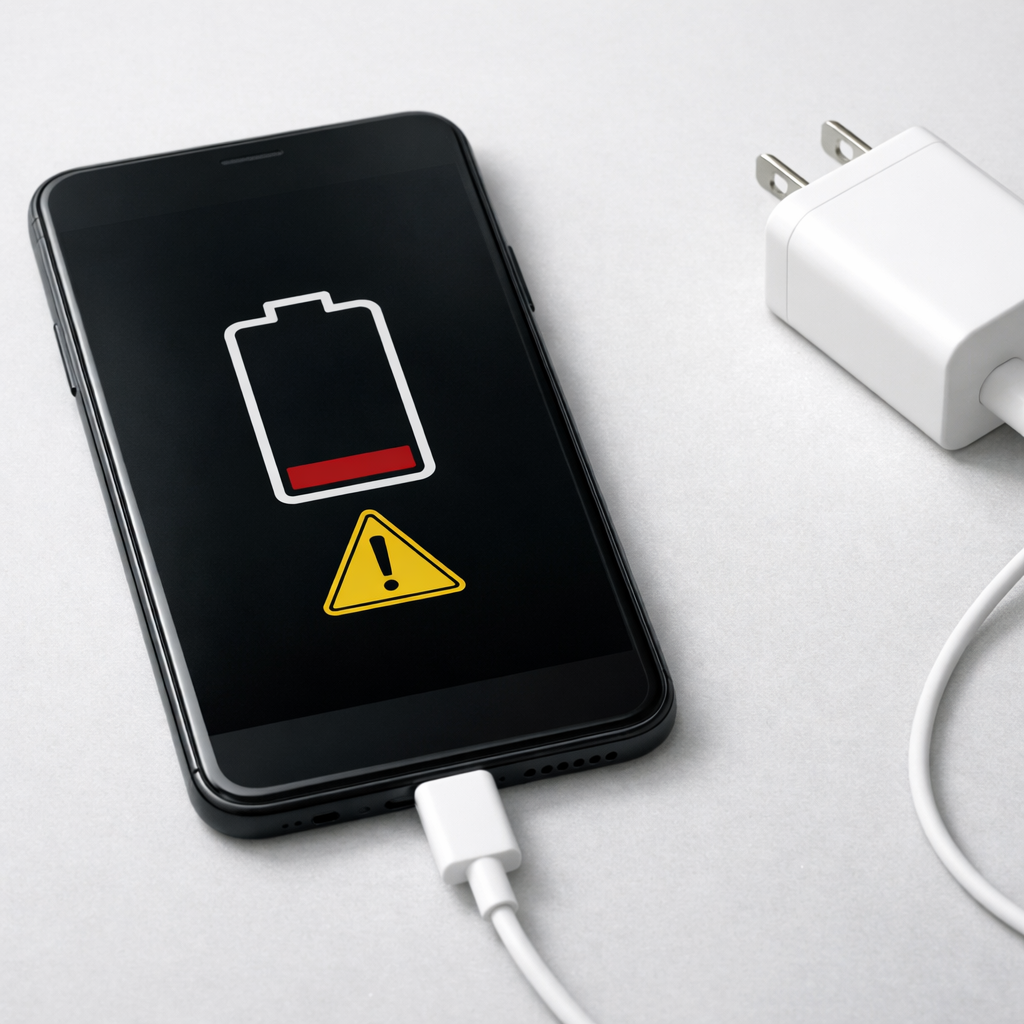
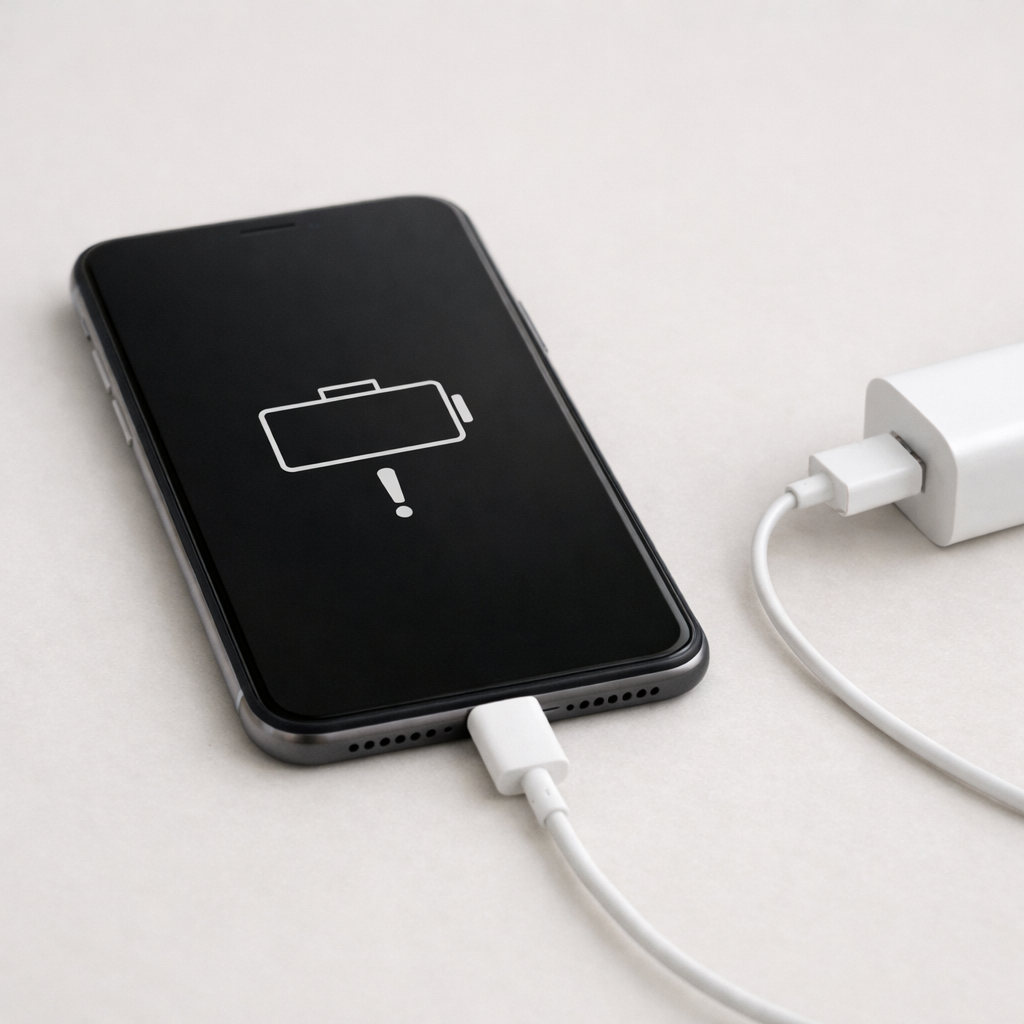
If your device is plugged in but won’t charge, the most common reason is that the charging system can no longer accept normal power. This is often due to battery wear (the battery resists taking a charge) or charging controller degradation (the internal power-management chip limits or blocks incoming energy).
In everyday use, this typically shows up gradually over months: charging gets slower, the device only charges at certain angles, or it charges to a lower percentage and stops. A sudden “won’t charge at all” event can still be battery-related, but it more often points to a port, cable, or charging controller issue.
If you need a fast fix
- Try a known-good charger and cable (preferably the original or a certified replacement) and plug directly into a wall outlet, not a hub or keyboard port.
- Power off the device for 10 minutes, then charge while it is off; if it starts charging, heat or software may be limiting intake while running.
- Gently clean the charging port with a dry wooden toothpick and a puff of air; remove lint only (do not use metal tools or liquids).
Quick Diagnosis Table
| Symptom | Most likely cause |
|---|---|
| Charging icon shows but battery percentage does not increase | Battery wear or charging controller limiting current to protect the battery |
| Charges only when the cable is held at an angle | Worn/loose port or damaged cable tip causing unstable power input |
| Rapid “charging/not charging” cycling | Contaminated port, weak charger, or charging controller detecting unsafe input |
| Charges very slowly, especially above 70–80% | Normal tapering made worse by aging battery or heat throttling |
| Won’t charge and gets warm near the port | Port damage/short risk or charging controller fault; stop and inspect |
Why This Happens
Charging is controlled by a small system inside your device that decides how much power to accept. As batteries age, they can’t absorb energy as efficiently, so the device reduces charging speed or stops charging to prevent overheating and further damage.
Charging controllers can also degrade over time, especially after heat exposure, frequent fast charging, or power surges from poor-quality adapters. When that happens, the controller may “see” the incoming power as unstable or unsafe and will limit current so much that the battery percentage barely moves.
In short, the device may be plugged in and technically receiving power, but the battery or controller is refusing to take in enough energy to actually charge.
Most Common Causes (Ranked)
- 1) Battery wear (high internal resistance): An aging battery can make charging extremely slow, stop at a certain percent, or appear stuck at 0–5% even while plugged in.
- 2) Charging controller degradation (power management fault): The device may detect abnormal voltage/current and throttle charging to nearly zero, especially under load or when warm.
- 3) Heat throttling while charging: If the device is hot (gaming, heavy apps, direct sun), it may limit intake to protect the battery and charging circuitry.
- 4) Cable/adapter not negotiating proper power: Damaged cables and low-quality chargers can deliver power inconsistently, triggering the controller to reduce or stop charging.
- 5) Dirty or worn charging port: Lint, corrosion, or loose connector pins cause voltage drops, so the device repeatedly starts and stops charging.
- 6) Software/firmware misreporting or battery gauge drift: The device may be charging, but the percentage display lags, jumps, or gets stuck until recalibrated.
If charging performance improves little by little after cooling down, cleaning the port, or switching to a better charger, that usually indicates the controller is protecting the device rather than a complete hardware failure.
How to Check the Problem Safely
- Check 1: Swap to a known-good cable and wall charger with the correct wattage for your device, then test at a wall outlet for at least 20 minutes.
- Check 2: Inspect the charging port with a bright light; look for lint packed at the bottom, bent pins, or discoloration.
- Check 3: Feel for heat: if the device gets hot near the battery or port while “not charging,” unplug and let it cool, then retry while powered off.
- Check 4: Check for charging behavior changes: does it charge faster in Airplane Mode, Safe Mode, or when the screen is off? That suggests load/heat is limiting intake.
- Check 5: If your device supports it, view battery health/cycle count in settings or a manufacturer tool; low health strongly correlates with poor charging.
Safety note: if you smell burning, see swelling, or the port looks melted, stop charging immediately and do not “test again” with different chargers.
How to Fix It
- Fix 1 (easiest): Use a certified charger and cable of the recommended wattage; stable power helps the charging controller accept normal current.
- Fix 2: Clean and reseat the connection: remove lint carefully, plug in firmly, and avoid wiggling; a solid connection prevents voltage drop and charging cutouts.
- Fix 3: Reduce heat and load while charging: remove thick cases, avoid gaming/video calls, and charge in a cool place; cooler batteries can accept more energy safely.
- Fix 4: Reset charging behavior: perform a proper restart, install OS/firmware updates, and if the battery meter is erratic, do one calibration cycle (charge to 100%, use to around 10–20%, then charge back uninterrupted).
- Fix 5 (advanced/last resort): Replace the battery or have the charging port/controller inspected by a repair shop; if the controller is throttling due to internal failure, swapping cables won’t restore normal charging.
Signs of Battery or Hardware Damage
- Battery swelling, screen lifting, or the back cover not sitting flat
- Device shuts down suddenly even with 20–50% remaining
- Battery percentage jumps up/down or drops rapidly in minutes
- Device gets unusually hot during light use or while charging
- Charging port feels loose, looks bent, or the cable won’t “click” or stay seated
- Visible corrosion/discoloration in the port or on the cable tip
- Charging only works intermittently across multiple known-good chargers
When Repair Is No Longer Worth It
If the device needs both a battery replacement and board-level charging repair (controller or power path), the total often approaches the cost of a newer refurbished model. This is especially true for older devices with limited software support or poor parts availability.
As a simple rule, if the repair estimate is more than 40–60% of the device’s current value, replacement is usually the practical choice. If the device holds important data, consider paying for repair long enough to back up safely, then decide on upgrading.
How to Prevent This Problem in the Future
- Use quality chargers and cables; unstable power stresses the charging controller over time.
- Avoid constant heat: don’t charge under pillows, in cars on hot days, or while running heavy apps.
- Prefer moderate charging habits: frequent top-ups are fine, but avoid leaving it at 100% on the charger for days if your device lacks optimized charging.
- Keep the port clean and dry; pocket lint is a common reason “plugged in but not charging” starts.
- Don’t force cables into the port; repeated side pressure loosens connectors and breaks solder joints.
- If fast charging makes the device hot, use a slower charger for routine overnight charging when possible.
- Install firmware updates that improve charging control and battery management.
FAQ
Is it bad to keep trying different chargers when my device won’t charge?
Trying one or two known-good chargers is fine, but repeated attempts with random adapters can make things worse if a charger is out of spec. If the port gets warm, smells odd, or the device cycles on/off charging rapidly, stop and inspect the port and cable first.
Why does my device say “charging” but the percentage stays the same?
The device may be receiving some power, but not enough to overcome current usage, or the controller is limiting intake to protect an aging battery. Try charging while powered off or in a low-power mode; if it improves, heat/load limits are likely. If it never rises even when off, battery wear or charging controller issues are more likely.
Will a battery replacement fix “not charging” issues?
If the battery is worn (low health, sudden shutdowns, swelling, or very fast drain), replacement often restores normal charging speed and stability. If the charging controller or port is damaged, a new battery may not help much. A shop can confirm by checking port stability and measuring charging current during intake.
Mark Reynolds writes about battery behavior, charging issues, and practical troubleshooting for everyday device problems. For a step-by-step overview, see the full battery troubleshooting guide.
For a full overview of this issue and step-by-step solutions, read the complete troubleshooting guide.