Laptop Not Charging While Gaming? Causes and Fixes
Quick Answer
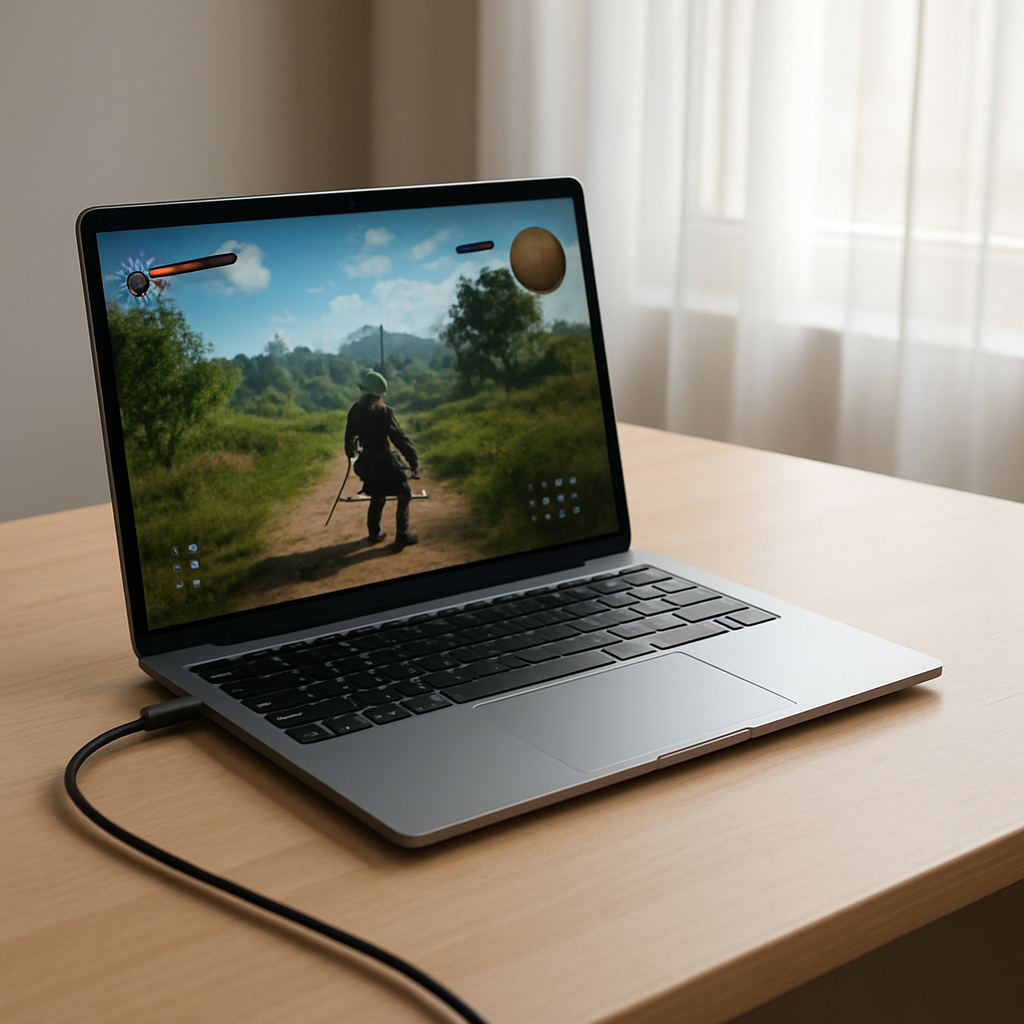
The most common reason a laptop won’t charge (or still loses battery) while gaming is simple: under heavy load, the CPU and GPU can draw more power than the charger can supply. When that happens, the laptop “tops up” the missing power by pulling from the battery even though the charger is plugged in.
This usually shows up only during demanding games, high frame rates, or performance modes. Many laptops will lose a few percent over 30–120 minutes of gaming, then recharge normally when you quit the game or the load drops.
If you need a fast fix
- Plug into a wall outlet (not a power strip), use the original charger, and firmly reseat the cable at both ends.
- Lower power draw right now: cap FPS (for example 60), switch to “Balanced” mode, and reduce game settings like shadows and resolution.
- Let the battery recover: close the game, keep it plugged in, and charge back above 50% before the next session.
Quick Diagnosis Table
| Symptom | Most likely cause |
|---|---|
| Battery percent drops only while gaming, charges normally when idle | CPU/GPU power draw exceeds charger output at peak load |
| Charging icon flickers between “plugged in” and “on battery” during gameplay | Loose/worn connector, overheating adapter, or unstable power source |
| Charging is very slow even when not gaming | Under-wattage charger, damaged cable, or USB-C PD limit |
| Battery drains fast and never seems to fully charge | Battery wear/health problem or aggressive “battery protection” caps charge |
Why This Happens
Gaming is one of the few everyday tasks that can push both the CPU and GPU hard at the same time. When those parts boost to higher speeds, they can briefly demand more watts than the charger is rated to deliver.
For example, a laptop with a 180W power adapter might average below that most of the time, but spike above it when the GPU boosts, the CPU is compiling shaders, and the fans are ramping. To keep performance stable, the laptop pulls the extra power from the battery for short bursts or even continuously during intense scenes.
The symptom is simple: the laptop is technically “plugged in,” but the battery percentage slowly falls because the system is using battery power to cover the gap between demand and supply.
Most Common Causes (Ranked)
- 1) Charger can’t keep up with peak gaming load: Some laptops are designed to supplement with the battery during brief spikes, especially in Turbo/Performance mode or at very high FPS.
- 2) Using the wrong wattage adapter (or a non-original one): A lower-watt charger may work for browsing but can’t provide enough power for sustained gaming.
- 3) USB-C charging limits (Power Delivery cap): Many gaming laptops either do not support full performance on USB-C charging or cap input (often far below what the GPU needs).
- 4) Battery health is reduced: An older battery has less capacity, so any “supplementing” drains the percentage faster and may cause sudden dips.
- 5) Heat causes power throttling or adapter derating: A hot laptop or hot power brick can reduce charging rate or trigger protective behavior.
- 6) Loose port, worn cable, or unstable outlet: Small disconnects can make charging cut in and out, which becomes obvious under high load.
If the battery drain becomes smaller after switching to a stronger charger, limiting FPS, or improving cooling, that gradual improvement usually means the issue is power demand, not a failing motherboard.
How to Check the Problem Safely
- Check 1: Confirm your charger wattage matches what your laptop expects by reading the adapter label (W) and your laptop’s official specs.
- Check 2: Test charging when idle: plug in, close all apps, and see if the battery percentage increases steadily over 10–15 minutes.
- Check 3: Compare two scenarios: run the game in “Balanced” mode with FPS capped, then in “Performance/Turbo.” If only Turbo drains, it’s a supply-vs-demand issue.
- Check 4: Inspect and reseat connections: unplug and replug the wall side and laptop side, and check for wiggle, scorch marks, or a loose fit.
- Check 5: If you’re using USB-C charging, check whether your laptop supports gaming on USB-C and what the max input wattage is for that port.
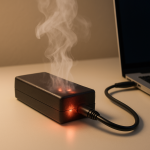
Safety note: never open the power brick, battery, or laptop chassis unless you’re trained, and stop using any charger that smells burnt, feels unusually hot, or has frayed insulation.
How to Fix It
- Fix 1 (easiest): Cap FPS and lower power settings (Balanced mode, lower graphics presets). This reduces peak CPU/GPU draw so the charger can keep up.
- Fix 2: Use the correct high-wattage OEM charger (or a genuine equivalent). If your laptop needs 230W and you’re using 150–180W, battery drain during gaming is expected.
- Fix 3: Avoid USB-C for heavy gaming unless your model explicitly supports high-watt USB-C PD for performance. Many systems treat USB-C as “charge while idle/light use” only.
- Fix 4: Improve cooling: clean vents, elevate the rear, and use a cooling pad if needed. Lower temperatures can reduce power spikes and prevent protective limits that slow charging.
- Fix 5 (advanced/last resort): Update BIOS/EC and power-management drivers from the laptop maker, then recheck. Some manufacturers tune charging behavior and performance limits through firmware updates.
Signs of Battery or Hardware Damage
- Battery percentage jumps up and down (for example, 45% to 30% suddenly) or the laptop shuts off at 20–40%.
- The laptop only runs while plugged in, or it instantly powers off when the cord is removed.
- Battery won’t charge past a low number (like 0–10%) even after hours, and battery protection features are not enabled.
- The bottom case bulges, the trackpad becomes hard to click, or the chassis looks warped (possible battery swelling).
- Charging port feels loose, charging cuts out when the plug moves slightly, or the plug gets unusually hot.
- Power adapter buzzes, smells hot, gets extremely warm, or stops working intermittently.
- Windows shows “battery needs replacement,” “service recommended,” or a clearly reduced full-charge capacity.
When Repair Is No Longer Worth It
If the fix requires a new motherboard, a proprietary high-watt charging circuit, or multiple parts (battery plus DC-in jack plus adapter), costs can approach the value of an older gaming laptop. In that case, replacement often makes more sense than chasing intermittent power issues.
As a rule of thumb, if repair is over 40–60% of what you’d pay for a comparable used or new laptop, consider putting that money toward a replacement. Repairs are most worth it when the laptop is otherwise in good shape and the solution is a single predictable part, like the correct charger or a fresh battery.
How to Prevent This Problem in the Future
- Use the original charger wattage (or higher, if approved by the manufacturer) for gaming sessions.
- Cap FPS to a sensible limit for your display (60/90/120) to reduce unnecessary GPU power draw.
- Prefer “Balanced” or a custom profile for long sessions; save Turbo mode for short bursts.
- Keep the laptop cool: clean dust regularly and avoid gaming on soft surfaces that block vents.
- Don’t daisy-chain cheap power strips; use a stable wall outlet or a quality surge protector.
- If your laptop supports a charge limit (like 80%), use it for longevity, but understand it can look like “not charging” near the cap.
- Replace worn cables/adapters early; a marginal connection is more likely to fail when the laptop pulls high power.
FAQ
Is it normal for a gaming laptop to lose battery while plugged in?
Yes, it can be normal during heavy gaming if the CPU and GPU demand more power than the charger can provide at that moment. Many laptops are designed to use the battery as a buffer for short spikes. If it recharges after you stop gaming or lower settings, that points to normal behavior rather than a defect.
Will using a higher-watt charger fix battery drain while gaming?
Often, yes, if you are currently using an under-wattage or non-original adapter. A charger that matches the laptop’s required wattage can eliminate or reduce “hybrid” battery use during load. Only use a higher-watt OEM or manufacturer-approved adapter to avoid compatibility and safety issues.
Why does it charge fine for browsing but not while playing games?
Browsing and video usually use far less power than modern games, so the charger can easily cover the load and still charge the battery. Gaming pushes the GPU and CPU together, increasing power draw and creating brief peaks. When those peaks exceed the charger’s output, the battery fills the gap and the percentage can drop.
For a full overview of this issue and step-by-step solutions, read the complete troubleshooting guide.
Mark Reynolds writes about real-world charging and battery behavior, with a focus on clear, practical troubleshooting. For more help, read the full step-by-step guide.