Charging Cable Feels Loose — Connection Failure Causes and Safe Fixes
Quick Answer
A loose-feeling charging cable almost always points to mechanical wear at the connector or unstable internal contacts, which interrupts steady power delivery. Even tiny movement can break the connection for a split second, causing charging to start/stop, slow down, or fail entirely.
This usually develops gradually over weeks or months as the plug and port get worn, bent, or contaminated. It can also show up suddenly after a drop, a hard yank on the cable, or frequent charging while using the device.
If you need a fast fix
- Try a different cable and a different charger (or USB port) to confirm it’s not just a weak cable end or adapter.
- Power off the device and gently clear the charging port with a wooden toothpick or soft brush, then try again.
- Charge with the device resting still on a flat surface so the connector isn’t being pulled or twisted.
Quick Diagnosis Table
| Symptom | Most likely cause |
|---|---|
| Charging only works if you hold the cable at an angle | Worn port springs/pins or a stretched plug that no longer fits tightly |
| Charging starts and stops when the phone moves | Internal contact instability from a loose port mount or damaged connector end |
| Cable “click” feels weak or disappears over time | Port retention tabs worn down or packed with lint/debris |
| Fast charging is inconsistent or drops to slow charging | Dirty or oxidized contacts causing voltage drop and connection renegotiation |
| One cable works, another doesn’t (or only one side works on USB-C/Lightning) | Specific cable tip wear, bent contact area, or partial pin damage in the port |
Why This Happens
Your charging plug and your device’s port rely on snug mechanical fit plus clean metal contacts. When the fit loosens, the plug can shift slightly, and those metal surfaces stop pressing firmly together.
Real-world examples are common: charging in bed with the cable sideways, using the phone while plugged in, or letting the device hang off the cable in a car. Each time the plug is leveraged, the port’s internal tabs and contact springs can deform a little more.
Once the contact pressure drops, the device may still show a charging icon, but small movements cause momentary disconnects, heat, slower charging, or repeated “connect/disconnect” notifications.
Most Common Causes (Ranked)
- 1) Port packed with lint or debris: Pocket lint compresses into the bottom of the port so the plug can’t fully seat, making it feel loose and unreliable.
- 2) Worn charging cable tip: The plug’s outer shell and internal contact surfaces wear down, so it no longer fits tightly or maintains steady contact.
- 3) Port contact wear or loss of spring tension: The tiny springs/pins inside the port lose their “push,” so the connection becomes sensitive to movement.
- 4) Bent or damaged connector from side-load stress: A cable pulled sideways can slightly bend the plug or distort the port opening, weakening the hold.
- 5) Loose internal port assembly: If the charging port board or bracket is loosening inside the device, the port can wiggle even when the plug is fine.
- 6) Moisture exposure or corrosion on contacts: Humidity, sweat, or spills can leave residue that increases resistance and creates intermittent charging.
If the connection becomes more stable after a careful cleaning or switching to a new cable, that gradual improvement usually indicates contact/fit issues rather than a failing battery.
How to Check the Problem Safely
- Check 1: Test with a known-good cable and a known-good charger to see if the looseness follows the cable or stays with the device.
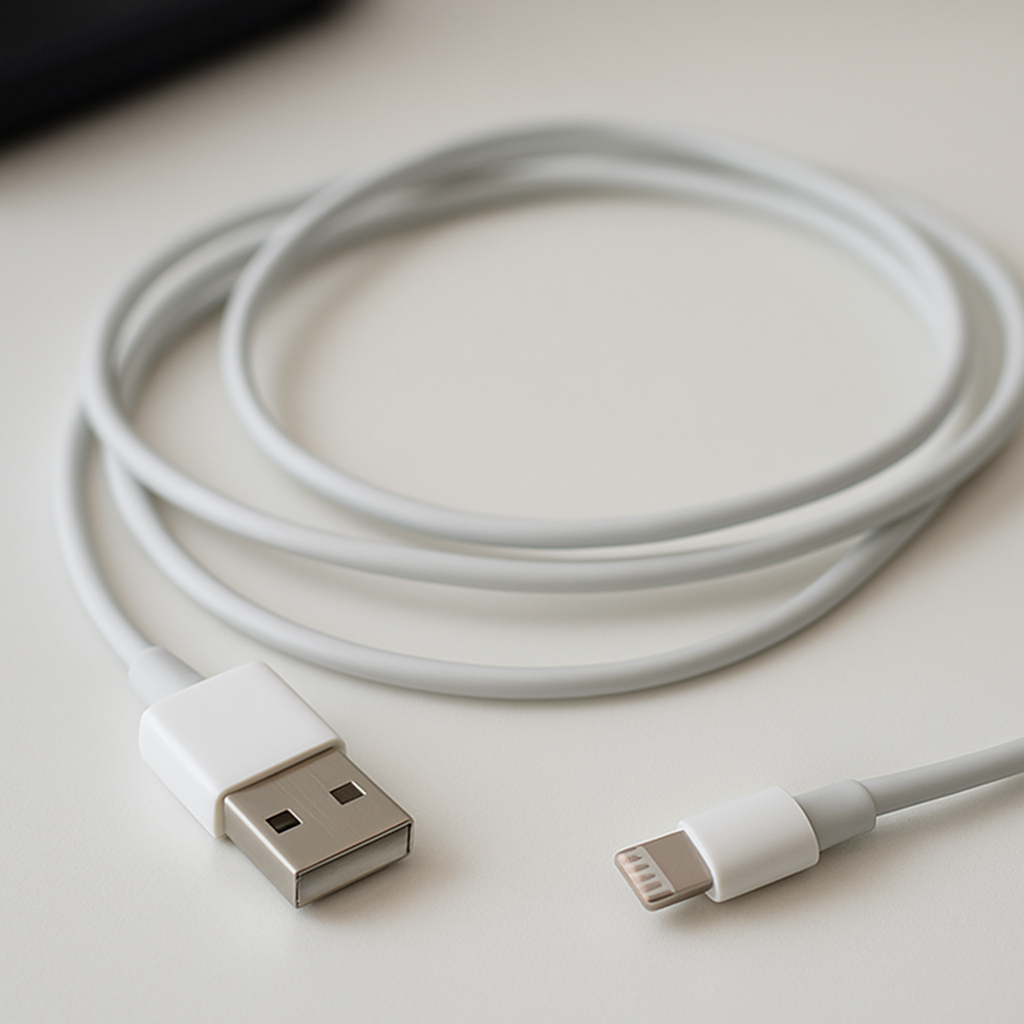
- Check 2: Inspect the cable tip under bright light for worn edges, cracks, wobble, or discoloration, then compare it to a newer cable if possible.
- Check 3: With the device powered off, shine a light into the port and look for lint, dust mats, or any obstruction that prevents full insertion.
- Check 4: Gently plug in and see if the plug seats fully and evenly; if it stops short or rocks easily, debris or port wear is likely.
- Check 5: Try charging while the device lies flat with the cable supported so there is no downward pull; if it becomes stable, the issue is often mechanical stress at the connector.
Safety note: avoid metal tools, compressed air blasting directly into the port, or forceful scraping, which can bend pins or cause a short.
How to Fix It
- Fix 1 (easiest): Swap to a high-quality cable and charger rated for your device, because worn cable tips are the most common “loose” culprit and the cheapest fix.
- Fix 2: Clean the port safely: power off, then use a wooden toothpick or nylon brush to gently lift lint out, which helps the plug seat fully and improves contact pressure.
- Fix 3: Reduce strain while charging: support the cable, avoid sharp bends near the plug, and don’t use the device in a way that twists the connector, which prevents further wear and disconnects.
- Fix 4: Clean the plug contacts: wipe the metal part of the connector with a dry microfiber cloth; if there’s visible grime, lightly dampen the cloth with isopropyl alcohol and let it fully dry before plugging in.
- Fix 5 (advanced/last resort): If the port itself is worn or loose inside the device, plan a port replacement or professional repair, since “tightening” a port at home often bends contacts and makes failures worse.
Signs of Battery or Hardware Damage
- Charging works intermittently with multiple known-good cables and chargers.
- The port feels physically loose in the device, or you can see it shifting when plugging in.
- The device gets unusually hot near the charging port during normal charging.
- There is a burnt smell, melted plastic, or visible scorch marks on the cable tip or inside the port.
- The device won’t charge past a low percentage even when the connection is stable.
- You see “liquid detected,” corrosion, green/white residue, or persistent moisture warnings.
- Data connection (USB file transfer, Android Auto/CarPlay) fails along with charging.
When Repair Is No Longer Worth It
If the charging port is damaged internally, the device repeatedly disconnects with multiple cables, or there are heat/burn signs, replacement of the port (or the device) is the safer option than continuing to “wiggle charge.” Intermittent contact can create heat and accelerate wear on both the cable and the port.
As a rule, if a new cable and a careful port cleaning don’t solve it, compare the repair cost to the device’s age and value. For older or budget devices, redirecting that money toward a replacement may be smarter, while newer phones often justify a port repair to restore reliable charging and data.
How to Prevent This Problem in the Future
- Insert and remove the cable straight in and straight out to avoid widening the port or bending the plug.
- Avoid using the device while it’s charging if the cable is pulled sideways or pressed against a pillow, armrest, or case edge.
- Replace cables at the first signs of wobble, cracking near the strain relief, or inconsistent fast charging.
- Keep ports clean by periodically checking for lint, especially if the device lives in pockets, bags, or dusty work environments.
- Use a shorter cable or add cable support in the car to prevent the phone from hanging and levering the connector.
- Choose certified or reputable-brand cables and chargers; poorly made plugs often wear faster and fit loosely sooner.
- Don’t charge in wet or humid situations, and let the port dry fully after rain, sweat, or spills before plugging in.
FAQ
Is it safe to keep charging if the cable feels loose?
Occasional looseness without heat or discoloration is usually not an emergency, but it’s a sign the contact is unstable. Unstable contact can create extra heat and wear, so it’s best to fix it soon by cleaning the port and replacing suspect cables. Stop charging immediately if you notice burning smell, melting, sparks, or significant heat.
Why does it charge only when I hold the cable in a certain position?
That behavior strongly suggests the plug and port are not making firm contact unless pressure is applied in a specific direction. Common causes are lint preventing full insertion, worn port springs, or a worn/bent connector tip. The long-term fix is restoring a full, straight seat or replacing the worn component.
Can a phone case make the connection feel loose?
Yes, some thick or poorly cut cases block the plug from fully inserting, leaving the connector partially seated and easy to wiggle. Try removing the case and plugging in again to see if the “click” and stability improve. If it helps, switch to a case with a larger port cutout or use a cable with a slimmer connector housing.
For a full overview of this issue and step-by-step solutions, read the complete troubleshooting guide.
Mark Reynolds writes about real-world charging and battery behavior, with a focus on clear, practical troubleshooting. For more help, read the full step-by-step guide.