Laptop Not Charging Even When Plugged In — Adapter, Port, or Battery Fault?
Quick Answer
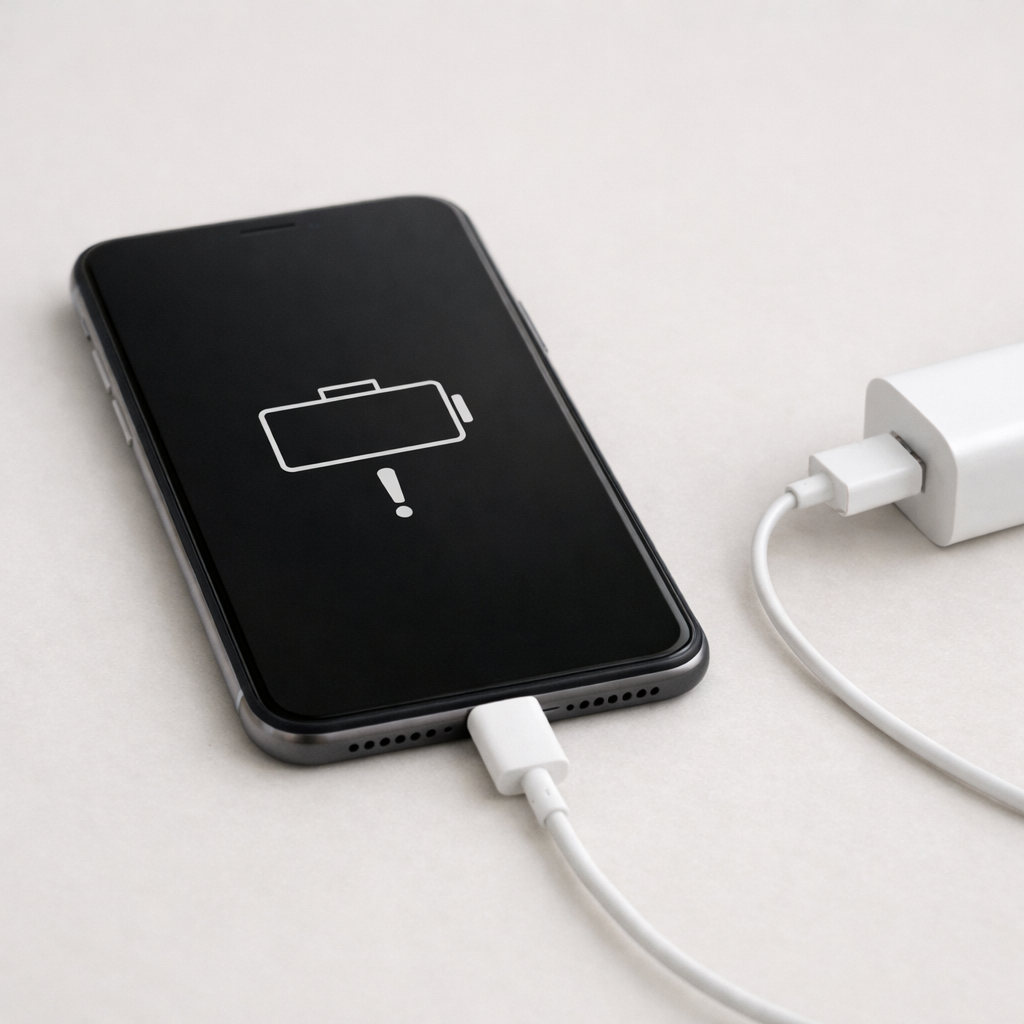
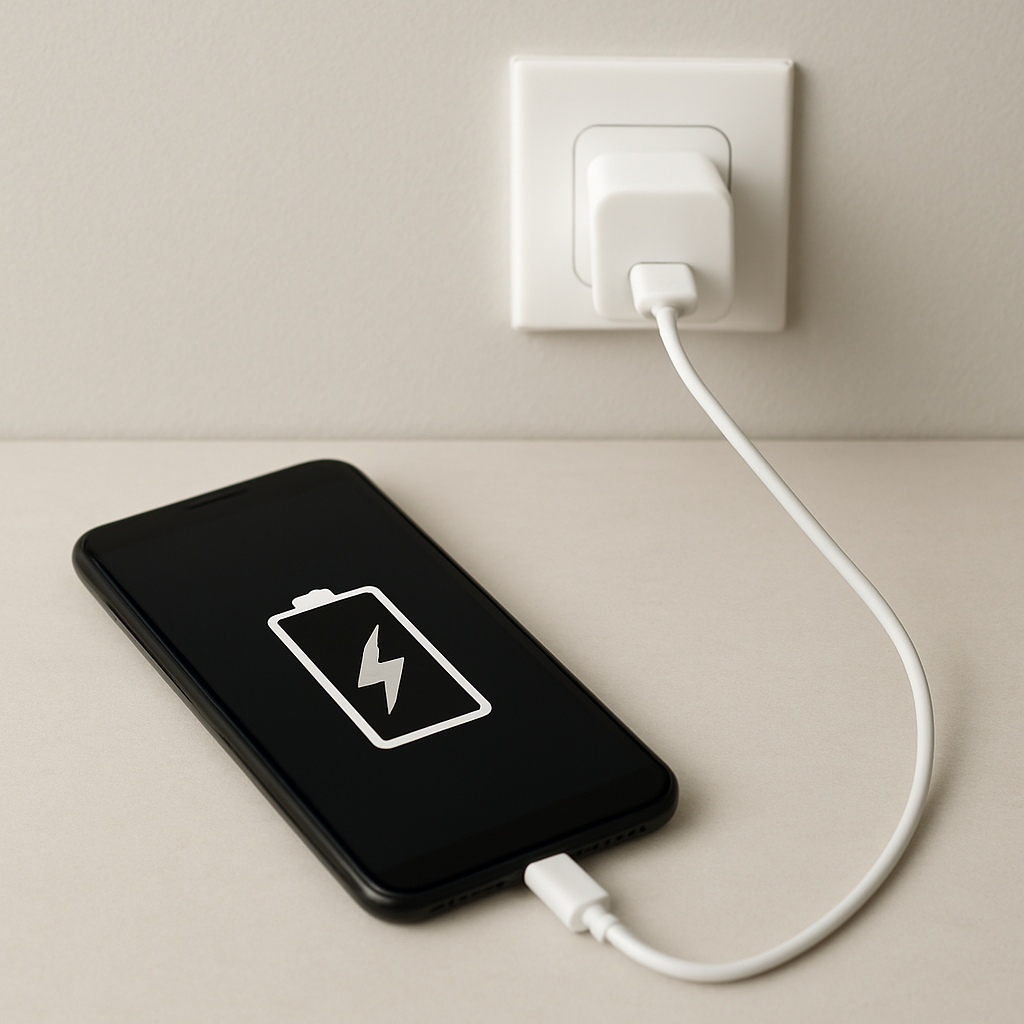
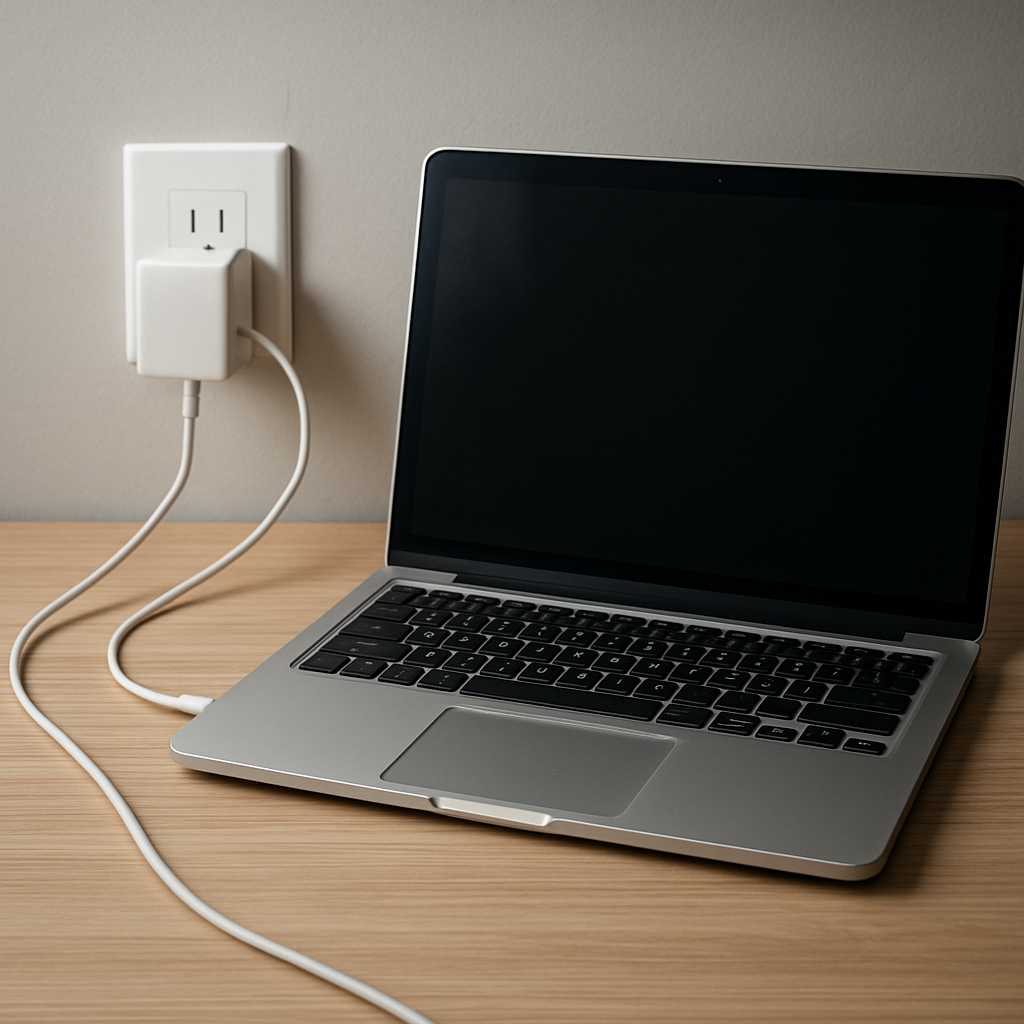
Most of the time, a laptop that shows “plugged in” but won’t charge is failing to regulate power between the adapter and the internal charging circuit. The charger may be making a connection, but the laptop isn’t getting clean, stable voltage/current that the charging controller will accept.
This usually means the adapter is underpowered, the port/cable is intermittent, or the charging circuitry is protecting itself from unsafe power. It can start suddenly after a cable bend, drop, or update, or it can build up over weeks as the port loosens or the battery ages.
If you need a fast fix
- Unplug the charger, shut down the laptop, then hold the power button for 20–30 seconds to reset power management, and try charging again.
- Try a different wall outlet and remove any power strip/dock, then plug the adapter directly into the laptop.
- Check the charging plug/USB-C tip for debris or wobble, gently reseat it, and stop if the connection feels loose or gets hot.
Quick Diagnosis Table
| Symptom | Most likely cause |
|---|---|
| Charging icon appears, but battery percentage never increases | Power regulation handshake fails (wrong adapter, failing adapter, or unstable voltage at the charging controller) |
| Charges only at a certain cable angle or stops when touched | Loose/damaged DC jack or USB-C port, cracked solder joints, or worn cable causing intermittent power |
| Charges when off, but not while laptop is on | Adapter wattage too low, system load too high, or charging controller limiting current to protect hardware |
| Random connect/disconnect sounds, repeated “plugged/unplugged” notifications | Port contamination, failing cable, poor USB-C PD negotiation, or overheating protection triggering resets |
| Works with one charger but not another (or only original) | Incompatible USB-C PD profiles or non-genuine adapter/cable that cannot supply required voltage/current |
Why This Happens
Your laptop doesn’t send charger power straight to the battery. Power passes through a charging controller and other protection parts that decide if the incoming power is safe and strong enough.
With modern USB-C charging, the laptop and charger negotiate a specific power level. If the cable, adapter, or port can’t maintain that level, the laptop may still detect “something is plugged in” but refuse to charge or will charge only briefly.
That’s why you can see “plugged in” while the battery drains: the laptop is running on too-weak or unstable input, so it keeps pulling from the battery to make up the difference.
Most Common Causes (Ranked)
- 1) Underpowered or failing adapter: The adapter may output the wrong wattage or sag under load, so the charging controller blocks or limits charging to prevent damage.
- 2) Loose or worn charging port: A wobbly DC jack or USB-C port creates tiny dropouts that break power regulation, leading to “plugged in” without stable charging.
- 3) Damaged cable or USB-C PD cable mismatch: Some USB-C cables are charge-only, low-wattage, or internally broken, which causes negotiation failures or voltage drops.
- 4) Battery health or battery management lockout: An aging battery, a battery protection trigger, or calibration issues can make the laptop stop charging at certain levels or stop entirely.
- 5) Overheating or thermal protection: If the laptop or adapter gets too hot, charging may pause to protect components, especially during gaming or heavy CPU use.
- 6) Charging circuit or motherboard power path failure: A damaged charging IC, MOSFET, fuse, or corrosion can block charging even with a good adapter and battery.
If charging starts working again after you reduce load, cool the laptop, or swap to a proper-wattage charger, that gradual improvement usually points to a power delivery or regulation issue rather than a sudden battery death.
How to Check the Problem Safely
- Check 1: Inspect the adapter and cable end-to-end for kinks, exposed wire, burn marks, or a bent tip, and stop using it if you see damage.
- Check 2: Try a known-good outlet and bypass docks, hubs, and power strips to rule out a weak AC source.
- Check 3: Feel for overheating: after 5–10 minutes plugged in, the adapter can be warm, but it should not be too hot to hold or smell “electrical.”
- Check 4: Test with a compatible known-good charger (same brand/model if possible, or same voltage and equal/higher wattage). If it starts charging normally, your original adapter/cable is the likely cause.
- Check 5: Watch behavior under load: plug in, then open a few apps. If it only fails when you’re using the laptop, the adapter may be too weak or the power path is dropping voltage.
Safety note: do not poke metal objects into the port or try to “tighten” it; shorting contacts can damage the charging circuit instantly.
How to Fix It
- Fix 1 (easiest): Do a power reset: shut down, unplug, hold power for 20–30 seconds, then plug in and boot. This clears stuck power states that can block charging.
- Fix 2: Use the correct wattage and a quality cable: match the laptop’s required wattage (often printed on the adapter or bottom label). A higher-watt genuine charger is usually safe, while a low-watt charger often causes “plugged in, not charging.”
- Fix 3: Reduce power draw while charging: lower screen brightness, pause gaming, and close heavy apps. If the laptop can’t get enough input power, it may prioritize running the system over charging the battery.
- Fix 4: Clean and reseat carefully: power off, then use compressed air to blow out dust from the port. For USB-C, try a different USB-C port if your laptop has more than one (some are data-only or lower power).
- Fix 5 (advanced/last resort): Update BIOS/UEFI and chipset/power drivers, then check battery health settings in the manufacturer app (some have “battery conservation” modes that stop charging above a threshold). If problems persist with multiple known-good chargers, the charging port or motherboard power path likely needs professional repair.
Signs of Battery or Hardware Damage
- Battery percentage drops rapidly even at idle, or the laptop shuts off at 20–50%.
- Battery is swollen, the trackpad becomes stiff, or the bottom case bulges.
- Adapter or port gets excessively hot, you smell burning plastic, or hear faint crackling.
- Charging works only when holding the plug in a specific position.
- Visible sparking, discoloration, or melted plastic around the port or connector.
- Laptop reports “AC adapter not recognized” or shows a much lower wattage than expected.
- Charging repeatedly starts and stops every few seconds, even with a known-good charger.
When Repair Is No Longer Worth It
Repair is usually worth it if the fix is an adapter replacement or a simple port replacement on a separate DC jack board. It becomes less worthwhile when the charging controller or motherboard power path is damaged, because labor and board-level work can approach the cost of a replacement laptop.
As a rule, if the quote is more than 40–60% of the laptop’s current used value, replacement is often the better choice unless the device is high-end or recently purchased. If the battery is swollen, prioritize safety and stop using it until it’s serviced, regardless of cost.
How to Prevent This Problem in the Future
- Use the correct wattage charger and reputable USB-C PD cables rated for your laptop’s power (for example, 60W, 90W, or 100W).
- Avoid bending the cable near the connector; give it a gentle loop and use strain relief if possible.
- Do not leave the laptop hanging by the charging cable or pull the cord to unplug it; grip the connector.
- Keep the port clean and dry, and avoid charging on soft surfaces that trap heat.
- Control heat: clean vents, keep fans unobstructed, and avoid heavy gaming while charging if your adapter is near its limit.
- Enable battery care features correctly: conservation modes are fine, but know they may stop charging at 60–80% by design.
- Unplug during electrical storms or use a quality surge protector to reduce chances of power-path damage.
FAQ
Why does my laptop say “plugged in” but the battery still goes down?
The laptop is detecting a connection, but it isn’t receiving enough stable power to both run the system and charge the battery. The charging controller may also be refusing power because the adapter/cable negotiation is failing or the voltage is dropping. Trying a correct-watt charger and cable is the quickest way to confirm.
Can a bad charging port cause intermittent charging even if the battery is fine?
Yes. A worn port can briefly disconnect internally, which forces the charging circuitry to stop and restart repeatedly. This can look like random charging, “plugged/unplugged” notifications, or charging only at certain angles.
Is it safe to keep using the laptop while it’s not charging?
If nothing is getting hot and there are no burning smells, it’s generally safe in the short term, but you may deepen the drain cycle and stress the battery. Stop immediately if the connector or port overheats, if you see melting/discoloration, or if the battery is swollen. In those cases, unplug and seek repair.
For a full overview of this issue and step-by-step solutions, read the complete troubleshooting guide.
Battery issues rarely come from a single cause. Mark Reynolds focuses on identifying patterns and simple fixes that apply in most situations. For more details, read the complete guide.