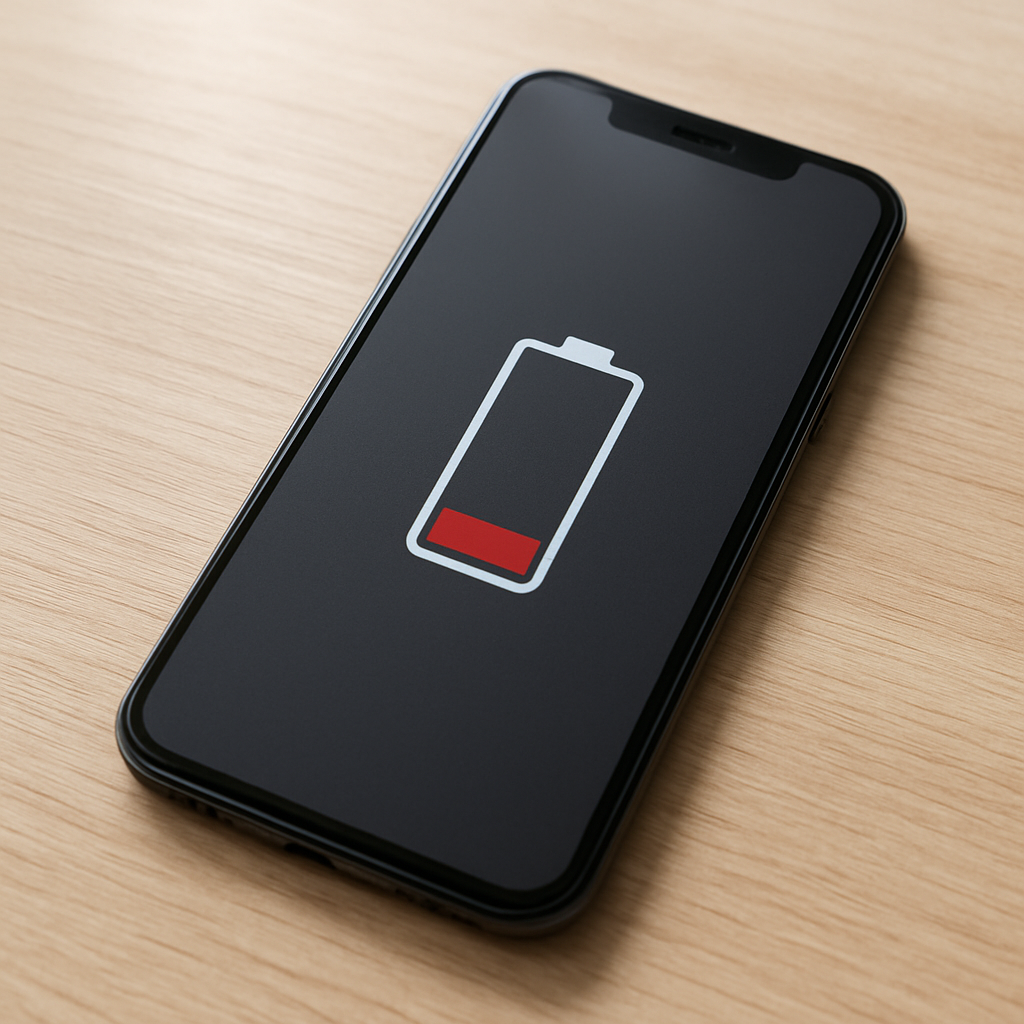
Phone Battery Draining While Locked — Background Sync or System Bug?
Quick Answer
If your phone battery drains quickly while the screen is off, the most common cause is a background sync conflict or a system process loop that keeps the phone “awake.” Even though it looks locked, apps or system services may be repeatedly checking for updates, retrying failed uploads, or re-indexing data.
A small idle drain is normal, but a noticeable drop (for example, 5–15% overnight) usually means something is running when it shouldn’t. This often starts after an app update, a system update, a new account sign-in, or a change in Wi‑Fi/cellular conditions.
If you need a fast fix
Restart the phone, then leave it locked for 30–60 minutes to see if the drain settles.
Turn on Airplane Mode for one hour (or disable Wi‑Fi and mobile data) to test if syncing/network retries are the trigger.
Temporarily disable Background App Refresh (iPhone) or restrict background data/battery (Android) for the top battery-draining app.
Quick Diagnosis Table
Symptom
Most likely cause
Battery drops fast overnight while locked
Account sync loop (mail, photos, cloud drive) retrying in the background
Phone is warm in pocket or on the nightstand
Runaway background process or stuck service preventing deep sleep
Drain gets worse on weak Wi‑Fi/cellular
Network retries from sync services, backup, or messaging
Battery screen shows “System,” “Google Play services,” or “Home & Lock Screen” high usage
System task loop, indexing, location scanning, or notification service churn
Problem started right after an update or restoring a backup
Post-update re-indexing, corrupted cache, or an app version bug
Why This Happens
When your phone is locked, it’s supposed to enter a low-power state where the processor sleeps and wakes only briefly for scheduled tasks. If a sync job keeps failing, the phone may wake up repeatedly to try again, using extra CPU, radio, and storage activity.
Common examples include a photo library trying to upload thousands of images, a mail account stuck “verifying,” a cloud drive re-downloading files, or a messaging app repeatedly reconnecting. Weak signal makes this worse because the phone uses more power to maintain or re-establish connections.
In simple terms: repeated background activity prevents deep sleep, and that constant “almost awake” state is what you see as battery drain while locked.
Most Common Causes (Ranked)
1) Sync retry loops (mail, photos, cloud): A stuck upload/download or a sign-in error can cause nonstop background attempts, especially overnight on Wi‑Fi.
2) System services stuck awake: After updates, services like indexing/search, notification delivery, or app optimization can loop longer than normal or get stuck.
3) Network instability and poor signal: When Wi‑Fi is flaky or cellular signal is weak, the phone spends more power retrying connections and resuming sync.
4) Misbehaving app with background permissions: Social, messaging, fitness, and shopping apps may keep running due to background refresh, location access, or aggressive notifications.
5) VPN, DNS, or security apps causing churn: Always-on VPN or content filtering can create constant reconnects that keep the phone from sleeping.
6) Corrupted cache or buggy update: A bad app build or corrupted system/app cache can trap the phone in a repeated task loop until cleared or updated.
If the drain improves gradually over 24–48 hours, it often means post-update indexing or initial syncing is finishing normally.
How to Check the Problem Safely
Check 1: Open the battery usage screen and look for the top offenders since the last full charge. Pay attention to “System,” “Google Play services,” “Photos,” “Mail,” and any app you barely used.
Check 2: Test idle drain with radios off: enable Airplane Mode for 60 minutes while the phone is locked. If drain drops sharply, syncing or networking is the trigger.
Check 3: Check temperature. If the phone is warm while locked, something is actively running and preventing deep sleep.
Check 4: Review recent changes: app installs, sign-ins, system updates, new Bluetooth devices, VPN profiles, or restoring from backup.
Check 5: Look for “stuck” sync states in the app itself (for example, an Outbox that won’t send, a photo upload that never completes, or a cloud drive constantly “updating”).
Safety note: avoid third-party “battery saver/cleaner” apps during troubleshooting, since they can add background activity and make the drain harder to diagnose.
How to Fix It
Fix 1 (easiest): Restart the phone and then charge to 100% once. A restart clears many temporary process loops and can restore normal deep sleep.
Fix 2: Identify the top draining app and limit its background activity. On iPhone, turn off Background App Refresh for that app; on Android, restrict background battery and background data to stop repeated wake-ups.
Fix 3: Fix the sync source: pause and resume uploads, sign out and back into the problem account, or disable the specific sync toggle (Photos, Drive, Mail) for a few hours. This breaks retry cycles and confirms the culprit.
Fix 4: Update everything, then clear the problematic app’s cache (Android) or reinstall the app (iPhone/Android). Updates often patch battery bugs, and a clean app install can remove corrupted local data that triggers loops.
Fix 5 (advanced/last resort): Reset network settings or perform a full backup and factory reset if “System” drain stays high for days. This can fix corrupted settings or a broken migration that keeps system services running.
Signs of Battery or Hardware Damage
Battery drops in large chunks (for example, 20% to 5%) without heavy use.
Phone gets hot during light tasks or while sitting locked on a table.
Unexpected shutdowns at 20–40% battery remaining.
Battery health/maximum capacity is very low, or the phone reports “service” recommended.
Charging is erratic: it pauses, rapidly fluctuates, or only works at certain angles.
Visible swelling, screen lifting, or the back panel separating.
Severe drain persists even in Airplane Mode with all syncing disabled.
When Repair Is No Longer Worth It
If the battery is worn out and the phone is otherwise working well, a battery replacement is usually worth it. If the phone is old, overheating, or showing multiple hardware symptoms, spending money on repairs may only delay a bigger failure.
As a rule, consider replacement when the repair cost is a large fraction of the phone’s current value, or when you need improved performance and longer software support anyway. If you rely on the phone daily and the drain is unpredictable, the time cost of constant troubleshooting also matters.
How to Prevent This Problem in the Future
Keep apps and the operating system updated, but wait a day or two to install major updates if a rollout is known to cause battery bugs.
Limit background permissions for non-essential apps (background refresh, background data, location “always,” and notification access).
Regularly review battery usage to catch a new sync loop early, especially after installs and updates.
Avoid using multiple always-on network layers at once (VPN plus filtering DNS plus “data saver”), which can cause reconnect loops.
On weak signal at home, use stable Wi‑Fi calling (if supported) or improve Wi‑Fi coverage to reduce radio power draw and retries.
Keep cloud photo and backup apps set to upload on Wi‑Fi only, and plug in during large initial syncs.
Restart the phone occasionally, especially after heavy updates or restoring from a backup, to clear stuck services.
FAQ
Why does my battery drain more when the phone is locked than when I’m using it?
When you’re actively using the phone, you often notice what apps are doing and connections are stable. While locked, a stuck sync job can wake the phone repeatedly in the background, which is less visible but can add up fast. Checking battery usage and testing with Airplane Mode usually reveals whether background networking is involved.
How much battery drain overnight is considered normal?
Many phones lose around 1–3% per hour in worst-case conditions, but a healthy device on stable Wi‑Fi often does better than that. If you’re losing 10–20% overnight with the phone unused, especially with warmth, it’s usually a background process problem or a worn battery. Compare results after a restart and after restricting a suspect app.
Will a factory reset fix battery drain while locked?
It can, but it should be a last resort after you’ve checked sync, app updates, and network settings. A reset helps when corrupted settings, broken migrations, or a system service loop survives normal troubleshooting. If you reset, set up as new first (not restoring everything immediately) to see whether an app or account reintroduces the drain.
Mark Reynolds focuses on everyday battery and charging problems, helping users understand what’s normal and what isn’t. For a full overview, check the battery troubleshooting guide.