Phone Not Charging at All — Power Input Failure or Battery Damage?
Quick Answer
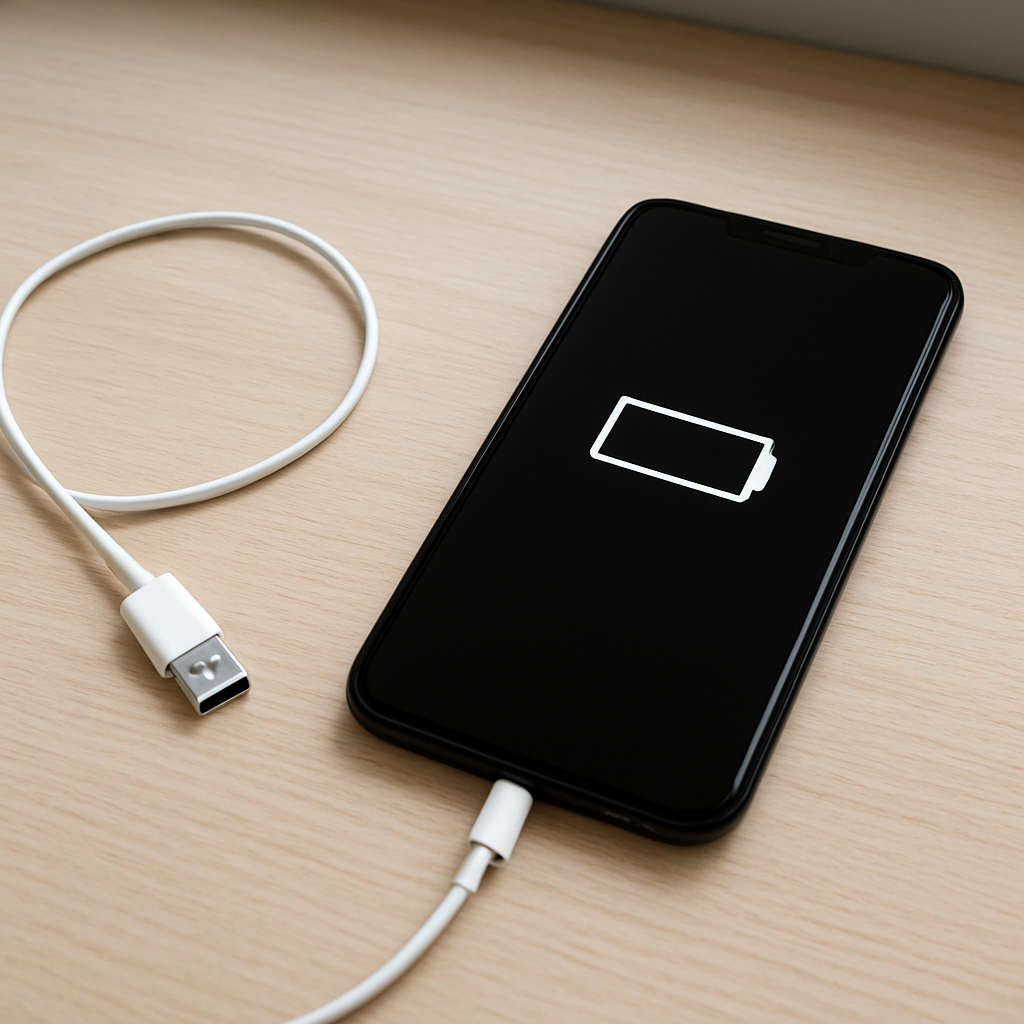
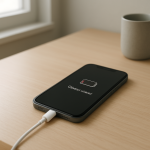
If your phone is not charging at all (no charging icon, no percent increase, no vibration, no LED), the most likely problem is a complete break in the power delivery path (charger/cable/port/charging circuit) or internal battery damage that prevents the battery from accepting power.
This usually means the phone is not receiving stable power, or it is receiving power but cannot store it. In many cases it happens suddenly after a drop, water exposure, lint in the port, or using a weak/worn charger, but a failing battery can also “give up” quickly after months of declining runtime.
If you need a fast fix
Try a known-good wall charger and cable: Use a different cable and a different wall adapter (preferably the original or a reputable brand) and plug directly into a wall outlet.
Clean the charging port safely: Power off the phone, then gently remove lint with a dry wooden toothpick or soft brush; avoid metal tools.
Force restart while plugged in: Keep it on the charger and do a force reboot; a frozen system can look like “not charging” even when power is present.
Quick Diagnosis Table
Symptom
Most likely cause
No charging icon on any charger; port feels loose
Damaged or worn charging port (power input failure)
Charging icon appears briefly then stops; cable must be held at an angle
Dirty port or bent internal pin causing an intermittent power path
Phone only charges wirelessly (if supported), never by cable
USB charging path failure (port, board connector, or charging IC)
Phone shows 0% and shuts off even while plugged in
Battery internal failure or a battery-to-board connection problem
Phone gets warm on charger but percent never rises
Charging circuit negotiation fault, battery fault, or severe battery wear
Why This Happens
Charging is a chain: wall power goes through the adapter, into the cable, through the phone’s charging port, then into a small charging circuit that safely feeds the battery. If any link in that chain fails completely, the phone may act like it is dead and “won’t charge.”
Everyday issues can break the chain. A frayed cable may still power a tiny LED device but fail under a phone’s higher load. Lint in the port can prevent the plug from seating fully, so the phone never gets a solid connection even though it looks plugged in.
Battery damage is the other major path to “no charge.” Even if the charger and port are fine, a battery with internal damage (or a failed protection circuit) can refuse to accept power, causing the percentage to stay at 0% or the phone to shut off as soon as the cable is removed.
Most Common Causes (Ranked)
1) Bad cable or wall adapter: The phone needs stable current; worn cables and cheap adapters often fail suddenly or only work intermittently.
2) Lint/debris in the charging port: Pocket lint packs into the port and blocks full insertion, breaking the power pin contact even when the plug “clicks.”
3) Damaged charging port or loose internal connector: Drops, frequent yanking, or charging while using the phone can loosen the port or crack solder joints.
4) Charging circuit failure (power management/charging IC): Surges, liquid exposure, or long-term heat can damage the parts that negotiate and regulate charging.
5) Battery internal failure or worn-out battery: A degraded or damaged battery may not accept charge, may heat up, or may instantly drop to 0% under load.
6) Moisture detection or corrosion: Even after the phone “dries,” corrosion can interrupt the power path and keep charging blocked for safety.
If you see gradual improvement (charging starts after port cleaning, or it charges slowly but consistently), it usually points to a connection or charger issue rather than a sudden catastrophic board failure.
How to Check the Problem Safely
Check 1: Test with a different known-good charger and cable, then try a different wall outlet. Avoid charging from a laptop USB port during testing because it may not supply enough power.
Check 2: Inspect the charging port with a flashlight. Look for packed lint, green/white residue (corrosion), or a center pin that looks bent or off-center.
Check 3: Confirm the plug seats fully. If the connector won’t go in all the way or feels “spongy,” debris is likely blocking the port.
Check 4: After 10–15 minutes on a known-good charger, feel for gentle warmth near the battery area. No warmth at all can suggest no power is entering; excessive heat can suggest a battery problem.
Check 5: If your phone supports wireless charging, test it. If wireless works but wired never does, the battery is probably okay and the wired input path is at fault.
Safety note: If the phone is swelling, smells odd, gets very hot, or shows liquid damage, stop charging and avoid pressing on the screen or back.
How to Fix It
Fix 1 (easiest): Swap to a high-quality cable and wall adapter that match your phone’s fast-charging standard. This removes the most common failure point and ensures proper power negotiation.
Fix 2: Clean the port carefully with the phone powered off. Use a dry wooden toothpick or soft anti-static brush and remove lint in small lifts; this helps the connector seat fully and restores the power pin contact.
Fix 3: Try a different charging method and leave it for 30–60 minutes. If the battery is deeply discharged, it may need time before the phone shows life; wireless charging can sometimes “wake” a battery enough to allow wired charging later.
Fix 4: If moisture was involved, fully dry and then reassess. Keep the phone off, remove the case, and let it air-dry in a well-ventilated area for 24–48 hours; corrosion or moisture sensors can block charging until conditions are safe.
Fix 5 (advanced/last resort): Get a repair shop to test the port, battery, and charging circuit. A technician can measure voltage at the port and battery connector to confirm whether it’s a port replacement, battery replacement, or board-level repair.
Signs of Battery or Hardware Damage
The phone gets very hot during charging or smells like chemicals or “sweet” odor.
Battery percentage jumps erratically (for example, 30% to 5% in minutes) or stays stuck at 0%.
The phone only runs while plugged in, and turns off immediately when unplugged.
Visible swelling, screen lifting, back cover bulging, or the phone no longer sits flat.
Charging port is loose, the plug wiggles excessively, or charging only works at a specific angle.
Green/white residue inside the port or around openings, suggesting corrosion from moisture.
Repeated “accessory not supported,” “moisture detected,” or rapid connect/disconnect sounds when plugged in.
When Repair Is No Longer Worth It
If your phone needs both a port replacement and a battery replacement, or if diagnostics point to a charging IC or mainboard repair, costs can climb quickly. For older phones, board-level charging repairs often approach the value of the device.
As a rule, consider replacement if the repair estimate is over 40–60% of the price of a comparable used/refurbished phone, or if you also have other issues (cracked screen, weak camera, random reboots). If the phone holds important data, favor repair or professional data recovery even if you plan to replace the device afterward.
How to Prevent This Problem in the Future
Use a reputable charger and cable that match your phone’s requirements, and replace cables at the first sign of looseness or fraying.
Keep the charging port clean by storing the phone in a clear pocket or using a case with a port cover if you work in dusty environments.
Avoid charging while the cable is under strain (gaming, propping the phone, or bending the connector), which loosens ports over time.
Prevent moisture exposure and never charge a phone that is wet; dry it first to avoid corrosion and safety lockouts.
Reduce heat: remove thick cases during fast charging if the phone gets warm, and don’t leave it charging in direct sun or a hot car.
Try to avoid frequent deep discharges to 0%; keeping the battery out of extreme low states can reduce “won’t wake” battery situations.
If you notice charging becoming inconsistent over weeks, address it early (new cable, port cleaning) before it becomes a full failure.
FAQ
Why does my phone show no charging sign on any charger?
If multiple known-good chargers and cables produce no response, the problem is often inside the phone: a dirty/damaged port, a loose internal connector, or a failed charging circuit. It can also be a battery failure that prevents the phone from powering up even when connected. Testing wireless charging (if available) can help separate “battery OK” from “wired input path broken.”
Can a completely dead battery be revived by leaving it plugged in?
Sometimes, yes. A deeply discharged battery may need 30–60 minutes before the phone shows a logo or charging icon, especially if the charger is low-power. If there is still no sign after an hour on a strong, compatible charger, the issue is more likely a power path failure or internal battery damage.
Is it safe to keep trying different chargers if the phone won’t charge?
It is safe to try a few reputable chargers and cables, but stop if the phone becomes hot, swells, smells unusual, or shows signs of liquid damage. Avoid very cheap adapters and “fast charge” hacks because unstable power can worsen a failing charging circuit. If basic tests fail, a repair shop can confirm whether the port, battery, or charging hardware is at fault.