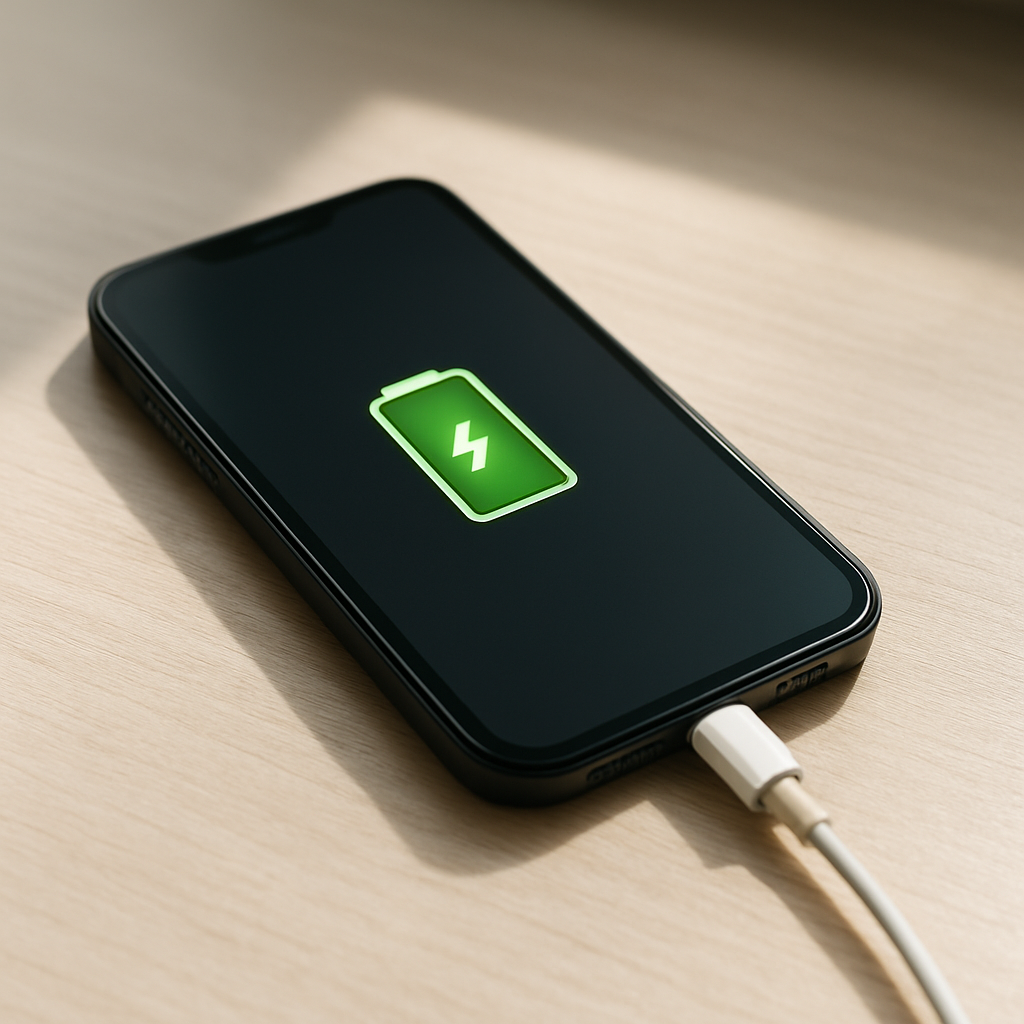
Phone Battery Draining While Charging — Charging Power Not Reaching Battery
Quick Answer
Most of the time, your phone battery drains while charging because the charger is providing less power than the phone is using right now. The phone may show the charging icon, but the incoming power is too weak (or too unstable) to cover the screen, CPU, mobile data, and background activity, so the battery still goes down.
This commonly happens during heavy use (gaming, hotspot, video calls, GPS) or when a low-power charger/cable/port limits charging speed. You’ll often notice it within 5–20 minutes of plugging in, especially if the battery keeps dropping 1–5% even though it says “Charging.”
If you need a fast fix
- Turn on Airplane mode (or at least disable hotspot and 5G), lower screen brightness, and close heavy apps for 10 minutes to reduce power use.
- Switch to a known-good wall charger and cable (avoid laptop USB ports and cheap multi-port hubs), then re-plug firmly.
- Let the phone cool down: remove the case and move it out of direct sun or off a warm surface, because heat often forces slow charging.
Quick Diagnosis Table
| Symptom | Most likely cause |
|---|---|
| Battery percentage drops while “Charging,” especially when using the phone | Charger power is lower than real-time power consumption (heavy apps, high brightness, hotspot, 5G) |
| “Charging” shows, but it charges extremely slowly from low battery | Weak charger, low-quality cable, dirty/loose port, or charging from a low-power USB source |
| Charging improves when the screen is off but drains when screen is on | Display and CPU load are consuming more than the charger can supply |
| Charging pauses or drops when the phone gets warm | Thermal throttling reduces charge rate to protect the battery |
| Fast charging used to work, but now it rarely engages | Cable/adapter not supporting fast charge, port wear, or moisture/debris preventing high-current charging |
Why This Happens
Think of charging like filling a bucket while a tap is also draining it. The charger is the fill, and your phone’s current usage is the drain. If the drain is bigger than the fill, the level goes down even though you are “charging.”
Real-world examples are common: watching videos at max brightness while on 5G, using a navigation app in a hot car, or running a mobile hotspot for a laptop. In those situations, your phone may need more power than a basic 5W–10W charger (or a weak USB port) can deliver.
So the symptom (battery percentage dropping) usually points to a mismatch between incoming charging power and the phone’s moment-to-moment power needs, often made worse by heat or a cable/port that can’t carry enough current.
Most Common Causes (Ranked)
- 1) Charger/cable can’t deliver enough power: A low-watt adapter, a worn cable, or a cable that doesn’t support fast charging can limit intake so much that the phone can’t keep up with normal use.
- 2) High power use while plugged in: Gaming, video calls, hotspot, GPS, Bluetooth audio, and high brightness can push consumption above what the charger provides, causing net discharge.
- 3) Charging from a low-power source: Many car USB ports, computer USB ports, and cheap power banks output less power than a proper wall charger, especially when multiple devices share the same adapter.
- 4) Heat reduces charging speed: When the phone gets warm, charging is intentionally slowed or paused to protect the battery, so the phone may drain during use even with the charger connected.
- 5) Dirty, wet, or loose charging port: Lint and debris can let the plug “sit” in the port but not make a solid high-current connection, which prevents fast charging and lowers real charging power.
- 6) Battery health or charging circuit aging: An older battery or a failing charging component can reduce effective charging, especially at higher percentages where charging naturally slows.
If the battery starts dropping more slowly after you reduce usage or switch chargers, that gradual improvement usually means the phone is fine and the issue is power balance, not a dead battery.
How to Check the Problem Safely
- Check 1: Compare charging sources: try a wall outlet with a reputable charger, then try a computer USB port. If the wall outlet performs much better, your previous source was underpowered.
- Check 2: Test with the screen off for 10–15 minutes. If it gains percentage with the screen off but loses percentage while you use it, the charger is likely being outpaced by current usage.
- Check 3: Feel for heat near the back or camera area. If it’s noticeably warm, let it cool and retry charging; heat-related throttling is a common reason charging “doesn’t reach” the battery.
- Check 4: Inspect the cable and port. Try a different known-good cable, and check for lint in the port (common if the phone stays in a pocket). If the plug feels loose or doesn’t click in firmly, the connection may be limiting current.
- Check 5: Look at battery usage while charging (Settings > Battery). If one app is using unusually high power, that app may be consuming the charging input.
Safety note: if you see swelling, smell a chemical odor, or the phone gets too hot to comfortably hold, stop charging and get it checked.
How to Fix It
- Fix 1 (easiest): Reduce power use while charging: lower brightness, close games, pause downloads, and disable hotspot/5G for 15–30 minutes. This helps because it reduces the “drain” so the charger can actually raise the battery level.
- Fix 2: Use the right charger for your phone (and a good cable). A higher-watt USB-C PD or the manufacturer’s fast charger can provide enough power that the phone charges even during light use.
- Fix 3: Stop charging from weak sources. Avoid laptop USB ports, budget car USB ports, and overloaded multi-port adapters when you need the battery to climb quickly.
- Fix 4: Cool the phone and improve airflow. Remove thick cases, keep it out of sunlight, and don’t charge on bedding or a couch; cooler temperatures allow the phone to accept more charging power safely.
- Fix 5 (advanced/last resort): Clean the port carefully and consider service if the connection is loose. Power off the phone and gently remove lint with a non-metal tool; if fast charging still never engages with known-good accessories, a port or charging-board repair may be needed.
Signs of Battery or Hardware Damage
- Battery percentage jumps up or down in large steps (for example, 40% to 25% quickly) even with light use.
- The phone shuts off at 10–30% and only restarts when plugged in.
- The phone gets unusually hot during basic tasks or while charging with a known-good charger.
- The battery or screen area looks swollen, the screen is lifting, or the back panel is separating.
- The charging port is loose, the cable disconnects with minor movement, or you must hold it at an angle to charge.
- Fast charging never works anymore despite trying multiple certified chargers and cables.
- Moisture/corrosion indicators show liquid exposure, or the port shows visible corrosion or discoloration.
When Repair Is No Longer Worth It
If the issue is a worn battery in an older phone, replacement can be worth it if the device is otherwise in great shape. But if you also have port damage, repeated overheating, random shutdowns, or poor performance, the total repair cost can approach a better value upgrade.
As a rule, pay for repair when the cost is low compared to the phone’s current value and you plan to keep it at least another year. If multiple parts may be involved (battery plus port/board) or the phone no longer receives updates, replacement is often the smarter, safer long-term choice.
How to Prevent This Problem in the Future
- Use a charger and cable that match your phone’s fast-charging standard, especially if you charge while using the phone.
- Avoid heavy activities while charging on weak sources like car USB ports or laptop USB ports.
- Keep the phone cool while charging: don’t charge under pillows, in direct sun, or in a hot car.
- Clean the charging port occasionally and avoid pocket lint buildup by keeping the port facing up in pockets when possible.
- Replace frayed or loose cables early; high resistance cables waste power as heat and reduce charging into the battery.
- Enable battery and data-saving options when you need the battery to climb quickly, such as during travel.
- Don’t rely on constantly topping up with low-power chargers while running hotspots or navigation for hours; use a proper high-output charger instead.
FAQ
Why does it say “charging” but the percentage still goes down?
The charging icon only confirms that a charger is connected and some power is present. If your phone is using more power than the charger can provide at that moment, the extra power comes from the battery and the percentage drops. This is common with weak chargers, poor cables, or heavy use like hotspot and gaming.
Will fast charging fix battery drain while charging?
Often, yes, because a fast charger can provide enough input power to cover normal use and still add to the battery. But fast charging may not engage if the phone is too hot, the cable doesn’t support the required current, or the port connection is poor. If fast charging works only sometimes, heat and cable/port issues are the usual reasons.
Is it bad to use my phone while it’s charging?
Light use is usually fine, but heavy use can outpace the charger and also create heat, which slows charging further. If you need the battery to increase quickly, minimize use, lower brightness, and keep the phone cool. Regularly charging while gaming or using hotspot for long periods can accelerate battery wear over time.
For a full overview of this issue and step-by-step solutions, read the complete troubleshooting guide.