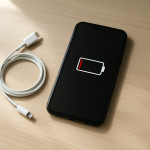
Phone Battery Draining Randomly — Intermittent Power Loss Causes
Quick Answer
Random battery drain is most often caused by unstable power regulation (the phone can’t deliver power smoothly) or unpredictable background activity that keeps waking the phone when you’re not using it. Instead of a steady, normal drain, you get sudden drops because the system briefly works harder or the battery gauge gets thrown off by voltage dips.
This typically shows up after an app update, a system update, a new accessory (charger/cable), or a change in signal conditions. It can happen for a few hours to a couple of days while the phone re-indexes and optimizes, but ongoing random drops usually mean a background process is misbehaving or the battery is aging.
If you need a fast fix
Restart the phone and leave it plugged in for 30–60 minutes after it reaches 100% to help it stabilize charging and background tasks.
Turn on Battery Saver/Low Power Mode and temporarily disable Bluetooth, location services, and hotspot to stop surprise wake-ups.
Check battery usage and uninstall or force-stop any app showing unusually high background use since the last charge.
Quick Diagnosis Table
Symptom
Most likely cause
Battery drops 10–30% quickly while idle
Background sync loop (email/social/cloud) or poor signal causing repeated radio reconnects
Battery percentage jumps up or down after reboot
Battery gauge miscalibration from voltage dips or aging battery cells
Weak cellular/Wi-Fi causing constant searching, handoffs, or failed connections
Drain started after a system/app update
Post-update indexing/optimization or a new bug keeping the CPU awake
Why This Happens
Your phone is designed to “sleep” when the screen is off, using very little power. Random drain happens when something repeatedly wakes it up or when power delivery is unstable and the battery level reading becomes less reliable.
Real-world examples include an app that keeps trying to refresh in the background, a cloud photo backup that retries on a weak connection, or a phone that constantly searches for a better signal on a commute. Another common trigger is a software update that temporarily runs heavy tasks like indexing photos, rebuilding search, or optimizing apps.
When these events happen, the phone briefly uses more power, the battery voltage can dip, and the percentage can drop faster than expected. If it keeps happening, the battery looks like it’s “draining randomly,” even though the cause is usually repeat wake-ups or regulation/gauge instability.
Most Common Causes (Ranked)
1) Background app activity that won’t sleep: A buggy app, constant notifications, or aggressive syncing can keep the phone awake in short bursts, creating sudden drops while idle.
2) Weak signal and network switching: When cell service is poor, the modem uses extra power searching and reconnecting, especially when moving between towers or switching 5G/LTE/Wi-Fi.
3) Post-update optimization and indexing: After OS or major app updates, the phone may run background tasks for hours (sometimes a day or two), which can feel like unpredictable drain.
4) Battery gauge drift from aging cells: As batteries age, voltage drops under load become more noticeable, so the percentage can fall quickly and then “recover” after resting or rebooting.
5) Location services and scanning: Frequent GPS use, Wi-Fi/Bluetooth scanning, and geofencing can cause periodic wake-ups even when you don’t open the related apps.
6) Accessories and charging issues: A poor cable/charger or dirty port can cause unstable charging and heat, which worsens drain and can confuse the battery level reading.
If the drain gradually improves after you remove one suspicious app or after 24–48 hours post-update, that usually indicates the issue was background activity settling down rather than permanent hardware damage.
How to Check the Problem Safely
Check 1: Review battery usage for the last 24 hours and identify any app with unusually high background use. If one app stands out, it’s a prime suspect.
Check 2: Check phone temperature during “random drain” moments. If it’s warm while idle, something is running in the background or the radio is struggling.
Check 3: Compare drain in Airplane Mode for 1–2 hours (with Wi-Fi off) versus normal use. A big difference points to cellular/Wi-Fi activity, not the screen.
Check 4: Look for patterns: specific places, times, or Wi-Fi networks where drain spikes. This often reveals weak signal areas or a problematic network connection.
Check 5: Inspect the charging port and cable ends for lint or looseness, and confirm the phone charges steadily (no rapid connect/disconnect behavior).
Safety note: if the phone becomes very hot, smells odd, or the screen lifts, stop charging and stop using it until it’s checked.
How to Fix It
Fix 1 (easiest): Restart the phone and update all apps. This clears stuck background processes and installs bug fixes that often stop repeated wake-ups.
Fix 2: Limit background activity for the top draining apps (disable background refresh, restrict background data, reduce notifications). This prevents constant syncing loops while the screen is off.
Fix 3: Address network-related drain: turn off 5G temporarily, disable Wi-Fi/Bluetooth scanning, and remove/re-add problematic Wi-Fi networks. This reduces power-hungry searching and reconnects.
Fix 4: Recalibrate gently: use the phone normally down to around 10–15%, then charge uninterrupted to 100% and keep it plugged in for another 30 minutes. This can stabilize the battery gauge after erratic percentage jumps.
Fix 5 (advanced/last resort): Back up your data and do a clean reset or reinstall (factory reset), then reinstall apps in small batches. This helps if a corrupted setting, migration issue, or hidden background service is causing persistent drain.
Signs of Battery or Hardware Damage
Battery percentage drops sharply under light use (for example, 30% to 10% after opening the camera or a simple app).
The phone shuts down unexpectedly even when the battery shows 20–40% remaining.
The device gets hot during basic tasks or while idle, not just during gaming or fast charging.
Charging is unstable (rapid connect/disconnect), charging is extremely slow, or the battery level jumps around while plugged in.
Visible swelling, screen lifting, creaking frame, or the back panel no longer sits flush.
The phone only works reliably when plugged in, or battery life has suddenly become less than half of normal.
Frequent random reboots or “battery temperature too high/low” warnings without a clear reason.
When Repair Is No Longer Worth It
If the phone is older and has multiple issues (poor battery life, charging port problems, overheating, random shutdowns), replacing just the battery may not solve the underlying instability. Repair is usually most worthwhile when the phone is otherwise reliable and the problem clearly points to the battery or a single fault.
As a rule, if the repair cost is close to a large fraction of the phone’s current resale value, replacement is often the better move. Also consider software support: if your phone no longer receives security updates, putting money into repairs may not be a good long-term decision.
How to Prevent This Problem in the Future
Keep apps and the operating system updated, but avoid installing many new apps at once so you can spot which one triggers background drain.
Use Battery Saver/Low Power Mode during travel or in weak-signal areas to reduce modem activity and background syncing.
Limit unnecessary background permissions (location “always,” constant Bluetooth scanning, unlimited background data) for apps that don’t need them.
Charge with a quality cable/charger and keep the port clean to avoid unstable charging that increases heat and gauge errors.
Avoid extreme heat; don’t leave the phone in a hot car or under a pillow while charging, since heat accelerates battery aging and worsens voltage dips.
When possible, use Wi-Fi in stable environments and disable Wi-Fi/Bluetooth scanning features that search constantly in the background.
If you notice drain after an update, give it 24–48 hours, then act: review battery usage and remove the app or setting that keeps waking the phone.
FAQ
Why does my battery drain randomly even when I’m not using my phone?
Usually the phone isn’t truly idle: a background app is syncing, a service is retrying a failed connection, or the device is searching for signal. These repeated wake-ups can happen in short bursts, making the battery drop look “random.” Checking background battery usage and testing Airplane Mode for a short period can quickly narrow it down.
Can a recent update cause sudden battery drain for no reason?
Yes. After updates, phones often run background tasks like indexing photos, optimizing apps, and re-checking cloud content. This can last several hours and sometimes up to a couple of days, especially if the phone is low on storage or has many apps. If drain continues beyond 48 hours, look for a specific app or service stuck in a loop.
Why does my battery percentage jump after restarting?
A jump usually means the battery gauge estimate drifted due to voltage dips under load, which is more common on older batteries. Restarting and letting the phone “rest” can temporarily raise the measured voltage, so the percentage recalculates higher. If jumps are frequent and paired with shutdowns, the battery may be worn and due for replacement.