Phone Battery Draining After Update — System Optimization or Software Conflict?
Quick Answer
Battery drain right after an update is usually caused by the phone running background optimization tasks (re-indexing files, rebuilding caches, re-learning battery patterns) or by an app that isn’t fully compatible with the new software. These processes can keep the CPU, storage, and network busier than normal, which uses more power.
In many cases this settles down within 24–72 hours of normal use, once the system finishes housekeeping. If the drain is still severe after a few days, it’s more likely an app conflict, a stuck system service, or a misbehaving setting that the update changed.
If you need a fast fix
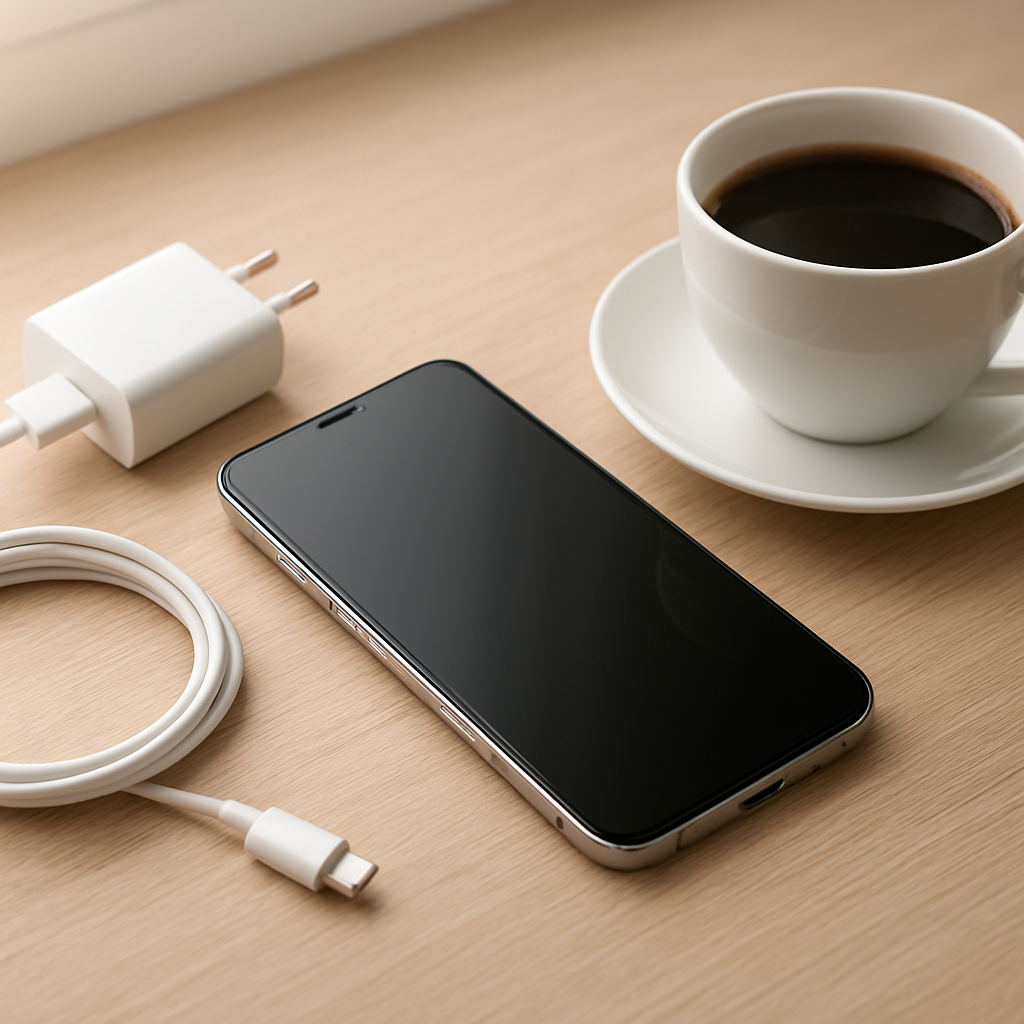
Restart the phone once, then leave it plugged in and on Wi-Fi for 30–60 minutes so optimization can complete without draining the battery.
Check Battery usage and uninstall or force stop any app that suddenly jumped to the top after the update.
Turn off 5G (use LTE), lower screen brightness, and disable Always-On Display for one day to quickly reduce demand while you troubleshoot.
Quick Diagnosis Table
Symptom
Most likely cause
Battery drops fast for 1–3 days after updating, then slowly improves
Post-update system optimization (indexing, cache rebuild, background tuning)
Phone stays warm when idle, especially after the update
Stuck background process, app compatibility issue, or repeated sync attempts
Battery usage shows one app suddenly using far more power than before
App not optimized for the new OS version or a buggy app update
Huge drain overnight with little screen time
Network scanning, location services, push email/sync loop, or a system service hang
Battery life is worse only on mobile data (fine on Wi-Fi)
5G/modem power draw, weak signal, or carrier settings reset after update
Why This Happens
After a major update, your phone often has to “re-organize” itself. It may re-index photos and messages for search, rebuild app data caches, re-check app permissions, and optimize apps for the new system. These tasks can run quietly in the background for hours, and they can repeat when the phone is warm, unplugged, or switching networks.
Updates can also change how apps interact with the system. An app that was fine yesterday might start waking the phone more often today, retrying sync, or using location in the background because a permission or background rule changed. Even a well-known app can misbehave until it’s updated again for the new OS.
More work in the background means more CPU time, more storage activity, and more network use, which shows up as heat and faster battery drain, especially when the screen is off.
Most Common Causes (Ranked)
1) Post-update optimization and indexing: The system may be rebuilding databases and optimizing apps, which temporarily increases background activity and power use.
2) App compatibility or a buggy app update: One app can keep running in the background (or crash and restart), causing heavy drain until it’s updated or removed.
3) Carrier/modem behavior after the update: 5G, weak signal, or changed network settings can make the modem work harder, especially in areas with spotty coverage.
4) Sync or account loops: Email, cloud photos, calendars, or messaging services may repeatedly retry syncing after the update, using CPU and data in the background.
5) Changed background permissions or location settings: Updates can reset or expand background access for certain apps, leading to more frequent wake-ups.
6) Corrupted cache after the update: Old temporary files can conflict with new system behavior, keeping services active until caches are refreshed.
If battery life improves a little each day, that usually means the system optimization is finishing and the phone is returning to normal.
How to Check the Problem Safely
Check 1: Open Battery usage and look for a clear outlier (an app or service using far more than expected). Compare Screen time vs background time to spot apps draining while you’re not using them.
Check 2: Feel for unusual warmth when the phone is idle. Heat without use often points to a background process or network activity.
Check 3: Check Mobile network signal and data usage. If battery drops faster on mobile data than Wi-Fi, the modem or signal strength is likely involved.
Check 4: Review recently updated apps in your app store. If the drain started right after an app update (not just the OS update), that app is a prime suspect.
Check 5: Check Location and background access settings for top-draining apps. Look for apps set to “Always” location or unrestricted background usage.
Safety note: Avoid random “battery saver/cleaner” apps during troubleshooting, since they can create extra background activity and make the problem harder to diagnose.
How to Fix It
Fix 1 (easiest): Restart the phone and keep it on Wi-Fi and charging for at least 30–60 minutes. This helps the system finish optimization tasks without draining the battery.
Fix 2: Update all apps, then reboot again. Many post-update drains are caused by apps that need a compatibility update for the new OS.
Fix 3: Identify the top draining app and reduce its background activity. Disable background refresh, set Battery to “Optimized,” restrict background data, or uninstall the app to confirm the cause.
Fix 4: Reset network behavior that may have changed. Toggle Airplane mode for 20 seconds, then consider switching 5G to LTE for a day and turning off unnecessary Wi-Fi/Bluetooth scanning to reduce modem load.
Fix 5 (advanced/last resort): Clear system cache where supported, or back up your phone and do a full reset if drain stays severe after 3–5 days and you’ve ruled out apps. A clean setup removes corrupted leftovers that can keep services stuck.
Signs of Battery or Hardware Damage
Battery percentage drops in large jumps (for example, 40% to 25%) even after troubleshooting software and apps.
The phone gets hot during light tasks or while idle, and heat persists across reboots.
Unexpected shutdowns at 20–40% battery, especially in cold environments.
Noticeable battery swelling, screen lifting, or the back cover separating.
Charging is unstable (rapidly switching between charging and not charging) with known-good cables and chargers.
The phone only works reliably while plugged in, or battery health reports show very low capacity.
Battery life became dramatically worse immediately after the update and never improves over a week, even after a reset.
When Repair Is No Longer Worth It
If the phone is older and the battery health is low, a battery replacement is often the most cost-effective fix, especially when the device otherwise runs well. If there are also charging port issues, overheating, or intermittent shutdowns, the combined repair cost can approach the value of the phone.
As a rule, consider replacement if the repair estimate is more than about one-third to one-half the cost of a reliable newer device, or if the model will stop receiving updates soon. If you rely on the phone daily, paying for stability and battery life can be worth more than squeezing out a few extra months.
How to Prevent This Problem in the Future
After major updates, leave the phone charging on Wi-Fi for an hour so optimization finishes without draining the battery during the day.
Update apps promptly after the OS update, especially messaging, email, social, security, and launcher/keyboard apps.
Audit background permissions after updates and switch unnecessary location access to “While using” or disable it.
Keep 5G set to “Auto” or use LTE in weak-signal areas to reduce modem power use.
Avoid installing multiple battery boosters, VPN profiles, or device management apps unless you truly need them, since they can cause background wake-ups.
Use official or reputable chargers and cables to prevent charging instability that can amplify heat and drain.
Before updating, back up your phone and ensure you have free storage space, since low storage can make post-update optimization slower and more power-hungry.
FAQ
Is it normal for battery life to be worse right after a software update?
Yes, for many phones it’s normal for 1–3 days because the system is optimizing apps and re-indexing content. You may notice more heat and more background usage during this period. If things steadily improve, it’s usually not a defect.
How do I know if an app is the real problem?
Check Battery usage and look for an app with unusually high background time or a sudden spike compared to your normal pattern. If uninstalling or restricting that app noticeably improves battery life within a day, it was likely the cause. Also check the app store for recent updates or reviews mentioning battery drain after the latest OS version.
Should I reset my phone if the battery drain started after an update?
Try simpler fixes first, like app updates, a restart, and restricting a top-draining app. If the drain is still severe after 3–5 days and you can’t identify an app causing it, a backup and full reset can help by removing corrupted caches and conflicting settings. Set up as new if possible, and reinstall apps gradually to spot the trigger.