Laptop Charger Overheating When Gaming? Causes and Fixes
Quick Answer
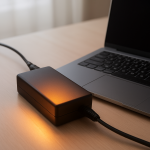
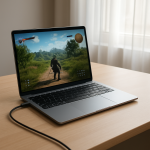
Your laptop charger usually gets hotter during gaming because the CPU and GPU pull much more power under heavy load. That higher demand pushes the charger closer to its maximum rating, and converting that much power naturally creates more heat.
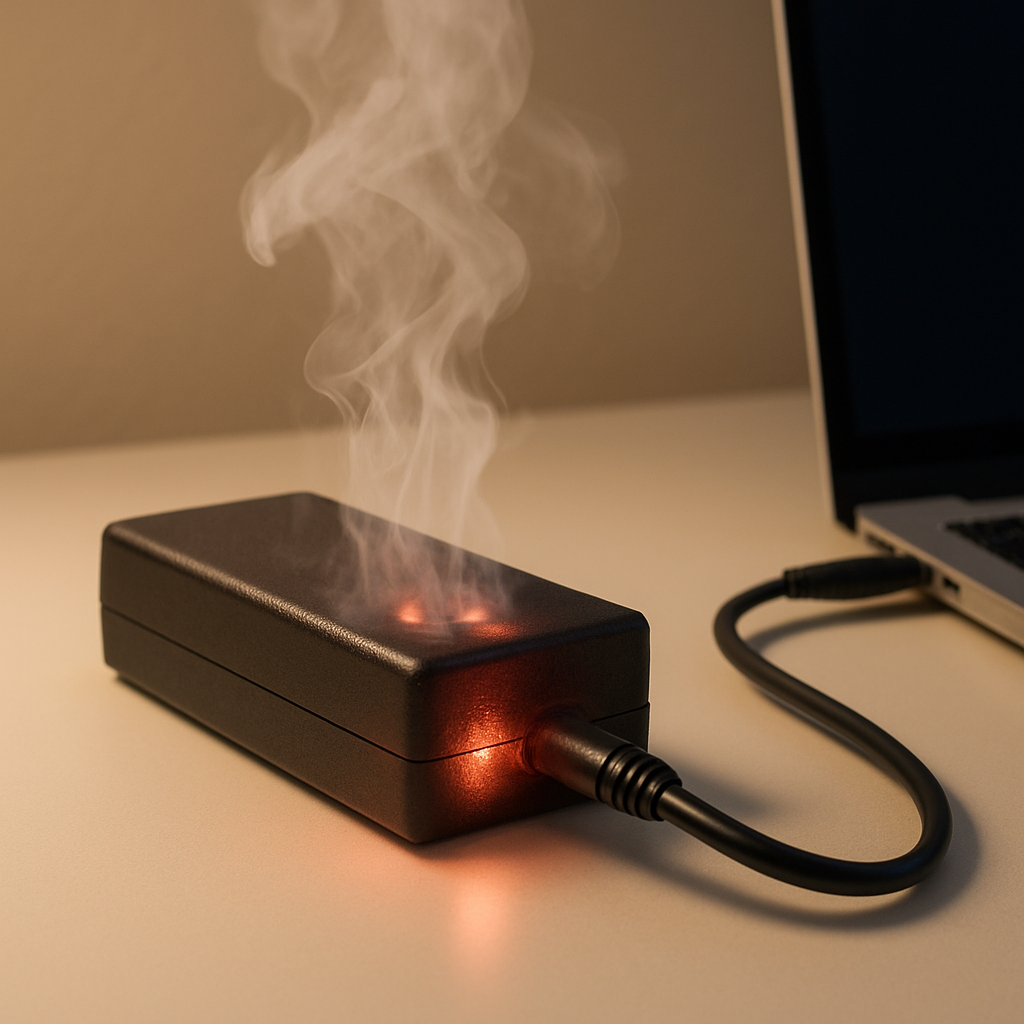
In many cases, warmth is normal within 10–30 minutes of starting a game, especially on higher-wattage adapters. It becomes a problem if the brick is too hot to touch, smells odd, cuts in and out, or the laptop starts losing charge while plugged in.
If you need a fast fix
- Move the charger brick into open air (not on carpet, bedding, or inside a bag) and unplug/replug it firmly at both ends.
- Lower power use right now: cap FPS, enable an in-game “Balanced”/“Eco” mode, or reduce resolution to cut CPU/GPU load.
- Switch to a wall outlet (not a power strip) and stop using the laptop until the charger cools if it’s uncomfortably hot.
Quick Diagnosis Table
| Symptom | Most likely cause |
|---|---|
| Charger gets hot only when gaming or rendering | High power draw pushes the adapter near its watt limit |
| Laptop battery percentage drops while plugged in during gaming | Adapter wattage is too low for peak load, or charging is capped/limited |
| Charging cuts out, flickers, or the connector area heats up | Loose/damaged cable, worn DC jack/USB-C port, or poor contact |
| Brick is extremely hot, smells like plastic, or makes buzzing noises | Failing adapter components or unsafe overheating |
| Adapter runs hotter than it used to in the same game | Dust/heat buildup, aging adapter, higher game settings, or hotter room temps |
Why This Happens
Gaming is one of the highest power tasks a laptop can do. When the CPU and GPU ramp up, the laptop may pull close to (or sometimes briefly above) the charger’s rated wattage, especially on performance laptops.
The charger’s job is to convert high-voltage AC from the wall into lower-voltage DC your laptop can use. Power conversion is never 100% efficient, so some energy becomes heat inside the brick, and that heat rises as the wattage rises.
Put simply: more load in the laptop means more electrical work for the adapter, and that extra work shows up as a hotter charger.
Most Common Causes (Ranked)
- 1) Charger is operating near its maximum wattage: Under heavy CPU/GPU load, your laptop can pull close to the adapter’s rating, which increases heat during normal operation.
- 2) Battery charging while gaming adds extra load: If the battery is below full, the laptop is powering the game and charging the battery at the same time, which can push total draw higher.
- 3) Poor airflow around the charger brick: A charger on carpet, bedding, or wedged behind a desk can’t shed heat well, so its temperature climbs faster.
- 4) Cable/connector resistance from wear or damage: Bent plugs, frayed cables, or a loose USB-C/DC connection can create resistance and localized heating near the connector or brick.
- 5) Using a lower-watt replacement or USB-C charger: Many laptops will “work” on an under-rated adapter, but the charger can run hot and the battery may drain during gaming.
- 6) Aging adapter or higher ambient temperatures: Over time, internal components can become less efficient, and hot rooms make it harder for the brick to cool.
If your charger runs cooler after improving airflow or lowering game power draw, that gradual improvement is a good sign that the issue is load- and heat-related rather than a sudden hardware failure.
How to Check the Problem Safely
- Check 1: Feel for where the heat is strongest (brick vs cable vs connector). Warm brick is common; a very hot connector/cable can point to a bad contact or damaged wire.
- Check 2: Look at the charger label for wattage (W) and compare it to your laptop’s recommended wattage. If your laptop expects 180W and you’re using 130W, overheating and battery drain are more likely.
- Check 3: Test the same game with reduced load (lower settings or FPS cap). If the charger temperature drops noticeably, the heat is mainly from high power draw.
- Check 4: Inspect the cable and plug ends for kinks, discoloration, melting, or looseness. Also check the laptop port for wobble or debris.
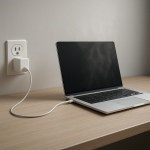
- Check 5: Try a different wall outlet and remove power strips or extension cords temporarily. Poor connections can increase heat and cause unstable charging.
If you notice a burning smell, visible melting, or repeated disconnects, stop using the charger and let everything cool before further troubleshooting.
How to Fix It
- Fix 1 (easiest): Improve airflow for the brick by placing it on a hard surface with space around it. Better cooling lowers temperature without changing anything else.
- Fix 2: Reduce power draw while gaming by capping FPS, enabling “Balanced” mode, lowering resolution, or turning off heavy features (like ray tracing). Less power pulled from the adapter means less heat generated.
- Fix 3: Avoid charging from a low battery during peak gaming sessions. Start gaming near 80–100% (or use a battery charge limit feature), so the adapter isn’t powering the game and fast-charging at the same time.
- Fix 4: Replace damaged cables or a loose charger, and ensure a firm connection at the laptop. Lower resistance at the connector reduces hot spots and prevents dropouts.
- Fix 5 (advanced/last resort): Use the correct higher-watt OEM (or certified) adapter recommended for your model. If your laptop supports it, a properly rated higher-watt adapter can reduce strain and overheating compared to an under-rated charger.
Signs of Battery or Hardware Damage
- Charger or connector smells like burning plastic or electronics.
- Visible melting, bubbling, discoloration, or deformation on the brick, plug, or laptop port.
- Charging repeatedly connects/disconnects, even after trying another outlet.
- The adapter makes crackling, buzzing, or popping sounds that weren’t there before.
- Laptop shuts down under load, throttles severely, or the battery drains while plugged in every time you game.
- Battery swelling symptoms: trackpad feels raised, bottom case bulges, or the laptop rocks on a flat surface.
- Adapter becomes too hot to hold for more than a couple of seconds during normal use.
When Repair Is No Longer Worth It
If the charger shows heat damage, smells burnt, or causes intermittent power, replacing the adapter is usually the best move. Chargers are external, relatively affordable, and a failing one can damage the laptop’s charging port or motherboard over time.
For older laptops, compare the total cost of an OEM adapter plus any port repair against the laptop’s current value and performance. If you need a new battery, adapter, and port work all at once, putting that money toward a newer system often makes more sense.
How to Prevent This Problem in the Future
- Use the manufacturer-recommended wattage adapter (or certified equivalent) for gaming workloads.
- Keep the charger brick in open air and off heat-trapping surfaces like carpet and blankets.
- Cap FPS to what your screen can actually show (for example 60/120/144) to prevent unnecessary GPU power draw.
- Enable a balanced or efficiency mode when you don’t need maximum performance.
- Use battery charge limits (often 80% or 60%) if you game plugged in for long sessions, to reduce charging heat.
- Regularly inspect cables for bends and strain, and avoid wrapping the cable tightly around a hot brick.
- Keep laptop cooling in good shape (clean vents, good airflow), because hotter laptop internals can increase total power draw and strain the adapter.
FAQ
Is it normal for a laptop charger to get hot while gaming?
Yes, some warmth is normal because gaming makes the laptop draw much more power, and the adapter converts that power into usable DC. It’s more noticeable on smaller power bricks or when the battery is also charging. It’s not normal if it becomes painfully hot, smells odd, or charging becomes unstable.
Why does my battery drain even when the charger is plugged in during games?
This usually happens when the laptop’s peak power demand is higher than what the adapter can supply, so the system supplements with battery power. It can also occur with under-rated USB-C chargers or non-OEM adapters. Using the correct wattage adapter and lowering game power settings typically fixes it.
Can an overheating charger damage my laptop?
It can if the heat is caused by a failing adapter, a damaged cable, or a poor connection that overheats the port. Repeated overheating and power dropouts can stress the charging circuit and the connector. If you see melting, smell burning, or get frequent disconnects, stop using that charger and replace it.
For a full overview of this issue and step-by-step solutions, read the complete troubleshooting guide.