Laptop Charger Making Noise — Coil Whine or Electrical Problem?
Quick Answer
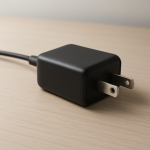
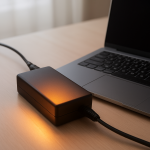
Most laptop charger noises are caused by coil whine: tiny vibrations in the adapter’s internal coils or transformer as electricity rapidly switches on and off. This vibration can create a faint buzzing, whining, or high-pitched squeal, especially under certain loads.
In many cases it’s harmless and may be most noticeable when the battery is charging fast, the laptop is under heavy use, or the charger is plugged in but not fully loaded. If the sound started suddenly, is getting louder, or comes with heat or a burning smell, treat it as a possible electrical fault and stop using it.
If you need a fast fix
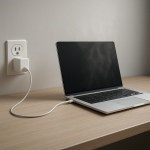
- Try a different wall outlet (no power strip): Plug the charger directly into a known-good outlet to rule out poor power quality that can trigger louder coil vibration.
- Change the load: Unplug and replug the laptop, then test at different battery levels (for example 20% vs 80%) to see if the noise only happens during fast charging.
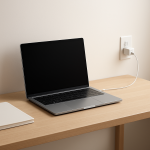
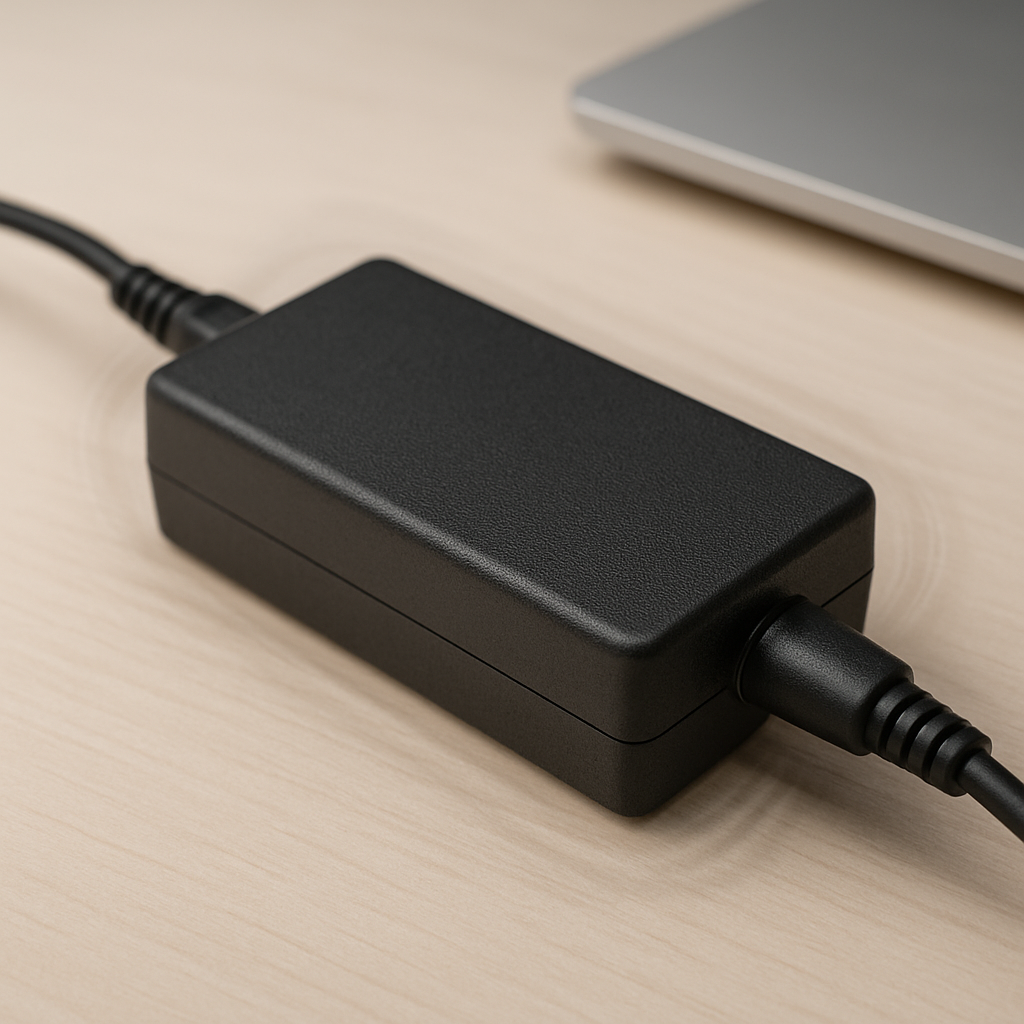
- Separate and reposition: Keep the adapter off hard surfaces (like a desk that amplifies sound) and away from your ear; a soft surface can reduce resonance and perceived noise.
Quick Diagnosis Table
| Symptom | Most likely cause |
|---|---|
| High-pitched whine that changes when laptop load changes | Normal coil whine from coils/transformer reacting to changing power draw |
| Buzzing mainly when battery is low and charging quickly | Transformer resonance under high current during fast charge |
| Crackling, popping, or irregular arcing-like sounds | Damaged cable/connector, internal failure, or contaminated plug causing poor contact |
| Noise plus strong heat, hot plastic smell, or discoloration | Overheating components, failing adapter, or unsafe operating condition |
| Noise goes away on another outlet or in another room | Mains power quality issue, grounding differences, or interference from other devices |
Why This Happens
A laptop power adapter is a small high-frequency power supply. Inside it are coils, a transformer, and other parts that rapidly switch electricity to convert wall power into the lower voltage your laptop needs.
When current flows through a coil or transformer, it can create tiny physical movement. You can think of it like a very small “speaker” effect: the part vibrates at a frequency your ears can sometimes hear, especially when the adapter is working harder.
When the adapter’s switching frequency or the load pattern lines up with the natural resonance of a coil or transformer, the vibration becomes louder, and you hear a whine or buzz.
Most Common Causes (Ranked)
- 1) Coil whine from internal inductors: The adapter’s coils can vibrate under certain loads, making a steady or changing whine even though the charger still works normally.
- 2) Transformer resonance during fast charging: When your battery is low, the adapter may deliver higher current, and the transformer can “sing” more loudly until charging slows down.
- 3) Outlet or power strip noise interaction: Some outlets, surge protectors, or UPS units add electrical noise or slightly different voltage that makes the charger’s vibration more noticeable.
- 4) Mechanical amplification from the surface: A desk, nightstand, or wall can act like a soundboard, making a mild internal vibration seem much louder than it really is.
- 5) Loose connector or cable strain near the plug: A worn cable or a stressed connector can cause intermittent contact, which may create buzzing or crackling that is not normal coil whine.
- 6) Aging or low-quality adapter components: Over time, internal parts can loosen slightly or degrade, increasing vibration and noise, especially on off-brand or heavily used chargers.
If the noise gradually decreases after a few minutes or only happens in specific charging situations, that usually indicates normal load-related resonance rather than an immediate danger.
How to Check the Problem Safely
- Check 1: Listen for the type of sound. A smooth whine or steady buzz that changes with laptop activity is more consistent with coil whine than with a dangerous fault.
- Check 2: Test a different outlet. Plug the charger directly into a wall outlet (skip power strips) and see if the sound changes or disappears.
- Check 3: Test a different load. Let the battery reach around 70–90%, then listen again; many chargers quiet down when charging current tapers off.
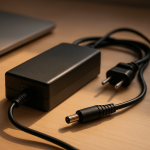
- Check 4: Inspect the cable and connector. Look for kinks, exposed wire, bent pins, looseness at the laptop jack, or a plug that feels unusually warm.
- Check 5: Compare with another known-good compatible charger (if available). If the second charger is quiet in the same conditions, your original adapter is the likely source.
Safety note: Do not open the power adapter. Unplug it immediately if you notice burning smells, smoke, crackling/popping, or melting plastic.
How to Fix It
- Fix 1 (easiest): Move the charger and change what it rests on. Placing it on a softer surface or isolating it from a hollow desk can reduce resonance and perceived noise.
- Fix 2: Use a different wall outlet and avoid cheap power strips. Cleaner power and better grounding can reduce the electrical conditions that make coils vibrate audibly.
- Fix 3: Reduce load spikes while charging. If the noise is worst during gaming or heavy CPU/GPU use, try charging while the laptop is idle or use a lower-power mode to smooth the power draw.
- Fix 4: Replace the adapter if the noise is new, worsening, or paired with heat. A genuine OEM or certified replacement often uses tighter construction and better potting, which reduces coil movement.
- Fix 5 (advanced/last resort): If you must keep using the adapter temporarily, improve airflow and keep it in an open, cool area. This does not “fix” coil whine, but it reduces stress that can worsen a marginal adapter.
Signs of Battery or Hardware Damage
- Charger is too hot to touch or becomes hot very quickly, even during light use.
- Burning smell, chemical smell, or a “hot plastic” odor near the adapter, plug, or laptop charging port.
- Crackling, popping, or sizzling sounds instead of a steady whine or smooth buzz.
- Charging repeatedly connects/disconnects, or the laptop only charges when you hold the cable at a certain angle.
- Visible discoloration, melting, bulging, or scorch marks on the adapter case, connector, or the DC plug.
- Laptop reports “plugged in, not charging” frequently, or the adapter wattage is not recognized.
- Battery suddenly drains faster, swells, or the laptop shuts down under load even while plugged in.
When Repair Is No Longer Worth It
Most laptop chargers are sealed and not designed for safe repair. If the noise comes with heat, smell, cracking sounds, or charging instability, replacement is usually the safest and most practical option.
As a rule, replace the adapter if it’s out of warranty and showing warning signs, or if a genuine replacement costs less than the risk of damaging the laptop’s charging circuit. Paying more for an OEM or certified adapter often saves money compared with repairing a burned port or motherboard power section.
How to Prevent This Problem in the Future
- Buy OEM or certified chargers with the correct wattage; underpowered adapters tend to run hotter and can be noisier under load.
- Plug into a good wall outlet and avoid overloaded or low-quality power strips that can introduce electrical noise.
- Keep the adapter on a hard, stable, ventilated surface with airflow, not buried in bedding or behind a couch.
- Avoid sharp bends and constant tension at the cable ends; use gentle loops and strain relief to prevent loose connections.
- Keep dust and debris out of the connector and laptop charging port; poor contact can create heat and noise.
- Don’t leave the adapter dangling by the cord; support the “brick” to reduce internal stress over time.
- If your electrical supply is unstable, consider a quality surge protector (not the cheapest option) to reduce spikes that can worsen noise and wear.
FAQ
Is coil whine from a laptop charger dangerous?
Coil whine by itself is usually not dangerous, especially if the charger stays cool and charging is stable. It’s typically just vibration of internal coils or the transformer under certain electrical loads. Treat it as a warning only if it’s accompanied by overheating, burning smell, crackling, or intermittent charging.
Why is the noise louder when my battery is low?
When the battery is low, the laptop often pulls more power to charge quickly, and the adapter works harder. Higher current can increase vibration and make transformer or coil resonance more audible. The sound often reduces once the battery reaches a higher percentage and charging slows down.
Should I replace my charger if it makes a buzzing sound?
If the buzzing is steady, mild, and the charger behaves normally, you can often keep using it while monitoring for changes. Replace it if the noise is new or getting worse, if the adapter runs unusually hot, or if charging becomes unreliable. When in doubt, using a known-good OEM replacement is the safest choice.
For a full overview of this issue and step-by-step solutions, read the complete troubleshooting guide.