Laptop Charger Gets Hot Overnight — Normal Heat or Electrical Risk?
Quick Answer
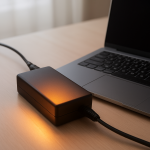
A laptop charger often gets hot overnight because it keeps converting wall power into charging power for hours, and that steady workload creates heat. If the brick is tucked under a bed, behind a pillow, on carpet, or pressed against other cables, poor ventilation traps that heat and it builds up.
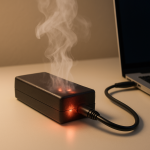
In many cases this is normal warmth that feels “pretty hot” after 6–10 hours, especially if the laptop is still topping off the battery or powering background tasks. It becomes a risk when the heat is extreme, smells odd, causes the plug or outlet to discolor, or the charger is too hot to touch for more than a second.
If you need a fast fix
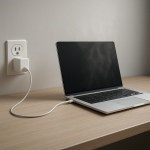
- Unplug the charger, let it cool for 10–15 minutes, then plug it back in with the brick on a hard, open surface (desk or tile), not on bedding or carpet.
- Untangle and straighten the cable, and make sure nothing covers the power brick or the wall plug so heat can escape.
- If it gets very hot again within 20–30 minutes, stop using it and switch to a known-good compatible charger or charge in short sessions until you can replace it.
Quick Diagnosis Table
| Symptom | Most likely cause |
|---|---|
| Warm to hot brick after an overnight charge, but no smell or flicker | Normal continuous power conversion, made worse by limited airflow around the brick |
| Very hot brick that’s uncomfortable to hold, especially when left on fabric | Heat trapped by poor ventilation (carpet/bedding) causing sustained heat accumulation |
| Charger runs hot even when the laptop is already at 100% | Laptop still drawing power for background load, plus charger efficiency losses |
| Hot wall plug or outlet faceplate, or crackling/buzzing | Loose outlet/poor contact increasing resistance and heating at the plug (electrical risk) |
| Burning/plastic smell, discoloration, or intermittent charging | Failing adapter, damaged cable, or overheating components inside the brick |
Why This Happens
A charger isn’t just a “wire.” It’s a small power supply that transforms high-voltage AC from the wall into lower-voltage DC your laptop can use. That conversion is never 100% efficient, so some energy turns into heat.
Overnight, the workload can stay steady: the laptop may be charging, maintaining the battery at full, or running updates, backups, or syncing. Even a modest continuous draw can keep the charger warm for hours, like a small space heater that never fully turns off.
When the power brick is on a soft surface or wedged in a tight spot, the heat can’t dissipate. Continuous conversion plus poor ventilation leads to heat accumulation, which is why it can feel much hotter in the morning than it did right after you plugged it in.
Most Common Causes (Ranked)
- 1) Poor ventilation around the power brick: Chargers shed heat through their casing. If it’s on carpet, bedding, or under a laptop bag, the heat gets trapped and temperatures climb over hours.
- 2) Continuous overnight load (charging + maintenance power): Even at 100%, many laptops keep drawing power for background activity and battery “top-off,” so the charger keeps converting power and staying warm.
- 3) High-power charging (USB-C PD or gaming/workstation laptops): Larger-wattage adapters naturally run warmer, especially during fast-charging or heavy laptop use while plugged in.
- 4) Aging or low-quality adapter (lower efficiency): Worn internal components and cheaper designs waste more power as heat, so the brick runs hotter than it used to under the same conditions.
- 5) Cable strain or partial damage near the ends: A kinked or frayed cable can create extra resistance, which adds heat and can cause unstable charging.
- 6) Loose outlet or poor plug contact: A worn outlet can heat up at the plug blades, sometimes making the charger area feel hotter and increasing fire risk.
If the charger runs cooler after you improve airflow and reduce overnight charging time, that gradual improvement usually indicates normal heat behavior rather than a serious electrical fault.
How to Check the Problem Safely
- Check 1: Feel for where the heat is strongest after 15 minutes of charging: the brick, the cable, the laptop port, or the wall plug. Concentrated heat at the wall plug points to an outlet/contact issue.
- Check 2: Move the brick to a hard, open surface and retest. If it’s noticeably cooler in the same amount of time, ventilation was the main problem.
- Check 3: Look and sniff: any melting smell, visible warping, brown marks, or a glossy “softened plastic” look means stop using it.
- Check 4: Inspect the cable ends for bends, fraying, or a “hot spot” you can feel through the insulation, especially near the strain relief by the brick or the laptop connector.
- Check 5: Try a different outlet that feels firm when you plug in. If heat at the plug drops, your original outlet may be loose or worn.
Safety note: If you hear buzzing, see sparks, or the outlet/plug is hot to the touch, unplug immediately and avoid using that outlet until it’s checked by a qualified electrician.
How to Fix It
- Fix 1 (easiest): Give the charger air. Place it on a desk or hard floor with a few inches of space around it so it can shed heat instead of soaking into fabric.
- Fix 2: Avoid overnight “buried charging.” Don’t charge under blankets, on carpet, or inside a bed-side cable mess; this directly reduces sustained heat accumulation.
- Fix 3: Reduce continuous load. Let the laptop sleep overnight, close heavy apps, and disable overnight updates if you don’t need them, so the charger isn’t powering extra activity for hours.
- Fix 4: Replace questionable parts. If the charger is old, off-brand, or intermittently charging, replace it with an OEM or certified equivalent of the correct wattage to reduce waste heat and risk.
- Fix 5 (advanced/last resort): Address outlet issues. If the plug feels loose or the wall plate warms up, stop using that socket and have it repaired; this fixes resistance heating that a new charger won’t solve.
Signs of Battery or Hardware Damage
- Battery percentage jumps around, drains unusually fast, or won’t reach 100% even after hours.
- The laptop only charges when the cable is held at a certain angle or gently pushed.
- Charging port feels hot, looks discolored, or the connector has scorch marks.
- Burning or chemical smell from the charger, cable, port, or laptop underside.
- Adapter makes clicking, buzzing, or whining sounds that are new or getting louder.
- Random disconnects: the charging icon flickers, or the laptop switches between battery and AC power.
- Swelling: the trackpad bulges, the bottom case doesn’t sit flat, or the battery area looks puffed.
When Repair Is No Longer Worth It
If the charger shows melting, smells burnt, repeatedly overheats in open air, or causes outlet heating, replacement is usually the safest and cheapest answer. A power adapter is a common wear item, and internal repairs aren’t typically cost-effective or safe for everyday users.
As a rule, replace the adapter if you need to “babysit” it to avoid overheating, or if a new certified charger costs far less than diagnosing a damaged port or motherboard. If the laptop charging port is damaged or the battery is swollen, prioritize professional service because those can become safety hazards.
How to Prevent This Problem in the Future
- Charge on a hard, ventilated surface and keep the power brick uncovered so heat can dissipate.
- Don’t coil the cable tightly around a warm brick; loose loops reduce heat buildup and cable stress.
- Use the correct wattage charger for your laptop so it isn’t running at its limit for long periods.
- Keep the wall plug and outlet snug; avoid worn power strips and avoid overloaded extension cords.
- Enable battery health or charge limit features (if your laptop supports them) to reduce constant top-off charging overnight.
- Unplug after reaching full charge when practical, especially for long overnight periods in warm rooms.
- Replace chargers that show kinks, fraying, discoloration, or intermittent charging before they become a heat problem.
FAQ
Is it normal for a laptop charger to be hot after charging all night?
Mild to moderately hot is common because the adapter converts power continuously and gives off heat. If it was on bedding or in a cramped spot, it will feel much hotter because the heat had nowhere to go. It should not be painfully hot, smell burnt, or heat up the wall plug.
Why is my charger still hot when the laptop is at 100%?
Many laptops still draw power at 100% to run background tasks and maintain the battery. That means the charger keeps working and producing heat, just at a lower level than during fast charging. Improving ventilation and letting the laptop sleep usually reduces this.
Can an overheating charger damage my laptop or battery?
Yes, sustained high heat can shorten the charger’s lifespan and can stress the charging port and nearby components. In extreme cases, overheating from a failing adapter, damaged cable, or loose outlet can create a fire risk. If the heat is sudden, severe, or paired with smell, buzzing, or discoloration, stop using it and replace the faulty part.
For a full overview of this issue and step-by-step solutions, read the complete troubleshooting guide.