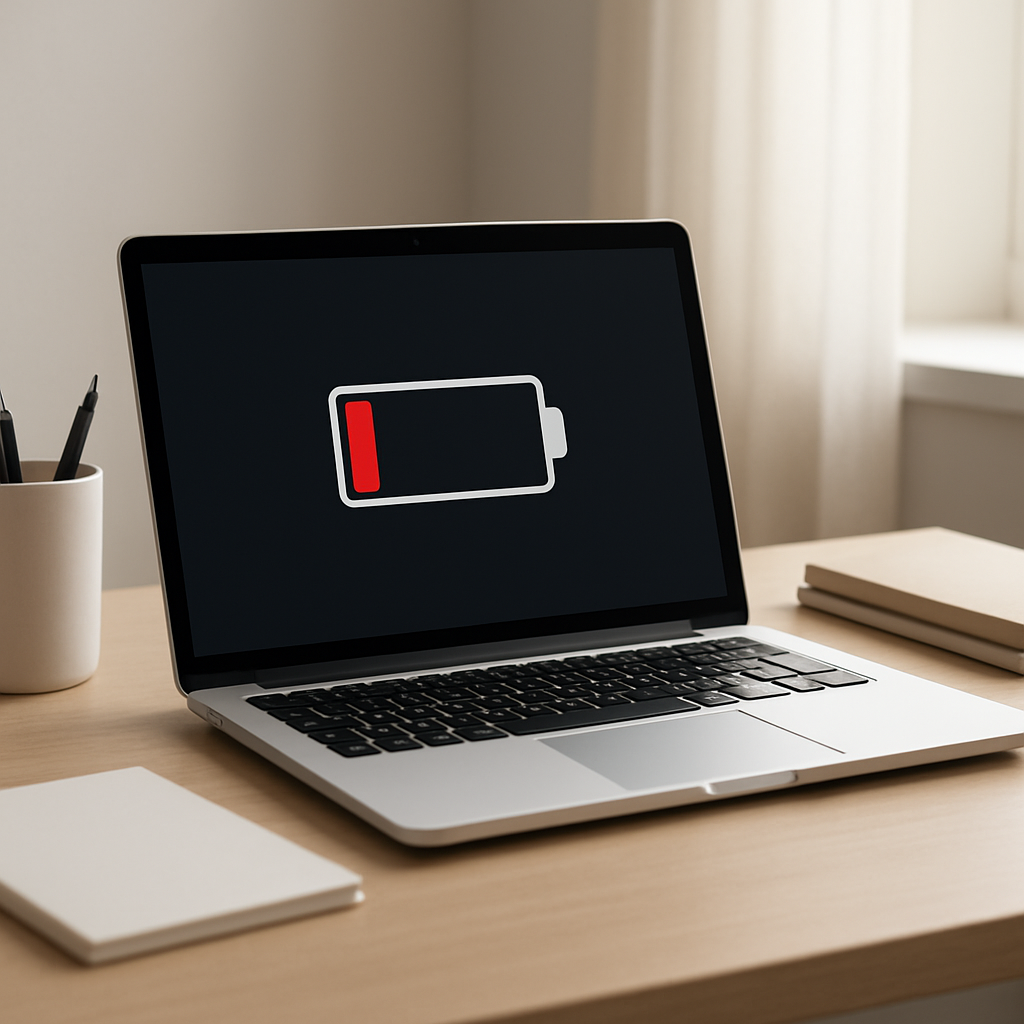
A laptop battery that suddenly drains faster than normal is usually caused by one of four things: a background app or system process using more power than it should, a power setting that changed (brightness, performance mode, sleep settings), normal battery wear reducing capacity, or the laptop failing to enter a true low-power sleep state.
If the change happened within the last few days, it’s often a software or settings issue. If battery life has been steadily shrinking over months (for example, losing 10–30 minutes every few months), battery wear is more likely.
If you need a fast fix
Lower screen brightness and switch to Battery Saver/Best Power Efficiency mode, then restart the laptop to clear stuck background tasks.
Disconnect unused USB devices (external drives, phone chargers, dongles) and turn off Bluetooth/Wi‑Fi if you don’t need them.
Fully shut down once (not sleep), then charge to 100% and use it normally to see if the drain pattern changes.
Quick Diagnosis Table
Symptom
Most likely cause
Battery drops quickly even when you aren’t doing much
Background processes (updates, sync, browser tabs, antivirus scan) or high-performance power mode
Battery is much lower after “sleep” in a bag or overnight
Sleep-state failure (Modern Standby/wake timers) or a device/app waking the laptop
Battery percentage falls fast from 100% to ~70%, then slows
Battery wear or calibration drift (capacity reduced, reporting less accurate)
Fans run often and the laptop feels warm on battery
High CPU/GPU usage, background indexing, driver issue, or overly aggressive performance settings
Battery life got worse right after an update or new app
Misbehaving driver/app, new startup item, or power plan reset to performance defaults
Why This Happens
Your laptop’s battery drains based on how much power the CPU, graphics, screen, wireless radios, and connected devices are using. When something keeps the system “busy” in the background, the laptop can’t lower power use, so the battery drops faster.
Common real-world examples include a browser with many tabs, a cloud-sync app re-uploading files, Windows/macOS updates running in the background, or a video call app keeping the camera and CPU active. Power settings also matter a lot: high brightness, high refresh rate, and performance mode can cut hours off runtime.
If sleep isn’t working properly, the laptop may look “off” but still runs network and background tasks, which can drain a large percentage overnight and sometimes make the laptop warm in a sleeve or bag.
Most Common Causes (Ranked)
1) Background processes using CPU/GPU: Updates, browser tabs, indexing, antivirus scans, and cloud sync can quietly spike usage and drain the battery even during light work.
2) Power settings misconfiguration: Performance mode, high brightness, keyboard backlight, high refresh rate, and “always on” wireless features can multiply power draw.
3) Battery wear (reduced capacity): Over time, batteries hold less charge, so “100%” simply doesn’t last as long as it used to, even if everything else is normal.
4) Sleep-state failures or unwanted wake-ups: Modern standby, wake timers, or USB/network devices can prevent deep sleep and cause large overnight drain.
5) Driver or firmware issues: A bad graphics, Wi‑Fi, or chipset driver can keep hardware in a high-power state and increase heat and fan noise.
6) Peripheral power draw: External drives, wireless dongles, and charging a phone from the laptop can noticeably shorten battery life.
If battery life improves gradually after you change one thing (like power mode or an app), that usually indicates you found the main cause rather than a failing battery.
How to Check the Problem Safely
Check 1: Look at battery usage by app in your system settings and identify anything unusually high compared to your normal use.
Check 2: Open Task Manager (Windows) or Activity Monitor (macOS) and sort by CPU usage to see if something is constantly near the top when you think the laptop is “idle.”
Check 3: Confirm your power mode and display settings: brightness level, refresh rate (if available), keyboard backlight, and whether Battery Saver is enabled.
Check 4: Test sleep: charge to a known level (for example 80%), put the laptop to sleep for 1–2 hours, then check the drop. A small drop is normal; a large drop points to sleep problems.
Check 5: Check battery health/capacity: on Windows, generate a battery report; on macOS, check Battery Health. Compare “full charge capacity” to the original design capacity if shown.
Safety note: if the laptop becomes hot while “sleeping” or inside a bag, stop using sleep for transport and fully shut down until the cause is found.
How to Fix It
Fix 1 (easiest): Switch to a battery-focused power mode, reduce brightness, and turn off keyboard backlight; these are the fastest, safest ways to cut power draw immediately.
Fix 2: Stop the biggest battery users: close heavy browser sessions, pause cloud sync temporarily, and disable unnecessary startup apps so they don’t run every time you boot.
Fix 3: Fix sleep drain: disable wake timers, turn off “wake on network,” and try hibernate instead of sleep if your laptop supports it; this prevents background activity when you expect the laptop to be resting.
Fix 4: Update smartly: install OS updates, then update key drivers (graphics, Wi‑Fi, chipset) from the laptop maker when possible; this helps hardware return to low-power states correctly.
Fix 5 (advanced/last resort): Rebuild power settings and recalibrate reporting: reset power plans to defaults (Windows) or reset SMC/NVRAM steps where applicable (macOS models that support it), then do one full charge-to-low cycle to improve battery percentage accuracy.
Signs of Battery or Hardware Damage
Battery swelling (trackpad bulging, bottom cover bowing, keys rubbing, or a rocking laptop on a flat surface).
Rapid drops in percentage (for example, 40% to 10% in minutes) even after a restart and with light use.
Unexpected shutdowns at moderate charge levels (like 20–50%).
Battery not charging past a certain percentage or charging that starts/stops repeatedly.
Overheating during normal tasks or the laptop getting hot while asleep and unplugged.
A battery health status that reports “service recommended” or extremely low full-charge capacity compared to design.
Electrical smells, crackling sounds, or any sign of leaking.
When Repair Is No Longer Worth It
If your laptop needs a new battery and it’s reasonably priced, that repair is often worth it because it restores mobility. But if you also have major issues like overheating, failing charging ports, or motherboard power problems, costs can stack up quickly.
As a simple rule, if the total repair estimate approaches 30–50% of the cost of a comparable replacement laptop, replacement is usually the better value. Consider your workload too: if you rely on long battery life daily, a new device may save time and frustration even if repairs are possible.
How to Prevent This Problem in the Future
Use a balanced or battery-saver power mode on battery, and only switch to performance mode when you truly need it.
Keep brightness as low as comfortable, and disable high refresh rate on battery if your laptop allows it.
Limit background apps: reduce startup items, keep browser tabs reasonable, and review which apps are allowed to run in the background.
Let updates finish while plugged in so long update tasks don’t run on battery when you’re mobile.
For travel, shut down or use hibernate instead of sleep if your laptop tends to wake in a bag.
Avoid regular heat buildup: keep vents clear and don’t block airflow on soft surfaces, since heat accelerates battery wear.
Practice gentle charging habits: frequent short top-ups are fine, but avoid leaving the battery at 100% in high heat for long periods if your laptop offers a charge limit feature.
FAQ
Why is my laptop battery draining fast even when I’m not using it?
This usually points to sleep-state problems or background activity that continues while the lid is closed. The laptop may be waking for updates, network activity, or a device driver that won’t enter low-power mode. Try a full shutdown overnight and compare the battery level to confirm whether sleep is the culprit.
Is it normal for battery life to get worse after a Windows or macOS update?
Yes, temporarily. Right after an update, the system may run indexing, optimization, or background setup tasks that increase CPU use for hours to a day or two. If the drain remains after several restarts and a couple of days, check battery usage by app and update key drivers.
How do I know if it’s battery wear or something running in the background?
Battery wear usually shows a gradual decline over months and a reduced full-charge capacity in battery health tools. Background drain tends to be sudden and often comes with heat, fan noise, or high CPU usage even when you aren’t doing much. If you close apps, switch to battery-saver mode, and the runtime improves noticeably, software/settings are the more likely cause.