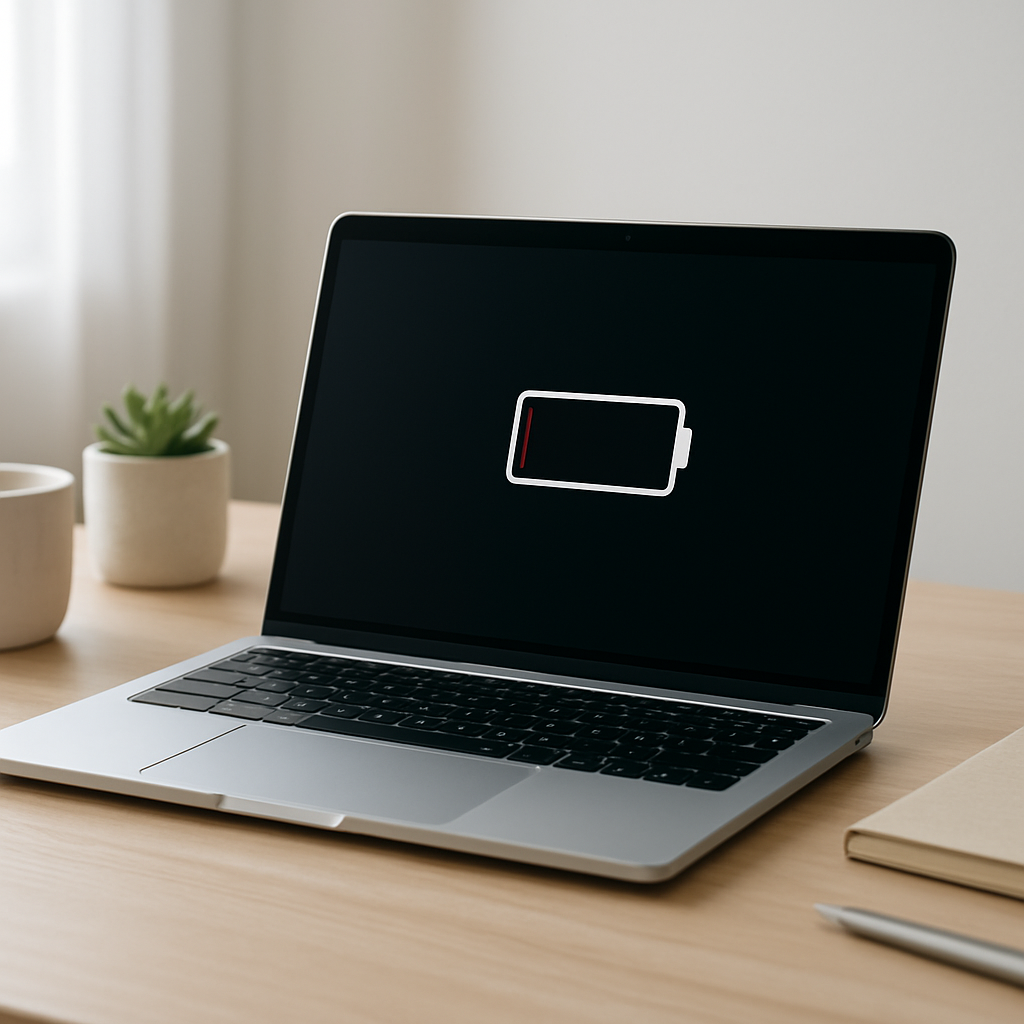
Laptop Battery Draining Immediately After Boot — Startup Power Surge Causes
Quick Answer
If your laptop battery drops fast right after you power on, the most common reason is a temporary startup power surge. During the first few minutes, the system is busy “initializing” everything at once: loading drivers, starting background services, syncing accounts, and running indexing or update checks.
This usually means your laptop is doing heavy work immediately after boot, so it draws more power than normal even if you are not opening apps. A noticeable spike is common for the first 2–10 minutes after startup, especially after updates or the first boot of the day.
If you need a fast fix
- Wait 5–10 minutes after boot before judging battery drain, and avoid launching heavy apps during that window.
- Turn on Battery Saver (or Low Power Mode) right after startup to cap background activity.
- Restart once (not shutdown) if the drain is extreme, because a restart often clears a stuck startup task.
Quick Diagnosis Table
| Symptom | Most likely cause |
|---|---|
| Battery drops 5–15% within minutes of logging in, then slows down | Normal startup initialization load (indexing, syncing, driver startup) |
| Fans ramp up right after boot even with no apps open | CPU spike from updates, antivirus scan, search indexing, or cloud sync |
| Drain happens every single boot and never settles | Stuck background process, failing driver, or constant update loop |
| Drain is worst after Windows/macOS updates or after long sleep | Post-update maintenance tasks and re-indexing after system changes |
| Battery percentage drops in chunks (for example 100% to 92% quickly) | Battery gauge recalibration issue or battery wear, amplified by startup surge |
Why This Happens
When you boot a laptop, it is not “idle” even if the desktop looks calm. Your system is launching services, checking for updates, loading hardware drivers, reconnecting Wi-Fi and Bluetooth, syncing email and cloud files, and rebuilding caches so apps open faster.
Indexing is a big one. Search and photo/file indexing can scan many files right after boot, and antivirus tools often do a quick scan when the system starts. If you use OneDrive, iCloud, Google Drive, Dropbox, or an email client, they may also sync immediately and pull data in the background.
The cause becomes the symptom like this: more startup tasks means higher CPU, disk, and network activity, which raises power draw, which makes the battery percentage fall quickly until those tasks finish.
Most Common Causes (Ranked)
- 1) Background indexing and maintenance: Search indexing, photo analysis, and system maintenance often run right after startup, especially after updates or after being off for a while.
- 2) Driver and device initialization spikes: Graphics, Wi-Fi, and audio drivers can briefly consume extra power while hardware wakes up and loads firmware.
- 3) Update checks and post-update chores: Windows Update, Microsoft Store, macOS software update checks, and app updates can trigger CPU and disk activity at login.
- 4) Cloud sync and email/account syncing: Sync tools frequently start immediately, re-check lots of files, and keep the CPU and network busy for several minutes.
- 5) Security scans at startup: Antivirus or endpoint tools may run startup scans or behavior analysis, which increases CPU use and fan speed.
- 6) A stuck startup process: If one task hangs (for example a driver service or update helper), the “temporary” surge becomes constant and drains the battery every boot.
If the drain improves after a few minutes and gets better over the next day or two, that usually indicates one-time indexing or update cleanup finishing normally.
How to Check the Problem Safely
- Check 1: After boot, wait 2 minutes, then check what is using resources. On Windows, open Task Manager and sort by CPU; on macOS, open Activity Monitor and sort by Energy or CPU.
- Check 2: Look for obvious “first suspects” like update services, search/indexing, cloud sync, or antivirus. High CPU plus high disk activity is a common sign of indexing or updates.
- Check 3: Compare battery drain after a restart versus after a full shutdown and power-on. If restart is better, a startup service or driver may be getting “stuck” on cold boot.
- Check 4: Check your battery usage screen for the past few hours and see which apps are responsible. This helps confirm whether the drain is system tasks or a specific app.
- Check 5: Note whether the fans stay loud beyond 10–15 minutes. Prolonged fan noise usually means the surge is not ending and something is looping.
Safety note: avoid installing “battery optimizer” tools from unknown sources, since they can add more background load and make the problem worse.
How to Fix It
- Fix 1 (easiest): Enable Battery Saver/Low Power Mode during the first 10 minutes after boot. It reduces background activity and limits performance spikes so the surge is smaller.
- Fix 2: Reduce startup apps. Disable non-essential startup entries (chat apps, game launchers, printer utilities) so fewer processes compete for CPU right after login.
- Fix 3: Let indexing finish, then prevent constant re-indexing. Keep the laptop plugged in for an hour after major updates, and ensure you have enough free disk space so indexing does not loop and thrash.
- Fix 4: Pause or schedule sync and updates. Set cloud sync to pause during battery use, and schedule big updates for when you are plugged in so the heaviest work does not hit right after boot.
- Fix 5 (advanced/last resort): Update or roll back problem drivers and check for BIOS/firmware updates. A bad graphics or Wi-Fi driver can cause repeated power spikes, and firmware updates can fix power-management bugs.
Signs of Battery or Hardware Damage
- Battery percentage drops rapidly at any time, not just after boot, and the laptop dies unexpectedly.
- The battery level jumps up and down (for example drops 10% in one minute, then holds steady).
- Run time is extremely short even after a full charge, and it does not improve after updates finish.
- The laptop gets unusually hot during light tasks or right after boot for long periods.
- The battery is swollen, the trackpad area bulges, or the bottom case does not sit flat.
- The laptop only works reliably on the charger or shuts down as soon as the charger is unplugged.
- You see “Service Battery” or health warnings in system settings, or the reported full charge capacity is far below design capacity.
When Repair Is No Longer Worth It
If the drain is mainly a brief startup surge and the laptop settles down after a few minutes, repair usually is not needed. But if the system stays hot, loud, and draining quickly after 15 minutes of uptime, you may be dealing with a failing battery, a problematic driver, or a deeper hardware issue.
As a rule, replacing the battery is worth it if the laptop is otherwise fast enough for your needs and the cost is reasonable compared to a new device. If the battery is expensive, unavailable, or the laptop is also slow due to age, putting that money toward a newer model often gives better value and better battery life.
How to Prevent This Problem in the Future
- After major updates, plug in for the first boot and let the laptop sit idle for 30–60 minutes so indexing and cleanup can finish without draining the battery.
- Keep startup apps minimal so boot is lighter and the battery spike is shorter.
- Schedule cloud sync and large backups for charging hours, or pause them automatically on battery.
- Keep drivers and the operating system updated, but avoid stacking multiple update tools that all run at login.
- Maintain free storage space so the system does not struggle with indexing and caching on a nearly full drive.
- Use the Balanced/Recommended power mode for daily use; reserve high-performance modes for plugged-in sessions.
- Shut down or restart occasionally if you mostly use sleep, since long sleep cycles can trigger heavier catch-up tasks at the next login.
FAQ
Why does my battery drain fastest right after I sign in?
Right after sign-in is when most background services start at once: updates, security checks, sync, and indexing. That raises CPU and disk activity, which increases power draw. If it settles down within 2–10 minutes, it is usually normal startup workload.
How much battery drop after boot is considered normal?
A small drop is common if the laptop is doing a lot in the background, especially on older batteries. A quick 2–8% drop can happen during a busy startup, then the drain rate should slow noticeably. If you lose 15–30% quickly or it keeps dropping fast beyond 15 minutes, investigate for a stuck process or battery wear.
Will a new battery fix startup drain?
A new battery can improve total run time, but it will not stop the startup surge itself if the cause is heavy background work. You will still see a brief spike in power use, just with more overall capacity to absorb it. If the drain is extreme only at boot and you also see high CPU usage from specific tasks, reducing startup load often helps more than replacing the battery.
For a full overview of this issue and step-by-step solutions, read the complete troubleshooting guide.