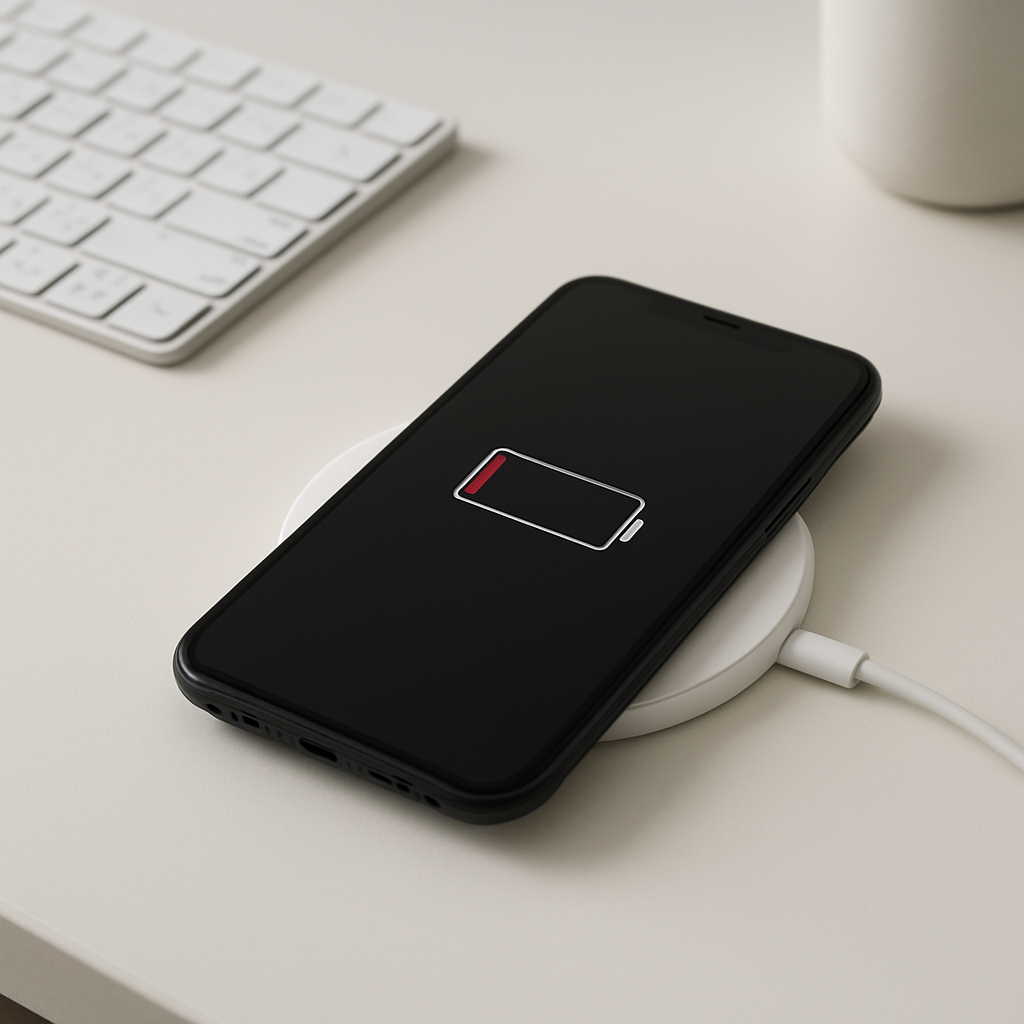
Device Charging Stops Before Full — Battery Protection or Charging Failure?
Quick Answer
Most of the time, a device that stops charging before 100% is not “broken” at all. It’s the battery protection system or charging controller intentionally pausing or slowing charging to reduce heat, extend battery lifespan, or avoid overcharging.
Common stop points are 80–95%, especially when the device is warm, being used while charging, or has an “optimized charging” feature enabled. It can also look like it stops for 10–60 minutes and then resumes, which is normal behavior on many phones, laptops, and tablets.
If you need a fast fix
- Unplug and let the device cool for 10–15 minutes, then charge again with the screen off.
- Switch to a known-good cable and the original (or certified) charger, then try a different wall outlet.
- Restart the device and disable any battery protection/optimized charging setting temporarily to test.
Quick Diagnosis Table
| Symptom | Most likely cause |
|---|---|
| Stops at 80% or 85% every day | Battery protection/charge limit feature is enabled (optimized charging or battery health mode) |
| Stops around 90–95% and the device feels warm | Thermal protection throttling charging to prevent heat damage |
| Stalls at a random % and then continues later | Charging controller is pausing due to temperature, background load, or adaptive charging schedule |
| Stops early only with one specific cable/charger | Charger/cable can’t maintain stable power, causing the device to stop or renegotiate charging |
| Never goes above the same % even overnight | Battery aging, port damage, or charging circuitry issue preventing full charge completion |
Why This Happens
Modern devices don’t “push power” into the battery nonstop until 100%. A charging controller actively manages the process, and it may slow down or stop at certain points to protect the battery.
A key detail is heat and battery stress near the top of charge. Going from about 80% to 100% creates more heat and wear than charging the first part, so many devices deliberately pause, trickle-charge, or wait until a better time (like just before you wake up).
In practice, this can look like a charging failure even when it’s normal: the percentage freezes, the icon still shows charging, or it stops at 80–95% until the device cools or the software decides to finish.
Most Common Causes (Ranked)
- 1) Battery protection or charge limit is enabled: Many phones and laptops have a setting that caps charging at 80% or 85% to reduce long-term battery wear.
- 2) Thermal protection (device is too warm): If the battery or charging chip gets hot, the controller can pause charging or refuse to complete the last 5–20%.
- 3) Optimized/adaptive charging schedule: Some devices intentionally hold at 80–90% and finish later based on your routine, which can look like it “stops early.”
- 4) Power delivery instability (charger, cable, or outlet): A weak adapter, damaged cable, or loose outlet can trigger repeated charge negotiations that stall charging before full.
- 5) High background usage while charging: Gaming, hotspot use, navigation, or heavy updates can consume power as fast as it comes in, so the percentage plateaus.
- 6) Battery aging or a charging/port hardware fault: An older battery may hit voltage limits early, or a worn port/circuit can prevent the controller from safely finishing the charge.
If the stopping point improves after cooling the device, changing the charger, or turning off heavy apps, that usually indicates protection logic rather than permanent damage.
How to Check the Problem Safely
- Check 1: Look for battery protection settings like Optimized Charging, Battery Health/Charging, or Charge Limit, and note any caps such as 80% or 85%.
- Check 2: Feel for heat: if the back, battery area, or charging brick is hot, unplug and let everything cool, then retry charging without using the device.
- Check 3: Swap one thing at a time: try a different cable first, then a different charger, then a different wall outlet to isolate the weak link.
- Check 4: Check the port for lint or looseness and see if the plug wiggles; a poor connection can cause charge stop/start behavior.
- Check 5: Watch the charging rate: if the device supports it, check battery settings or system info to see whether it drops from fast charging to slow/trickle at the stall point.
Safety note: do not use sharp metal tools to clean a charging port, and stop charging immediately if you notice swelling, burning smells, or excessive heat.
How to Fix It
- Fix 1 (easiest): Turn off battery protection/optimized charging temporarily and test once. This confirms whether the controller is intentionally stopping early rather than failing.
- Fix 2: Reduce heat while charging by removing thick cases, charging on a hard surface, and avoiding direct sunlight. Cooler batteries charge more consistently and are more likely to complete to 100%.
- Fix 3: Use a certified charger and cable that matches your device’s fast-charge standard. Stable power prevents the controller from pausing due to voltage drops or failed negotiations.
- Fix 4: Clean the charging port gently with a wooden toothpick or soft plastic pick and compressed air. Removing lint improves contact so charging doesn’t cut out near the top.
- Fix 5 (advanced/last resort): Update the operating system and battery/firmware components, then do a full restart and retest. If the device still stops at the same % across multiple chargers, consider a battery health check and service for the port or charging circuitry.
Signs of Battery or Hardware Damage
- Battery percentage drops quickly after unplugging (for example, 100% to 80% in minutes).
- The device shuts down unexpectedly at 20–40% or won’t power on unless plugged in.
- Battery swelling, a lifting screen, or a case that no longer sits flat.
- Charging port feels loose, the cable won’t stay seated, or charging cuts in and out when touched.
- Unusual heat during light use or while charging, especially near the battery area.
- Burning smell, discoloration around the port, or a charger that becomes excessively hot.
- Charging never exceeds a fixed number (like 67% or 73%) across different chargers and after cooling.
When Repair Is No Longer Worth It
If the device is older and needs both a battery replacement and a port or board repair, costs can add up quickly. In that case, the most practical choice is usually replacing the device, especially if you also have poor performance or limited software support.
As a rule, consider repair if the cost is clearly less than half the replacement price and the device otherwise meets your needs. If repair estimates approach the value of the device, put that money toward a newer model with a healthier battery and better charging protections.
How to Prevent This Problem in the Future
- Keep battery protection features enabled for daily use if you don’t need 100% every day, since capping at 80–85% can greatly reduce wear.
- Avoid charging in hot environments and don’t leave the device under pillows, blankets, or in a hot car while plugged in.
- Use quality chargers and cables and replace them when they show kinks, loose connectors, or inconsistent charging.
- Try not to run heavy tasks while charging; if you must, expect slower charging or a temporary plateau.
- Charge on a hard, ventilated surface and remove thick cases if you notice warmth near the top of charge.
- Keep software updated, since charging behavior and battery protection logic are often improved through updates.
- Occasionally let the battery run down and recharge normally (not constantly), which can help the percentage estimate stay accurate on some devices.
FAQ
Is it bad if my device never reaches 100%?
Not necessarily. Many devices intentionally stop at 80–95% to reduce battery stress, and some only finish to 100% right before your typical unplug time. If it still provides normal runtime and occasionally reaches 100% under cool, idle conditions, it’s usually working as designed.
Why does charging stop at 80% even though it says “charging”?
This is often a charge limit or optimized charging feature holding the battery at a safer level. The device may show “charging” while it powers the system and waits to complete the last portion later. Check battery settings for a limit toggle, schedule, or battery health mode.
How do I know if it’s the charger or the phone/laptop?
If the problem happens only with one cable or one adapter, the charger setup is the likely culprit. If it happens with multiple known-good chargers and outlets, especially at the same percentage, it points more toward battery health, port damage, or charging-controller behavior. Testing while the device is cool and idle helps separate heat protection from true hardware failure.
For a full overview of this issue and step-by-step solutions, read the complete troubleshooting guide.