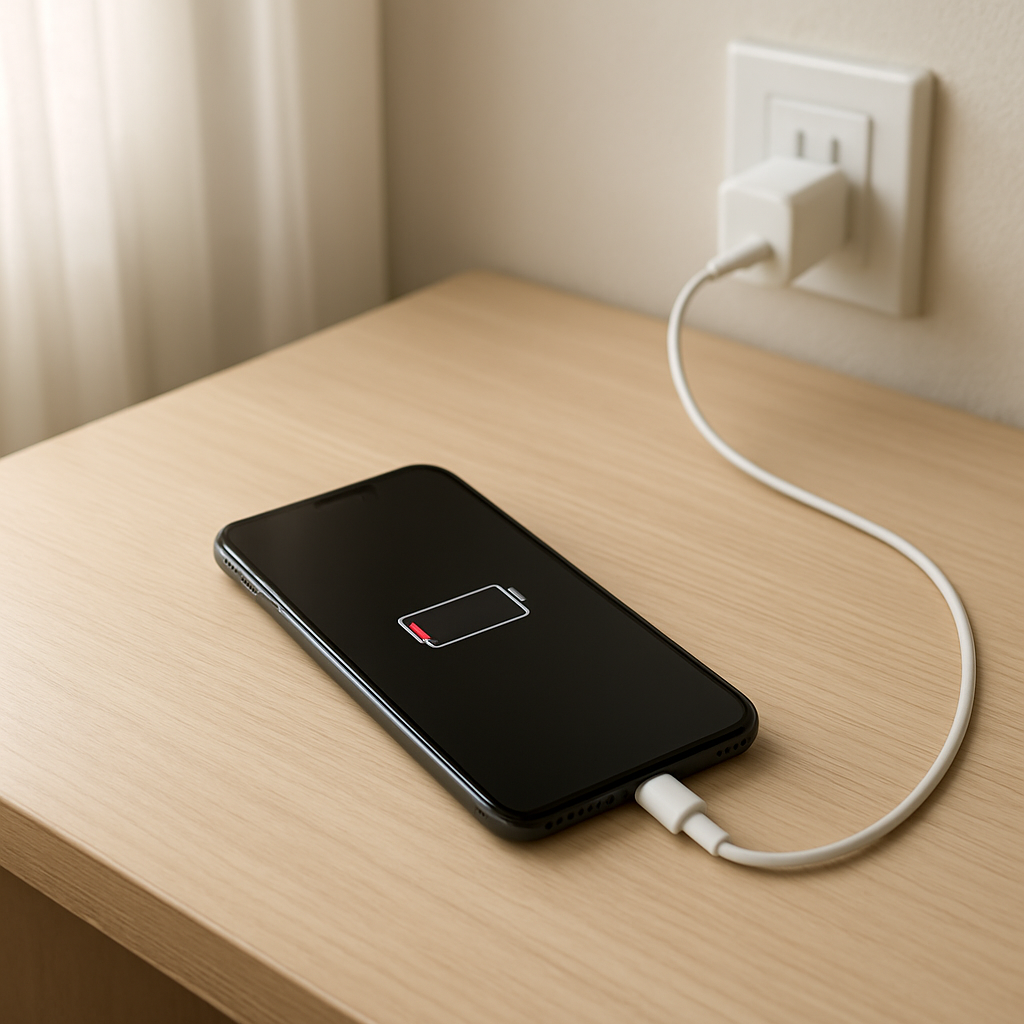
Device Charging Slow Issue
Quick Answer
Slow charging usually happens because your device is not receiving enough power from the charger, cable, or port, or because the device is using power as fast as it’s coming in. Heat can also force the device to “throttle” charging to protect the battery, and an older battery may charge more slowly near the top or behave unpredictably.
On most phones and tablets, a healthy “fast” charge often adds roughly 40–60% in about 30 minutes with the right charger and cable, then slows down after about 80%. If your device takes much longer than it used to, the goal is to identify whether the bottleneck is power delivery, background usage, temperature control, or battery health.
If you need a fast fix
- Use the original (or known-good) fast charger and a high-quality cable, and plug directly into a wall outlet.
- Turn on Airplane mode (or power off the device) for 15–20 minutes while charging to reduce background power drain.
- Let the device cool: remove thick cases, stop gaming/video calls, and charge in a shaded, room-temperature spot.
Quick Diagnosis Table
| Symptom | Most likely cause |
|---|---|
| Charges normally when powered off, but slowly when in use | Background power consumption exceeds the charger’s input (apps, screen, hotspot, navigation) |
| Charging is slow only in warm conditions or after heavy use | Thermal regulation throttling to protect the battery and internal components |
| Works fine with one cable/charger but not another | Limited power delivery from the charger, poor-quality cable, or wrong charging standard |
| Charging icon appears/disappears, or needs cable wiggling | Dirty/damaged port, worn cable connector, or loose internal port connection |
| Gets to 80% quickly but crawls from 80–100% | Normal charge taper, optimized charging enabled, or early signs of battery wear |
Why This Happens
Charging speed is a balance between incoming power and what your device can safely accept. If the charger and cable can only deliver a small amount of power, the battery fills slowly no matter what you do.
Even with a strong charger, your device may spend that power running the screen, apps, mobile data, GPS, or game graphics. In that case, the battery percentage rises slowly because the device is “charging and draining” at the same time.
Heat changes everything. When the battery gets warm, many devices reduce charging speed to prevent damage, which turns a fast charger into a slow one until temperatures drop.
Most Common Causes (Ranked)
- 1) Low power from the charger: A small wattage adapter, an old USB port on a computer, or a cheap multiport charger may cap power well below what your device expects.
- 2) Cable limits or cable damage: Some cables are “charge-only” or thin and can’t carry higher current reliably, so your device falls back to a slower mode.
- 3) Dirty or worn charging port: Pocket lint can prevent the connector from fully seating, causing intermittent contact and reduced power delivery.
- 4) Background use while charging: Video streaming, gaming, navigation, hotspot, and high screen brightness can consume most of the incoming power.
- 5) Thermal throttling: Charging in a hot car, under a pillow, or while running demanding apps can trigger a safety slowdown.
- 6) Battery health degradation: An aging battery may charge unevenly, heat up more easily, and spend longer in slow “top-off” behavior.
If charging improves gradually after you switch to a better charger/cable or cool the device down, that usually indicates the problem was power delivery or temperature rather than a sudden battery failure.
How to Check the Problem Safely
- Check 1: Try a known-good wall charger and cable that support your device’s fast charging, then charge for 10 minutes and compare the percentage added.
- Check 2: Compare wall outlet vs computer USB port vs power bank. If the wall outlet is much faster, the other source is power-limited.
- Check 3: Reduce load: enable Airplane mode, lower brightness, and close heavy apps, then check whether the rate improves within 5–10 minutes.
- Check 4: Feel for heat. If the device is warm or hot, stop heavy usage, remove the case, and let it cool before judging charging speed.
- Check 5: Inspect the port and cable ends. If you see lint or debris, clean carefully with a dry wooden toothpick or soft brush, then retest.
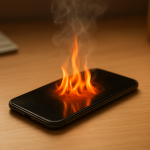
Safety note: do not use metal tools to clean a port, do not charge under bedding, and stop using any cable/adapter that is overheating, sparking, or smells like burning plastic.
How to Fix It
- Fix 1 (easiest): Switch to a higher-watt, reputable charger and a certified cable. This removes the most common bottleneck: limited power delivery.
- Fix 2: Plug directly into a wall outlet and avoid hubs, extension USB cables, and car USB ports that often provide low power. A stable power source prevents repeated slow-charge fallbacks.
- Fix 3: Reduce background drain while charging by turning off hotspot, closing navigation/video apps, and enabling Airplane mode. If the device isn’t spending power, the battery can actually gain it.
- Fix 4: Manage heat: charge in a cool room, remove thick cases, and avoid using the device during charging. Cooler batteries are allowed to charge faster and more consistently.
- Fix 5 (advanced/last resort): Check battery health in system settings (if available) or run a trusted diagnostic app, then consider battery replacement if capacity is significantly reduced or the device throttles constantly. A worn battery can be the long-term cause of repeated “slow charge” behavior.
Signs of Battery or Hardware Damage
- Battery percentage jumps up or down noticeably (for example, drops 10–20% suddenly).
- Device gets unusually hot while charging even with light use and a known-good charger.
- Battery swelling, screen lifting, or a case that no longer fits properly.
- Charging only works at certain angles, or the connector feels loose in the port.
- Frequent “moisture detected,” “accessory not supported,” or repeated connect/disconnect alerts with multiple cables.
- Charging stops around the same percentage every time, or the device shuts down early despite showing charge.
- Visible scorching, discoloration, or melted plastic on the port, cable end, or adapter.
When Repair Is No Longer Worth It
If the device needs both a new battery and a port repair, or it overheats even after trying multiple good chargers and cables, replacement may be more practical. Older devices can also charge slowly due to aging internal power management parts, which are usually not cost-effective to fix.
As a simple rule, if repair costs approach 30–50% of the price of a comparable replacement device, consider replacing instead. If you rely on the device daily, also factor in downtime, data backup effort, and the risk of the problem returning.
How to Prevent This Problem in the Future
- Use reputable chargers and certified cables that match your device’s fast-charging standard.
- Avoid charging while doing high-load tasks like gaming, video calls, or hotspot use when you need the fastest charge.
- Keep the device cool: don’t charge in direct sun, hot cars, or under pillows and blankets.
- Clean the charging port gently when needed and keep the device out of lint-heavy pockets or bags.
- Replace frayed or loose cables early, since they often cause slow charging before they fail completely.
- Don’t routinely push the battery to extreme heat or constant 0–100% cycles; moderate use reduces long-term battery wear.
- If your device offers optimized charging, use it for overnight charging to reduce battery stress, and use a fast charger when you need quick top-ups.
FAQ
Why does my device say “Charging” but the percentage barely moves?
The device may be receiving some power, but not enough to overcome what it’s using at the same time. Screen brightness, mobile data, navigation, games, and background syncing can consume most of the incoming power. Test by enabling Airplane mode or powering off for 15 minutes and comparing the increase.
Is it normal that charging slows down after 80%?
Yes, this is often normal. Many devices intentionally slow charging near 80–100% to reduce heat and protect battery health. If charging is only slow at the top but fast below 70–80%, that usually points to normal tapering or an “optimized charging” feature rather than a faulty charger.
Can a cable really make charging that much slower?
Yes. Some cables can’t carry higher current reliably, and damaged connectors increase resistance, which reduces power and creates heat. Using a certified, good-quality cable and a compatible fast charger is one of the quickest ways to confirm whether power delivery is the bottleneck.
For a full overview of this issue and step-by-step solutions, read the complete troubleshooting guide.