Charging Cable Overheating Laptop — Power Load or Cable Quality Issue?
Quick Answer
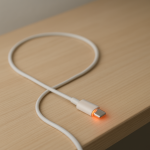
Most of the time, a laptop charging cable overheats because the cable has too much electrical resistance while your laptop is pulling a high, steady amount of power. That resistance turns some electricity into heat, and the heat shows up most at the ends (near the plug) or at any thin, damaged, or low-quality section of cable.
This often happens within 10–30 minutes of heavy use (gaming, video calls, exporting video, charging from low battery), when the charger is working hardest. Mild warmth can be normal, but a cable that’s hot to the touch, smells “plastic-y,” or gets hotter over time is a problem you should address soon.
If you need a fast fix
- Unplug the charger from the laptop and wall, let everything cool for 10 minutes, then plug back in firmly and straight (no strain on the connector).
- Reduce load immediately: close heavy apps, switch to “Battery saver,” and let the laptop charge while idle for 15–30 minutes.
- Stop using the cable if it becomes hot, soft, discolored, or smells burnt, and switch to a known-good OEM or certified replacement.
Quick Diagnosis Table
| Symptom | Most likely cause |
|---|---|
| Cable gets hottest near the laptop plug | High resistance at the connector from wear, dirt, or a loose fit causing local heating |
| Cable warms along its length during gaming or heavy work | Sustained high power draw plus a thin/cheap cable with higher resistance |
| Only heats when using a dock/adapter or extension | Extra connection points add resistance; lower-quality adapters can bottleneck current |
| Charging is slow and the cable is hot | Voltage drop from resistance; the laptop requests power but the cable can’t deliver efficiently |
| Intermittent charging (connect/disconnect) plus heat | Damaged cable strands, bent plug, or worn port causing arcing-like micro interruptions and heat |
Why This Happens
When your laptop charges, current flows through the cable. If the cable or its connectors have higher resistance (from thin wires, poor materials, damage, or a weak connector), part of that energy becomes heat instead of useful charging power.
A common real-world example is charging while running a demanding task. Your laptop may be using 60–140 watts and also trying to recharge the battery, so the cable carries high current for a long time. Even a small increase in resistance can make the cable and plug noticeably hotter, especially near the ends.
In short, sustained high load plus higher-than-normal resistance leads to heat, and that heat is your warning that the cable is wasting power and may be unsafe if it continues.
Most Common Causes (Ranked)
- 1) High-resistance cable under high power draw: Thin conductors, poor copper quality, or long cable length can raise resistance, and the heat shows up when your laptop pulls steady power.
- 2) Loose or worn connector (USB-C or barrel): A slightly loose fit increases resistance at the contact point, so the plug area gets hot even if the rest of the cable feels normal.
- 3) Cable damage near bends: Repeated flexing near the laptop end or charger brick can break strands inside the insulation, forcing remaining strands to carry more current and heat up.
- 4) Non-rated or fake “high-watt” cable: Some cables claim 100W/240W but aren’t built for it, so they run hot when actually pushed to that level.
- 5) Extra adapters, docks, or extensions in the chain: Each connection adds a small amount of resistance, and a weak link can become the hot spot.
- 6) Hot environment or blocked ventilation near the charger brick: Warm ambient air and poor airflow can make a borderline cable feel “too hot” because the whole system starts warmer.
If replacing or repositioning the cable reduces heat over several charging sessions, that gradual improvement usually indicates resistance was the main issue rather than a battery defect.
How to Check the Problem Safely
- Check 1: With the laptop idle, plug in and feel for heat after 5, 10, and 20 minutes, touching only the outside insulation. Note where it’s hottest: laptop-end plug, middle of cable, or charger-end plug.
- Check 2: Inspect the cable in good light for shiny spots, kinks, flat sections, cracking, or discoloration, especially within 5 cm of each end.
- Check 3: Reseat connections: unplug, then plug back in firmly. A connection that feels loose, wobbly, or only charges at a certain angle is a red flag.
- Check 4: Compare behavior under load: try charging while the laptop is sleeping or powered off for 20 minutes. If heat drops a lot, the cable may be marginal and overheating mainly under higher current.
- Check 5: If you have a second known-good charger and cable of the correct wattage, test with that set. If the heat disappears, your original cable is the likely culprit.
Safety note: if the cable is hot enough that you can’t keep a finger on it comfortably, unplug it and stop testing until you replace the suspect part.
How to Fix It
- Fix 1 (easiest): Reduce charging load temporarily by closing heavy apps and letting the laptop charge while idle. Lower current means less heat from resistance.
- Fix 2: Replace the cable with an OEM or properly certified cable rated for your laptop’s maximum wattage. A thicker, correctly rated cable lowers resistance and stays cooler.
- Fix 3: Remove adapters and simplify the chain (direct wall outlet to charger to laptop). Fewer connections reduce resistance and eliminate hot spots at weak links.
- Fix 4: Address strain and bend points: route the cable so the plug goes straight into the laptop, and avoid tight bends at either end. This prevents strand breakage that increases resistance.
- Fix 5 (advanced/last resort): If the laptop port is loose or the connector overheats even with a new cable, have the charging port inspected and repaired. A worn port can create resistance and heat no matter what cable you use.
Signs of Battery or Hardware Damage
- Persistent burnt smell from the cable, plug, charger brick, or laptop port
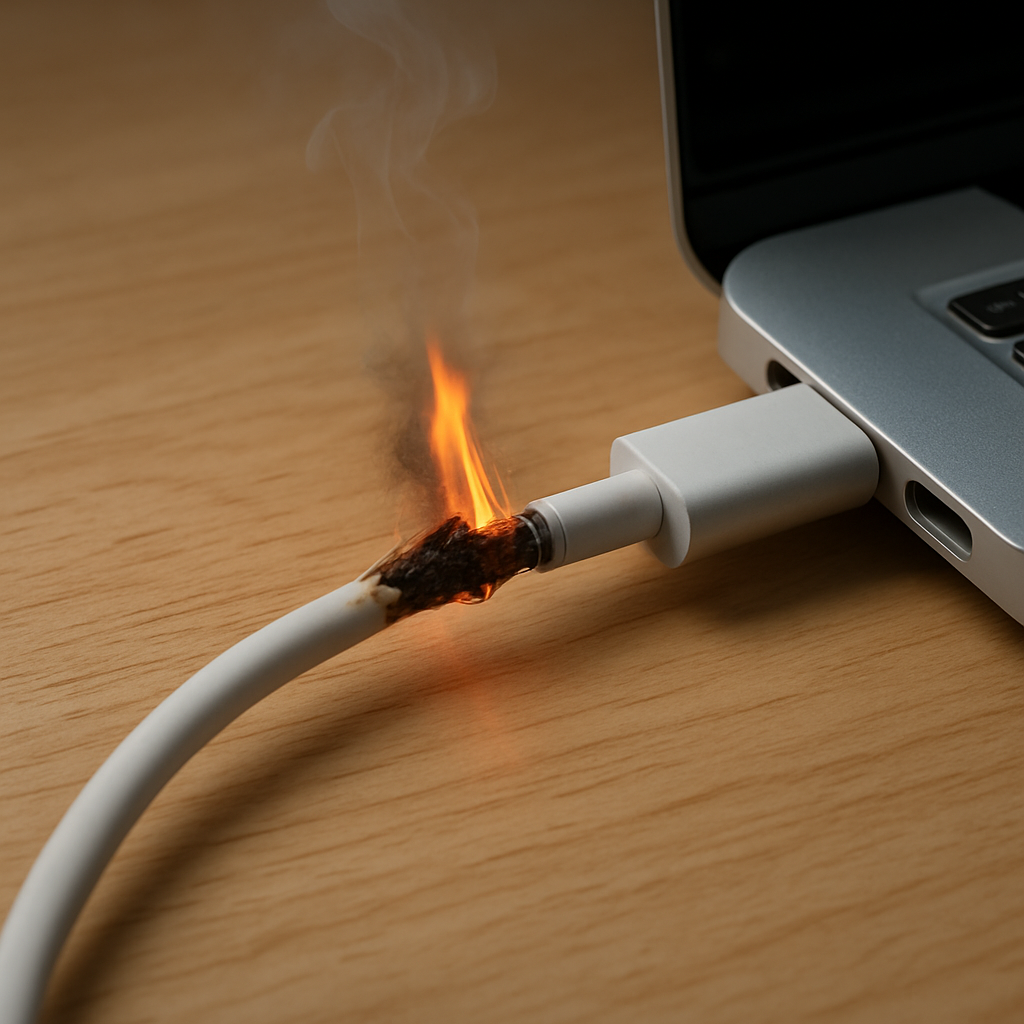
- Visible melting, bubbling, or softening of cable insulation or the connector housing
- Charging stops and starts repeatedly, especially if the plug is touched or moved
- Laptop reports “not charging” or “slow charger” even with the correct wattage adapter
- Sparks, crackling sounds, or scorch marks on the connector or port
- Battery swelling, trackpad lifting, or the bottom case bulging
- Charger brick becomes extremely hot or shuts off until it cools
When Repair Is No Longer Worth It
If the cable has any signs of melting, exposed wire, or a loose connector that heats up quickly, replacement is the right call. Charging cables are consumable parts, and once internal strands or connector contacts degrade, the problem usually returns.
As a rule, replace the cable first (low cost, high safety impact). If a new known-good cable and correct-wattage charger still run hot at the port or the connection is physically loose, compare the cost of port repair against the laptop’s age and value, since port work can approach a significant fraction of an older laptop’s worth.
How to Prevent This Problem in the Future
- Buy cables rated for your laptop’s real charging wattage, not just “fast charge” marketing, and prefer reputable brands or OEM parts.
- Keep the cable short and appropriately thick for high power; longer cables generally have more resistance.
- Avoid tight bends and repeated yanking at the connector; use gentle cable routing and strain relief.
- Don’t coil a charging cable tightly while in use, especially under high load, since trapped heat can build up.
- Charge under lighter load when possible (sleep/idle) if you notice warmth during gaming or heavy workloads.
- Keep ports and connectors clean and lint-free so contacts seat fully and don’t heat up from poor contact.
- Replace a cable at the first sign of looseness, intermittent charging, or discoloration, before overheating becomes severe.
FAQ
Is it normal for a laptop charging cable to get warm?
Slight warmth can be normal, especially near the charger brick or the plug, because power conversion and current flow generate some heat. It should not be uncomfortably hot, smelly, or getting hotter the longer it’s plugged in. If it’s hot to the touch, that points to excess resistance or a poor connection.
Can an overheating cable damage my laptop or battery?
Yes. Excess heat at the connector can damage the charging port over time and may cause unstable charging, which stresses components. In severe cases, melted insulation or a failing connector can create a fire risk, so treat repeated overheating as a replace-now issue.
Will using a higher-watt charger fix the overheating?
Not usually, and it can make things worse if the cable is the weak link. The key is using the correct wattage charger for your laptop and a cable that is rated to carry that power safely. If your laptop and charger can negotiate higher power, a low-quality cable may overheat even more.
For a full overview of this issue and step-by-step solutions, read the complete troubleshooting guide.